How to Fix a Stuck Printer Queue (Complete Print Queue & Print Spooler Troubleshooting Guide)
When documents pile up and refuse to print, a stuck print queue is almost always to blame. This beginner-friendly guide explains what the queue and print spooler do, why jobs get stuck, and how to clear them for good on Windows and macOS — from a quick cancel to a full spooler reset.
Applies to: USB & network printers, Windows 11 & Windows 10, macOS 12 and later, Home & office printers
Quick summary
- The problem
- Your documents get stuck in the print queue — they sit there showing "Printing" or waiting forever, new jobs won’t print, and often you can’t even cancel them.
- The fix
- Cancel the stuck jobs and resume the queue if it’s paused, then power-cycle the printer and restart the computer. If the queue still won’t clear, restart the Print Spooler service (Windows) or reset the printing system (macOS), clear any leftover spool files, and re-add the printer before printing a test page.
- Applies to
- USB and network printers on Windows 11, Windows 10, and macOS.
On this page Show
Understanding the problem
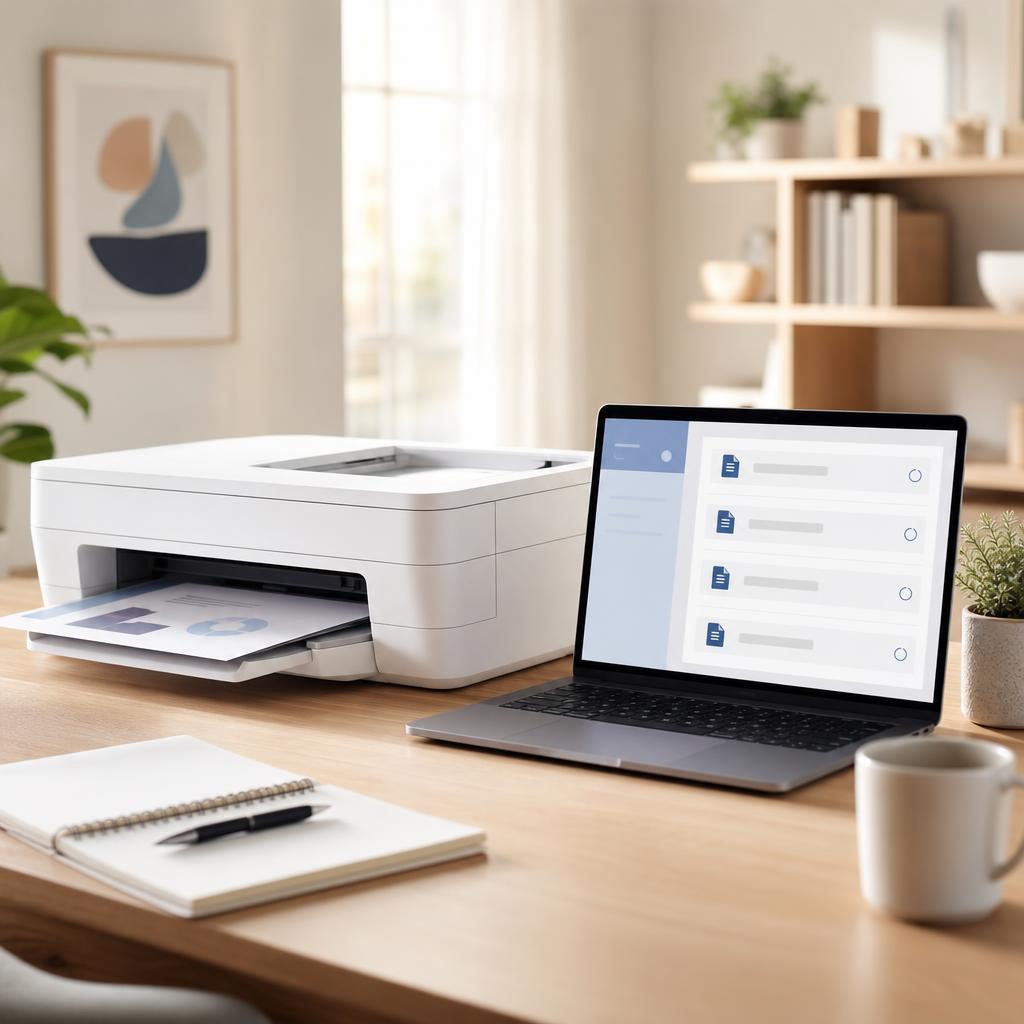
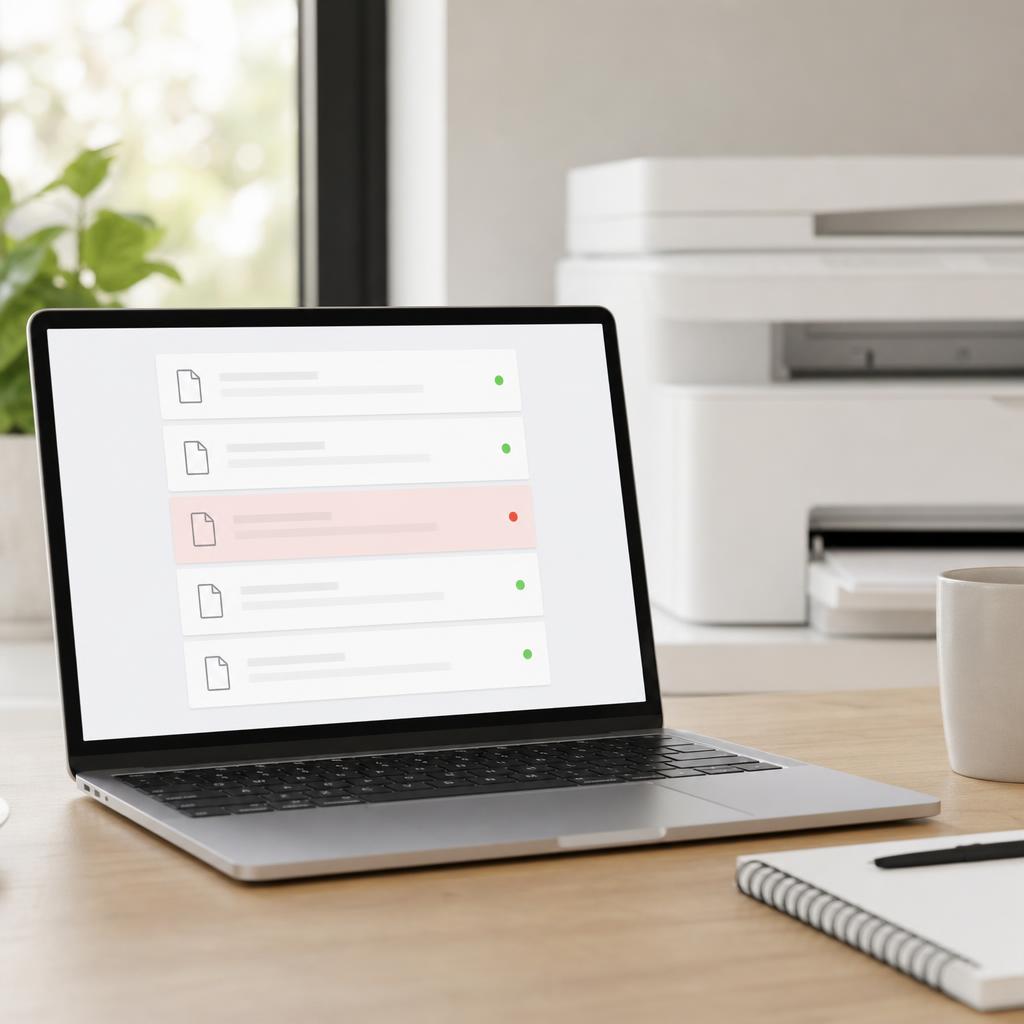
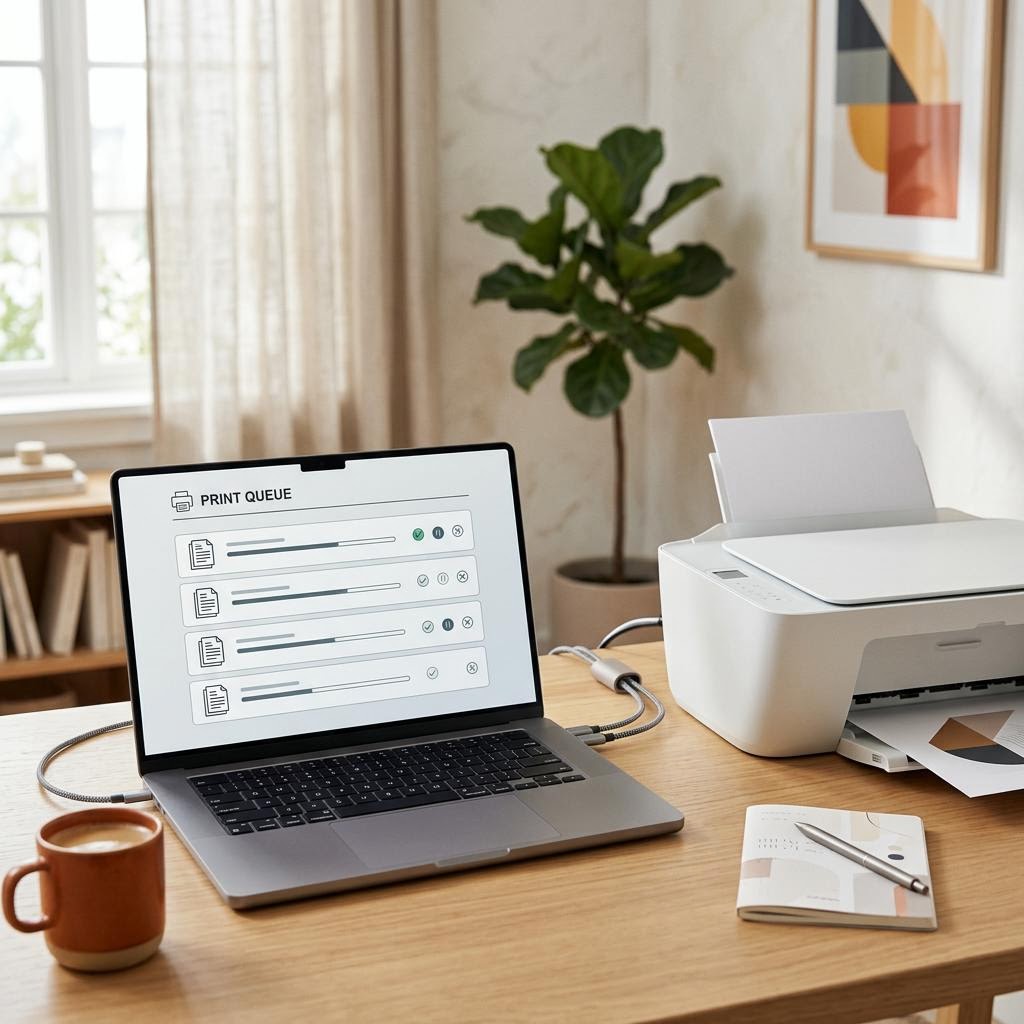
The print queue is simply the waiting line for your documents. Every time you print, your computer doesn’t send the file straight to the printer — it adds it to a list of jobs that print one after another. That waiting line is the queue, and normally jobs join it, print, and drop off it within seconds, so you never even notice it’s there.
Managing that line is a background helper called the print spooler. On Windows it’s a service called "Print Spooler"; on a Mac the printing system does the same job. The spooler takes each document, holds it, and feeds it to the printer at a pace the printer can handle, so you can carry on working while your pages print. When everything is healthy, the spooler quietly hands jobs over and clears them as they finish.
Jobs get stuck when the spooler or a document in the line runs into trouble. A single corrupted print job, a printer that goes offline mid-print, a dropped USB or Wi-Fi connection, or a spooler that freezes can all stall the whole queue. Once one job is jammed, everything behind it waits too — which is why documents sit showing "Printing" forever, new pages never come out, and the jobs sometimes refuse to cancel. The good news is that a stuck queue is almost always fixable in a few minutes, and this guide works from the quickest fixes up to a full spooler reset on both Windows and macOS.
Terminology
The print spooler is a queue
The print spooler holds jobs in a queue before sending them to the printer. Restarting it is a common fix for stuck or frozen print jobs.
Signs you're in the right place
If you're seeing any of these, this guide is for you.
-
Documents stay stuck in the queue
Your files sit in the print queue and never leave, no matter how long you wait.
-
Print jobs never finish
Printing seems to start but the job never completes and no pages come out.
-
A job says "Printing" forever
The queue shows a document as "Printing" indefinitely without anything happening.
-
The printer accepts jobs but doesn’t print
Documents disappear into the queue and the printer stays silent.
-
You can’t cancel a print job
You click cancel or delete, but the stuck job simply won’t go away.
-
The queue keeps pausing itself
Printing repeatedly switches to paused, so nothing prints until you resume it.
-
Duplicate copies pile up
Resending a job that never printed leaves several identical copies waiting in the queue.
What's usually behind it
The most common reasons this happens, so the fix makes sense.
A frozen print spooler
If the spooler service crashes or hangs, it stops feeding jobs to the printer and the whole queue stalls.
A corrupted print job
One damaged or incomplete document can jam the queue and block every job lined up behind it.
The printer is offline
If the printer shows offline, jobs still enter the queue but have nowhere to go, so they pile up.
A driver problem
A missing, outdated, or corrupted driver can stop the computer and printer communicating cleanly, leaving jobs stuck.
A network interruption
A brief Wi-Fi or network drop mid-print can leave a job half-sent and frozen in the queue.
A USB communication failure
A loose cable or a glitchy USB connection can interrupt a job so the queue can’t finish sending it.
A Windows update
An update can reset printing settings or restart the spooler, occasionally leaving old jobs wedged in the queue.
Printer memory problems
A large or complex document can overwhelm the printer’s limited memory, so it stops partway and holds up the line.
Queue or spooler-file corruption
Leftover, damaged spool files on the computer can keep re-jamming the queue until they’re cleared out.
What you'll need
Have these on hand before you start for a smooth fix.
-
The printer powered on and ready
Make sure it’s awake and showing a ready status before you start.
-
Paper and ink or toner loaded
A job can stall waiting on an empty tray or an empty cartridge.
-
A working USB or Wi-Fi connection
Confirm the printer is actually connected, not just switched on.
-
Access to your computer’s settings
You’ll open Printers & scanners or Printers & Scanners to reach the queue.
-
Administrator permissions
Restarting the Print Spooler service or clearing spool files needs an admin account on Windows.
-
A few minutes without printing
Pause any automatic printing so new jobs don’t join the queue while you clear it.
How to fix it
Work through these in order — they run from the quickest checks to the more advanced fixes.
-
Step 1: Check the printer is on and online
Confirm the printer is switched on, awake, and showing a ready status with no error on its display.
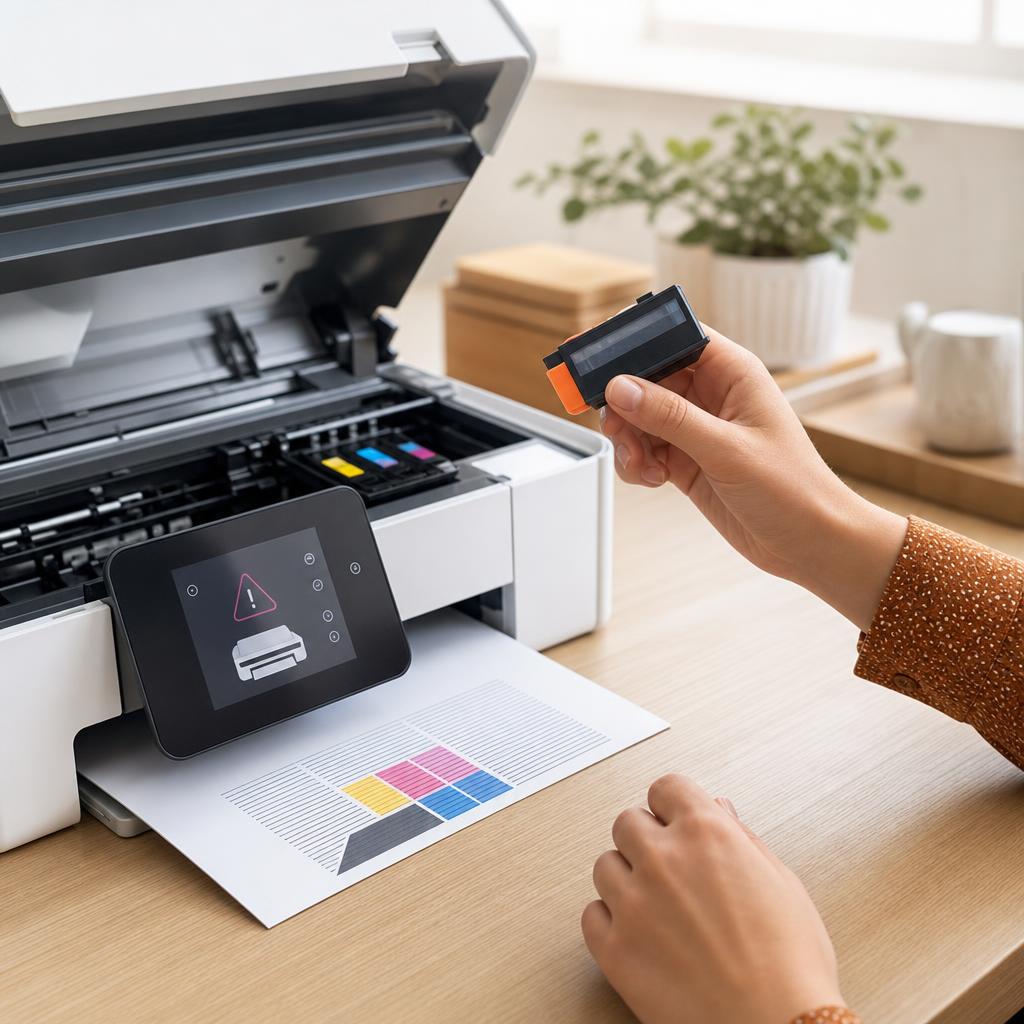
Make sure it has paper and enough ink or toner — a job can stall silently waiting on either.
In your computer’s printer settings, check the printer doesn’t say "Offline"; if it does, set it back online before continuing.
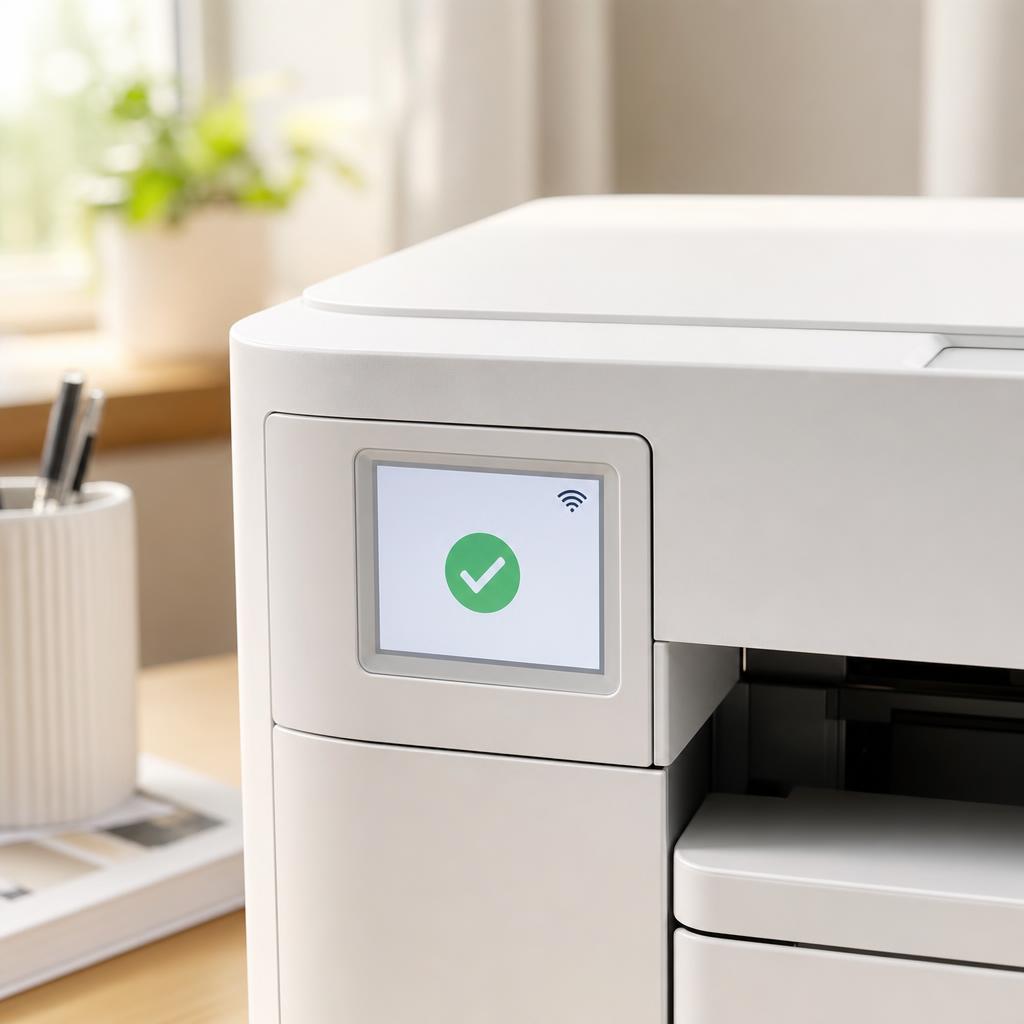
Why this works: A queue can only move if the printer is actually ready to receive jobs. An offline, sleeping, or out-of-paper printer is the most common reason documents sit waiting, and it takes seconds to rule out.
Expected result: The printer is powered on, online, and ready, with paper and ink or toner available.
The printer shows a ready status and is listed as online on your computer.
-
Step 2: Open the print queue and cancel the stuck jobs
On Windows, open Settings → Bluetooth & devices → Printers & scanners, select your printer, and choose "Open print queue".
On macOS, open System Settings → Printers & Scanners, select your printer, and click "Open Print Queue".
Select the stuck job (usually the one at the top) and click Cancel or Delete; then clear the rest so the line is empty.
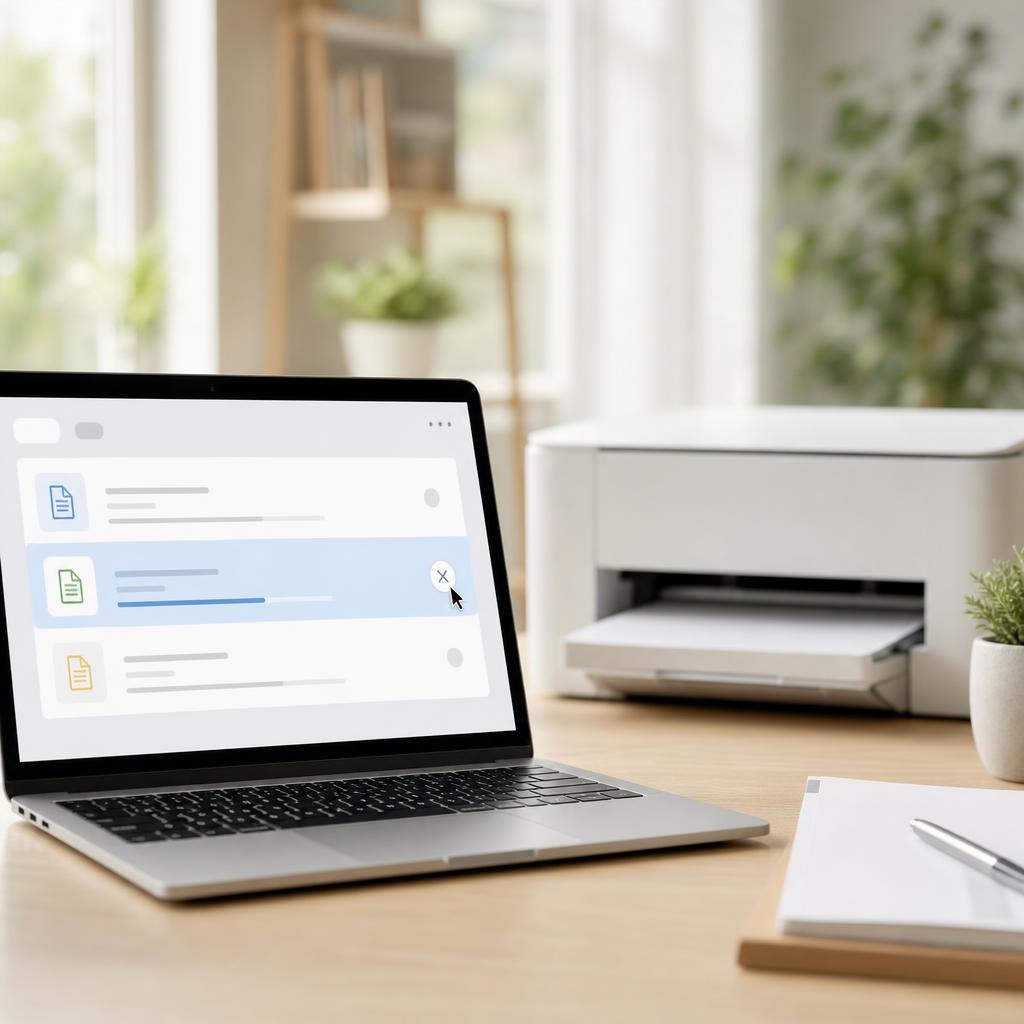
Why this works: The job at the front of the line is usually the one that’s jammed. Removing it — and any duplicates behind it — often lets printing start again immediately without any deeper fixes.
Expected result: The stuck jobs are removed and the queue is empty or moving again.
If a job refuses to cancel, don’t keep clicking — leave it for now and move to the spooler steps below, which force it out.
-
Step 3: Resume printing if the queue is paused
In the open print queue, look for a "Resume" option or a "Pause"/"Printing paused" indicator.
On Windows, open the Printer menu in the queue window and make sure "Pause Printing" is not ticked.
On macOS, click the Resume button in the queue toolbar if printing is paused.

Why this works: A queue that’s quietly paused holds every job without any error, so it looks stuck when it’s simply waiting. Resuming it is a one-click fix that’s easy to overlook.
Expected result: Printing is set to active and the queued jobs begin to process.
The queue no longer shows "Paused" and jobs start moving.
-
Step 4: Turn the printer off and back on
Switch the printer off, wait about 30 seconds, then turn it back on and let it return to a ready state.
This clears the printer’s internal memory, which can hold a half-received job that’s blocking new ones.
Once it’s ready, check whether the queued documents now print.
Why this works: Printers keep pending jobs in their own memory as well as on the computer. A power cycle empties that memory and often releases a job the printer was stuck on.
Expected result: The printer restarts cleanly and any job held in its memory is cleared.
-
Step 5: Restart your computer
Save your work and restart the computer fully — don’t just close the lid or sleep it.
A restart also restarts the print spooler and clears temporary glitches that can freeze the queue.
After it boots, open the print queue again and try printing a document.
Why this works: Many queue problems are temporary software hiccups. Restarting gives the whole printing system — spooler included — a clean start, which resolves a surprising number of stuck queues.
Expected result: The computer restarts and the queue is clear or accepts new jobs normally.
-
Step 6: Clear every job from the print queue
Open the print queue again and remove all remaining jobs, not just the one at the top.
On Windows, use the Printer menu → "Cancel All Documents" to empty the list in one step.
On macOS, select each job and click the small X to delete it until the queue is empty.
Why this works: A single corrupted job can keep re-jamming the line even after a restart. Clearing the entire queue removes the bad document along with everything stacked behind it, giving printing a clean slate.
Expected result: The queue is completely empty with no leftover or "deleting" jobs.
If a job stays stuck on "Deleting" and won’t disappear, that points to a frozen spooler — the next step fixes it.
-
Step 7: Restart the Print Spooler service (Windows)
Press Windows + R, type services.msc, and press Enter to open the Services window.
Scroll to "Print Spooler", right-click it, and choose Restart (or Stop, then Start).
Open your print queue again — stuck jobs are usually gone, and you can now print normally.

Why this works: The spooler is the service that manages the whole queue. When it freezes, jobs get wedged and won’t cancel. Restarting it releases those jobs and is the single most effective fix for a queue that won’t clear.
Expected result: The Print Spooler restarts and the stuck jobs are released from the queue.
The queue is empty after the restart and a new document prints.
-
Step 8: Clear stuck spooler files manually (advanced, Windows)
Open Services (services.msc), right-click "Print Spooler" and choose Stop — leave this window open.
Open File Explorer and go to C:\Windows\System32\spool\PRINTERS, then delete everything inside that folder (not the folder itself).
Go back to Services, right-click "Print Spooler" and choose Start, then try printing again.
Why this works: Every queued job is saved as a file in the spool folder. If one is corrupted, it re-jams the queue each time the spooler runs. Deleting these files with the spooler stopped clears the jam at its source.
Expected result: The old spool files are removed and the queue starts completely fresh.
You need administrator permission to delete these files. This only removes pending print jobs — it won’t affect your documents or printer setup.
-
Step 9: Remove and re-add the printer, then update the driver
In Printers & scanners (Windows) or Printers & Scanners (macOS), remove the printer entry.
Download the latest driver for your exact model and operating system from the manufacturer’s official site, then add the printer again.
Set it as your default printer so future jobs go to the right place.
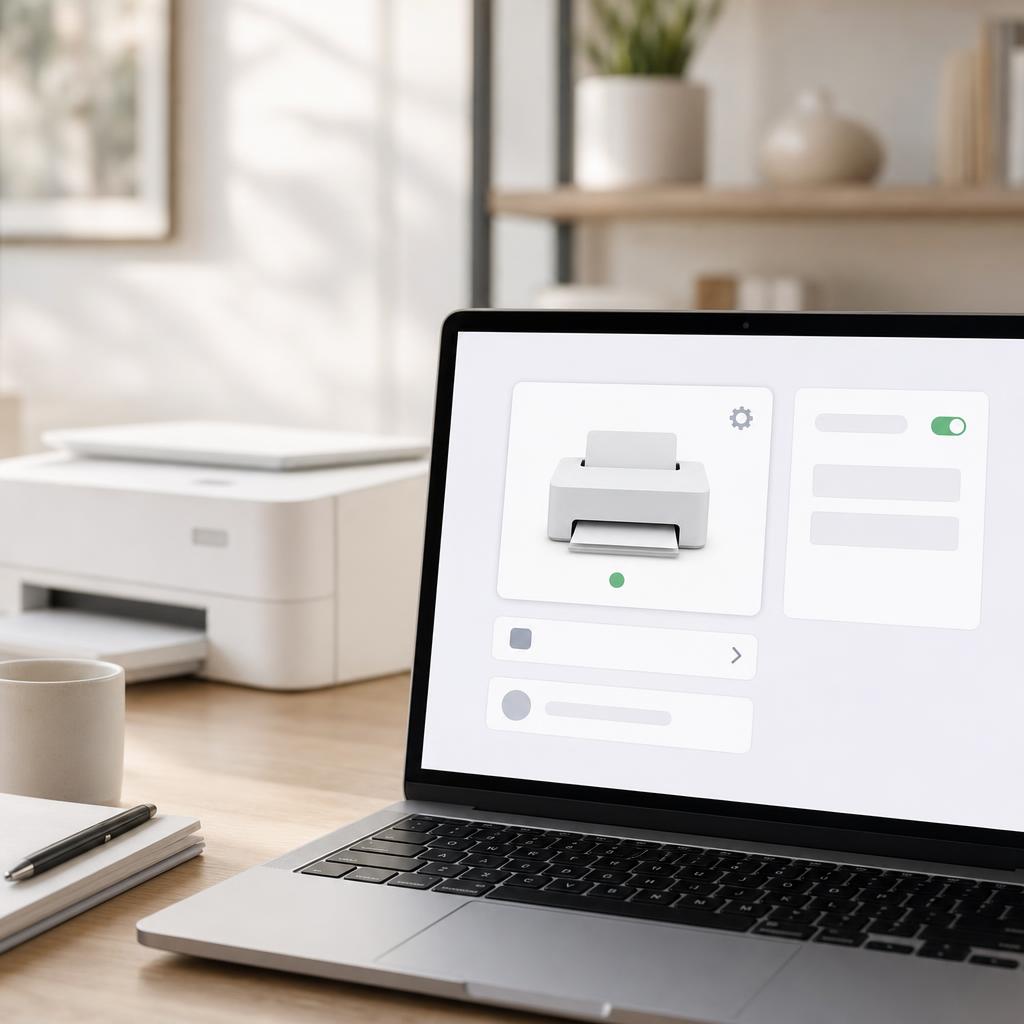
Why this works: If the queue keeps jamming, the printer’s setup or driver is likely corrupted. Removing and re-adding it rebuilds a clean queue, and a fresh driver fixes the communication faults that leave jobs stuck.
Expected result: The printer is re-added with a clean queue and an up-to-date driver.
Choose the "full feature" driver if offered, so scanning keeps working on all-in-one printers.
-
Step 10: Print a test page to confirm the fix
From the printer’s settings or properties, choose "Print test page".
Watch the job appear in the queue, print, and then disappear on its own.
Send a normal document too, to confirm everyday printing flows through the queue cleanly.
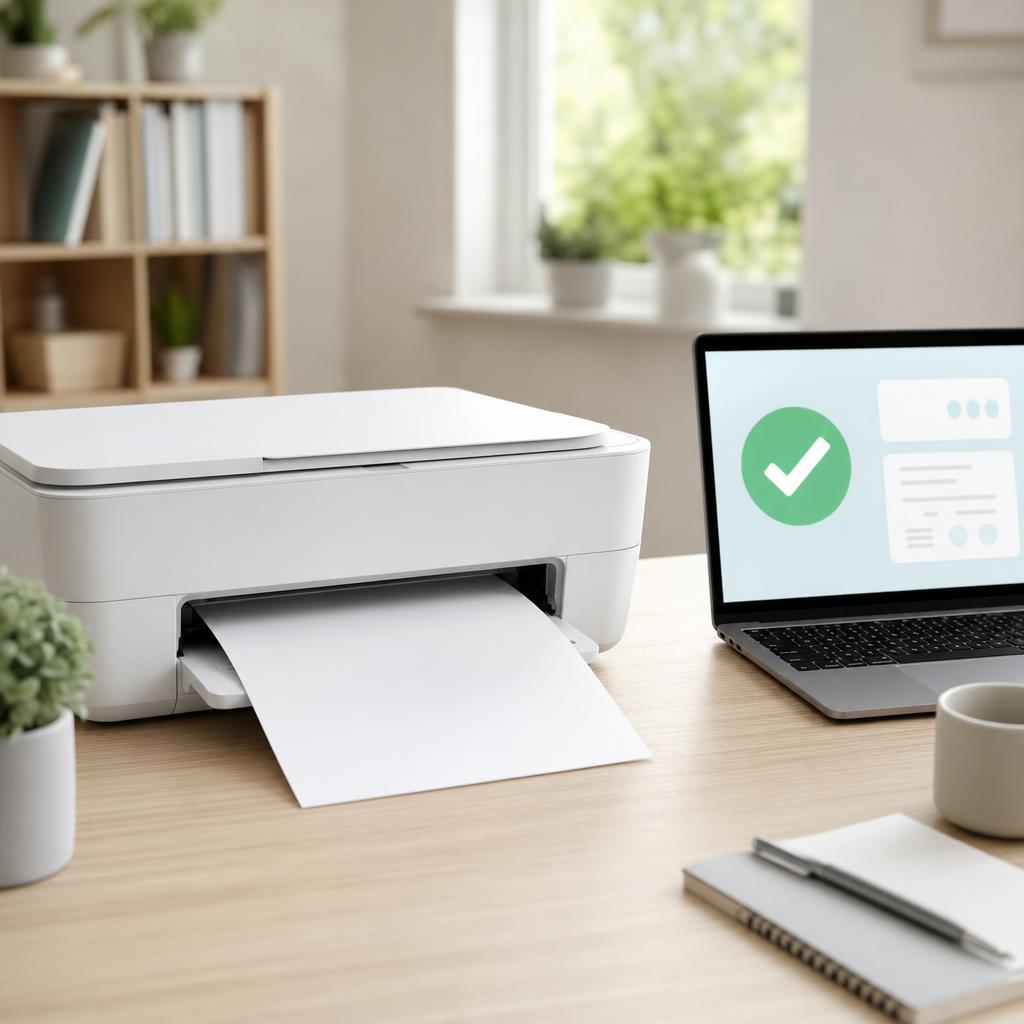
A clean test page and a queue that empties itself confirm the stuck queue is fixed. Why this works: A test page proves the queue, spooler, and printer are all working together again. Watching the job clear itself confirms the fix will hold for your real documents.
Expected result: The test page prints and the job leaves the queue by itself.
The test page prints, the queue empties automatically, and new documents print without stalling.
Tip
Printer Tip
Cancel a failed or stuck job before sending it again, so duplicates don’t pile up in the queue.
Other solutions to try
If the steps above didn't do it, these fixes resolve the less common cases.
On Windows
Windows manages printing through the Print Spooler service, so most stubborn queues clear from there.
- Restart the Print Spooler: open Services (services.msc), right-click "Print Spooler", and choose Restart.
- Clear stuck jobs at the source: stop the spooler, delete everything in C:\Windows\System32\spool\PRINTERS, then start the spooler again.
- Run the printer troubleshooter under Settings → System → Troubleshoot → Other troubleshooters to detect and fix queue faults automatically.
- Turn off "Let Windows manage my default printer" in Printers & scanners so jobs don’t get sent to the wrong printer and stall.
On macOS
macOS doesn’t expose a spooler service, but it has its own tools for a queue that won’t clear.
- Open the queue from System Settings → Printers & Scanners → Open Print Queue, then delete each stuck job and click Resume if printing is paused.
- Reset the printing system: right-click (or Control-click) the printer list in Printers & Scanners and choose "Reset printing system" to clear all printers and queued jobs at once.
- Re-add the printer afterward with the Add (+) button, then print a test page.
- Make sure the Mac and a network printer are on the same Wi-Fi network so jobs don’t stall mid-send.
Confirm it's working
Tick these off to be sure the problem is fully resolved.
Keep it from happening again
A few habits that stop this problem coming back.
- Cancel a failed or stuck job before sending it again, so duplicates don’t pile up in the queue.
- Keep your printer driver updated so the computer and printer keep communicating cleanly.
- Avoid switching the printer off mid-print — let jobs finish or cancel them first.
- If the queue jams often, restart the Print Spooler (Windows) or reset printing (macOS) instead of resending the same job.
- Keep your printer’s firmware current to fix bugs that can freeze the queue.
- Split very large or image-heavy documents into smaller jobs so they don’t overwhelm the printer’s memory.
Frequently asked questions
Was this guide helpful?
Your feedback helps us keep these steps accurate.
Thanks for your feedback!
Written by
The Guts Guide Editorial Team · Windows & macOS Printing Specialists
Reviewed by
Daniel Owens · Print & Network Technician
Last updated
July 2026
Continue Reading
Pick up where you left off with the next guide in your troubleshooting journey.
Related Guides
More troubleshooting walkthroughs you may find useful.
Buying Guides
Plain-English comparisons and pre-purchase checklists — find the right printer before you buy.