How to Install or Update a Printer Driver (Complete Driver Installation & Troubleshooting Guide)
Installing a printer for the first time, updating an old driver, or fixing one that won’t work? This beginner-friendly guide walks through installing, updating, and reinstalling a printer driver on Windows and macOS — and troubleshooting the problems that stop a printer being detected.
Applies to: Inkjet & laser printers (USB & wireless), Windows 11 & Windows 10, macOS 12 and later, All-in-one printer/scanner devices
Quick summary
- The problem
- Your printer isn’t detected, won’t print, or shows errors because its driver is missing, outdated, corrupted, or the wrong one for your system.
- The fix
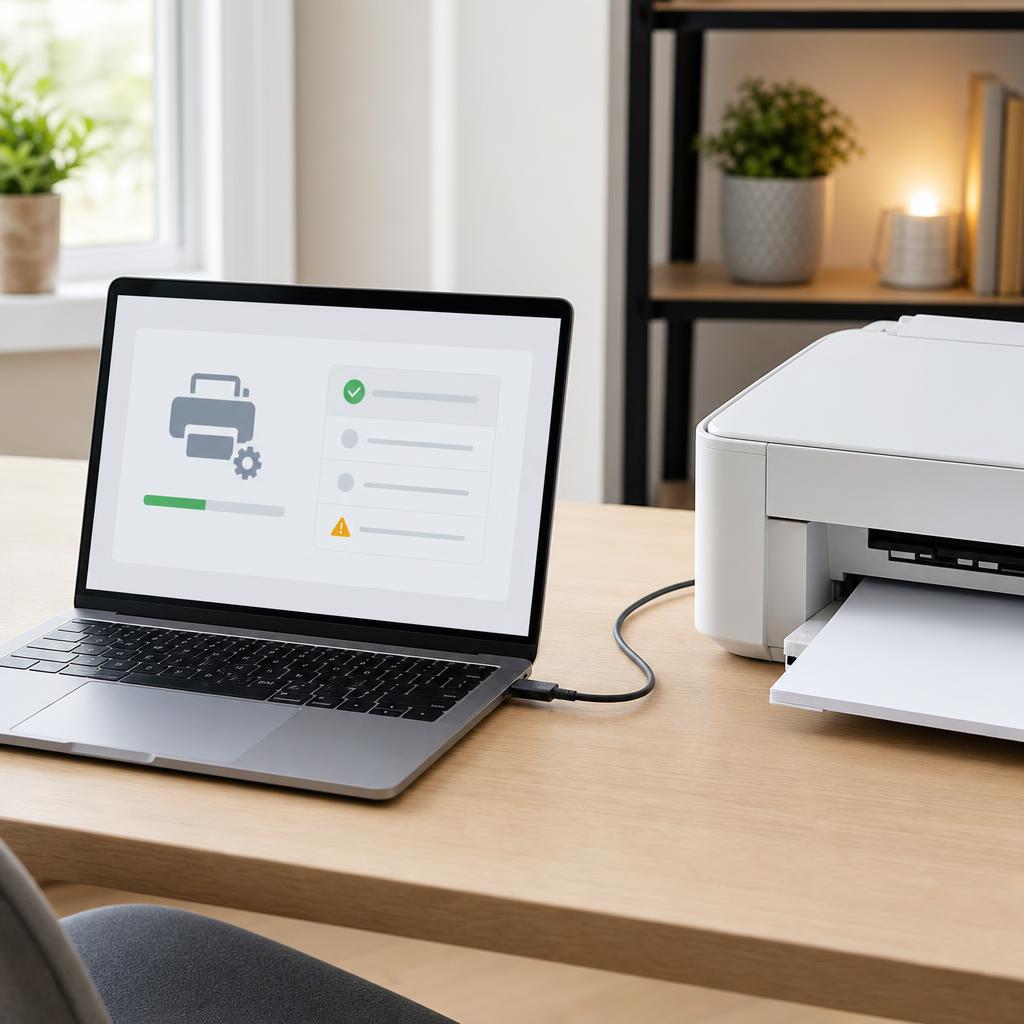
- Remove any old or incorrect driver, download the correct one for your exact model and operating system from the manufacturer’s official website, install it, restart, reconnect the printer, set it as default, and print a test page to confirm it works.
- Applies to
- Inkjet and laser printers connected by USB or Wi-Fi on Windows 11, Windows 10, and macOS.
On this page Show
Understanding the problem
A printer driver is a small piece of software that lets your computer and printer understand each other. When you hit print, your computer sends the document to the driver, which translates it into instructions your specific printer knows how to follow. Without the right driver, the two simply can’t communicate — the computer doesn’t know what to say, and the printer doesn’t know what it’s being asked to do.
Every printer model needs a driver made for it, and that driver has to match your operating system too. That’s why a driver that worked on an old laptop might not work after you move to a new computer or update Windows or macOS. When a driver is missing, outdated, or corrupted, printing breaks in familiar ways: the printer isn’t detected, jobs stall in the queue, pages come out wrong, or the scanner half of an all-in-one stops responding.
You should install a driver when you set up a new printer, update it when a new version fixes bugs or adds support for a newer operating system, and reinstall it when the current one becomes corrupted or the printer starts misbehaving for no clear reason. This guide covers all three — a clean first-time install, updating, and a full reinstall — then works through the troubleshooting when an installation won’t take.
Tip
Run one cleaning cycle at a time
When print quality drops, run a single printhead cleaning cycle and print a test page before running another. Repeated cycles use a lot of ink.
Signs you're in the right place
If you're seeing any of these, this guide is for you.
-
The printer is not detected
Your computer doesn’t see the printer at all when you try to add or use it.
-
The printer shows offline after installing
The driver installed, but the printer still appears offline and won’t accept jobs.
-
Documents stay stuck in the queue
Jobs pile up in the print queue and never actually print — a common sign of a driver problem.
-
Printing fails
You send a document but nothing prints, or the job errors out immediately.
-
Scanner functions don’t work
On an all-in-one, the printer works but scanning doesn’t — often a missing full-feature driver.
-
The driver installation fails
The installer stops partway, rolls back, or never finishes.
-
Error messages appear during installation
A warning or error interrupts setup and blocks the driver from installing.
-
The computer can’t communicate with the printer
The connection is there, but the computer and printer aren’t talking to each other.
What's usually behind it
The most common reasons this happens, so the fix makes sense.
A missing driver
No driver is installed for the printer yet, so your computer has no way to talk to it.
Corrupted driver files
An interrupted download or install can leave the driver damaged, causing failures and errors.
An outdated driver version
An old driver may not work correctly with a newer printer or a recent operating-system update.
The wrong driver selected
A driver for a similar-but-different model, or the wrong operating system, won’t work properly.
An operating system update
A Windows or macOS update can change how drivers work and break an existing one until it’s updated.
USB communication problems
A faulty cable, port, or hub can stop the computer detecting a USB-connected printer.
Network discovery issues
On a wireless printer, the computer may not find it if they’re on different networks or discovery is blocked.
Driver conflicts
Old or duplicate drivers left on the system can clash with the new one and stop it working.
Security software blocking installation
Antivirus or firewall software can flag or block a driver installer from running.
An incomplete installation
If setup is closed early or interrupted, the driver is only partly installed and won’t function.
What you'll need
Have these on hand before you start for a smooth fix.
-
The printer powered on and ready
Let it finish starting up before you install anything.
-
A working USB cable or Wi-Fi connection
Confirm the printer is connected, or ready to connect, to your computer.
-
Administrator permissions on the computer
Installing drivers requires an admin account or password.
-
Your operating system and version
Know whether you’re on Windows 11/10 or which macOS version, and whether it’s 64-bit.
-
Your exact printer model number
Usually on a label on the front or inside the printer — you’ll need it to find the right driver.
-
An internet connection
Needed to download the correct driver from the manufacturer.
How to fix it
Work through these in order — they run from the quickest checks to the more advanced fixes.
-
Step 1: Check the driver you already have
On Windows, open Settings → Bluetooth & devices → Printers & scanners and look for your printer in the list.
On macOS, open System Settings → Printers & Scanners and check whether your printer appears.
If the printer is listed but not working, note whether it shows offline, paused, or with an error — that points to the fix.
Why this works: Before installing anything, it helps to know what’s already there. A printer that’s listed but faulty often just needs an update or reinstall, not a fresh install from scratch.
Expected result: You know whether a driver is installed and what state the printer is in.
You’ve confirmed whether the printer is already set up or missing entirely.
-
Step 2: Remove old or incorrect drivers
If a wrong, duplicate, or broken driver is installed, remove the printer first: on Windows, select it in Printers & scanners and choose Remove; on macOS, select it in Printers & Scanners and click the minus (−) button.
On Windows, for a stubborn or corrupted driver, also open "Print server properties" → Drivers tab and remove the old driver package there.
Restart the computer after removing it so the old files are fully cleared.
Why this works: Leftover or incorrect drivers are a leading cause of conflicts and failed installs. Clearing them first gives the correct driver a clean slate and prevents the two from clashing.
Expected result: The old or wrong driver is fully removed from the computer.
Only remove printer drivers — leave other devices’ drivers alone.
-
Step 3: Download the correct driver from the official website
Go to the printer manufacturer’s official support website and search for your exact model number.
Choose the driver that matches your operating system and version (for example, Windows 11 64-bit or your macOS version).
Pick the "full feature" or "complete" driver if offered, so scanning and other functions work too, then download it.
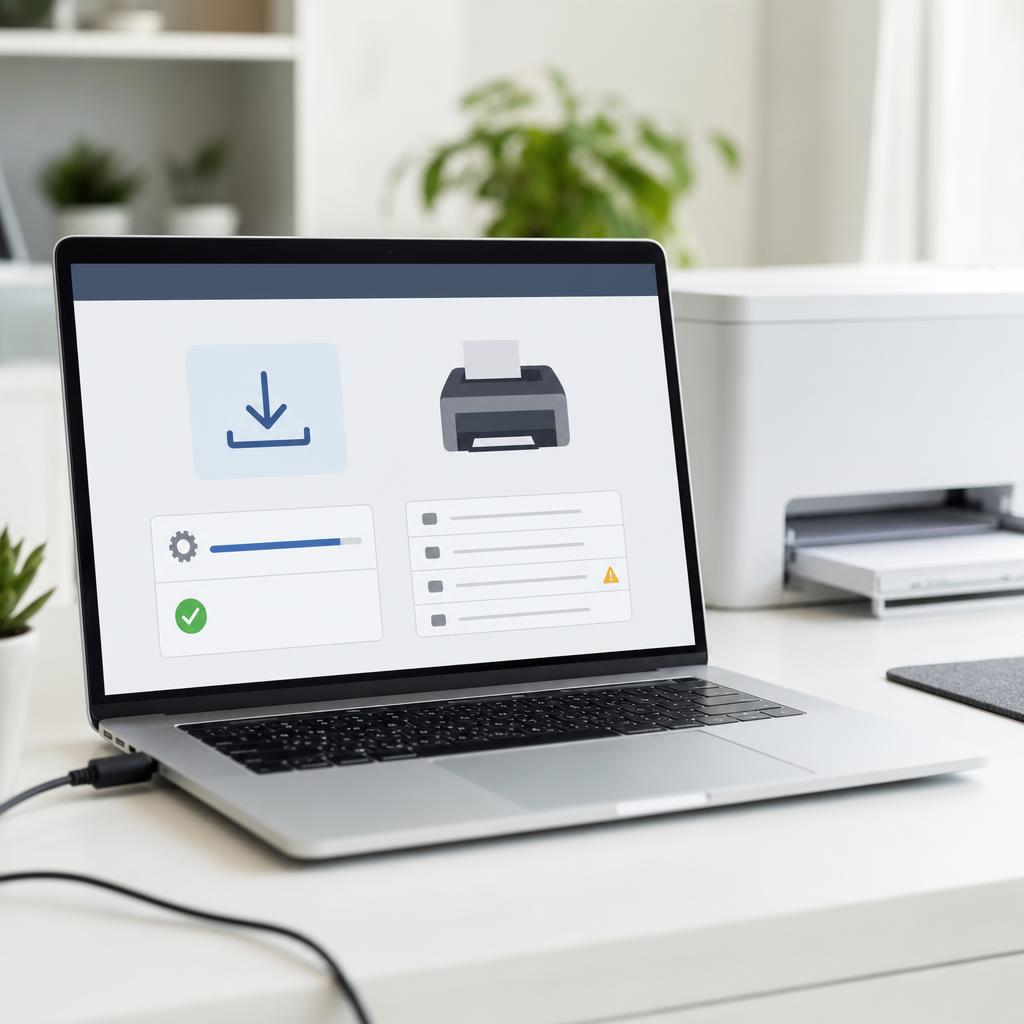
Why this works: The manufacturer’s official site is the only place to get a driver that’s correct, complete, and safe. Third-party "driver download" sites often bundle the wrong version or unwanted software.
Expected result: You have the correct driver installer saved on your computer.
Always match the driver to your exact model and operating system — a close match isn’t good enough.
The right driver for your model and OS is downloaded.
-
Step 4: Install the driver
Open the downloaded installer and follow the on-screen steps, accepting the prompts and admin permission request.
When asked, choose how the printer connects — USB or wireless — and let the installer detect it.
Wait for the installation to finish completely before closing the window or unplugging anything.
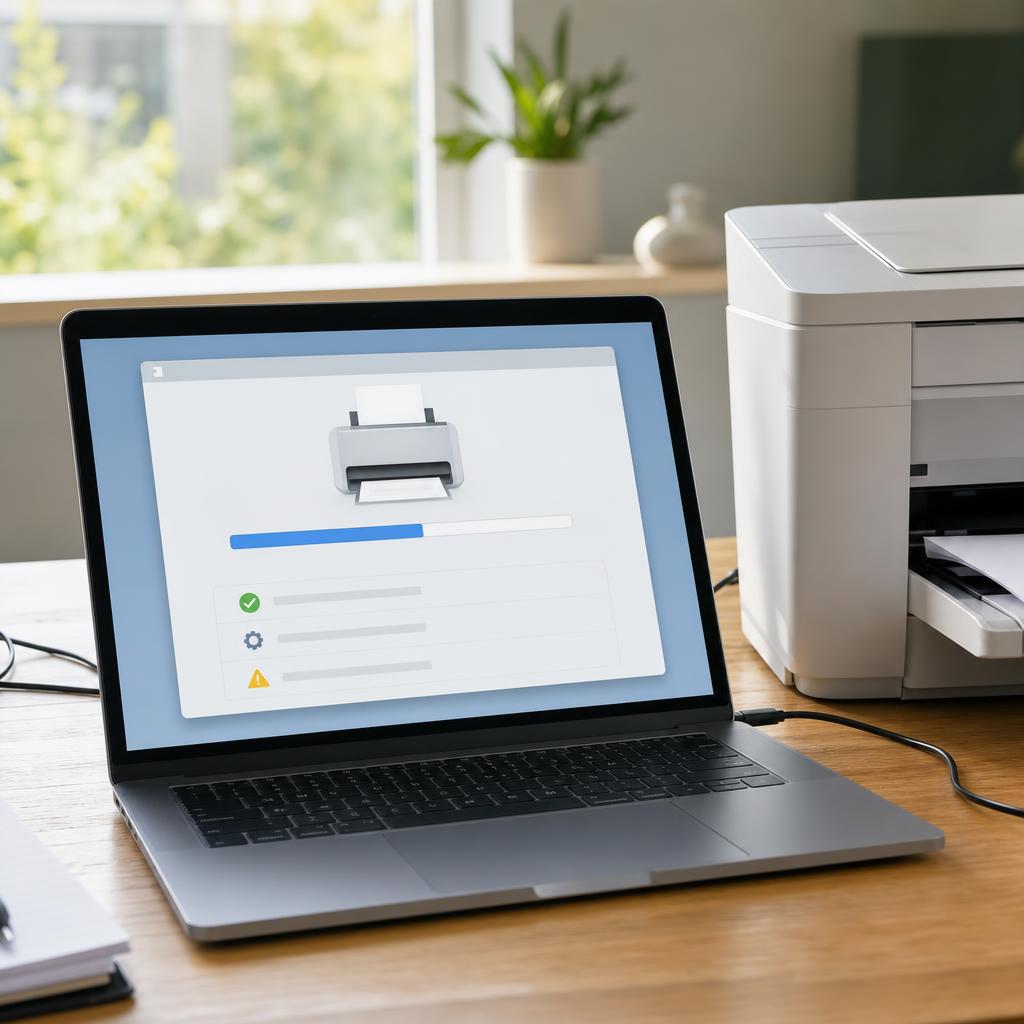
Why this works: Running the installer sets up the driver and registers the printer with your system in one guided process. Letting it finish fully is what prevents the "incomplete installation" problems that cause later failures.
Expected result: The installer reports the driver was installed successfully.
If the installer asks you to connect the printer at a specific moment, wait for that prompt rather than connecting early.
The driver installs and the printer is added to your system.
-
Step 5: Restart your computer
Close any open programs and restart the computer once the driver has installed.
Let it start back up fully before you try to print.
Why this works: A restart lets the system finish registering the new driver and clears any temporary state left over from removing the old one. It resolves many "installed but still not working" situations.
Expected result: The computer restarts and the new driver is fully active.
-
Step 6: Reconnect the printer
For a USB printer, plug the cable directly into a port on the computer — not a hub — and try a different port if it isn’t detected.
For a wireless printer, make sure it’s connected to the same Wi-Fi network as the computer.
Give the computer a moment to detect the printer and finish setting it up.
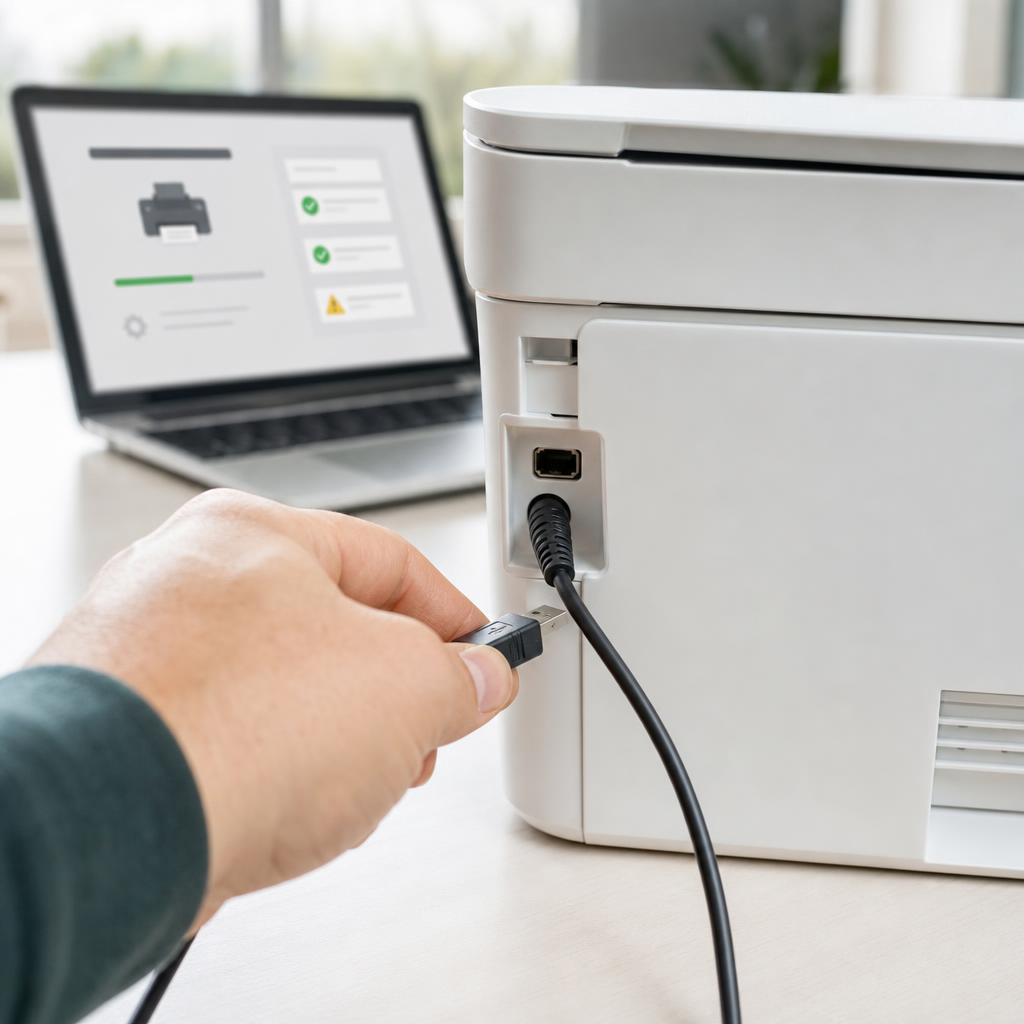
Why this works: The driver can only work once the computer and printer are properly connected. A bad cable, port, or a printer on the wrong network are common reasons a freshly installed driver still can’t find the printer.
Expected result: The computer detects the printer and shows it as ready.
If a USB printer still isn’t found, try another cable — faulty cables are more common than people expect.
-
Step 7: Set the printer as default
On Windows, open Printers & scanners, select your printer, and choose "Set as default".
On macOS, open Printers & Scanners and set your printer as the default in the "Default printer" menu.
Make sure Windows isn’t set to "let Windows manage my default printer" if you want it to stay fixed.
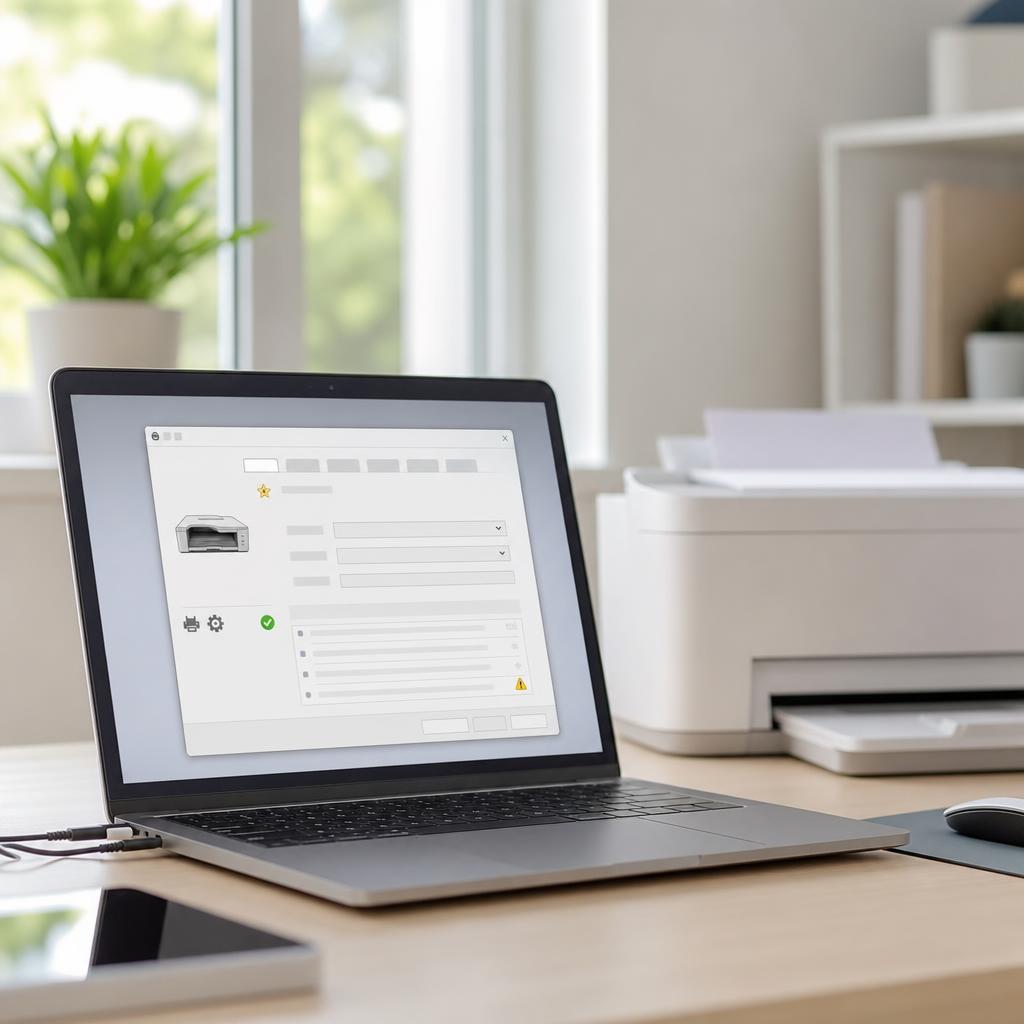
Why this works: If the wrong printer (or a leftover "virtual" one) is set as default, documents can silently go to the wrong place. Setting the right default makes sure your prints actually reach this printer.
Expected result: Your printer is marked as the default for new print jobs.
The correct printer is set as default.
-
Step 8: Check Windows Device Manager
On Windows, right-click the Start button and open Device Manager, then expand "Printers" and "Print queues".
Look for your printer — a yellow warning triangle means a driver problem.
Right-click the printer and choose "Update driver", or "Uninstall device" and reinstall if the warning stays.
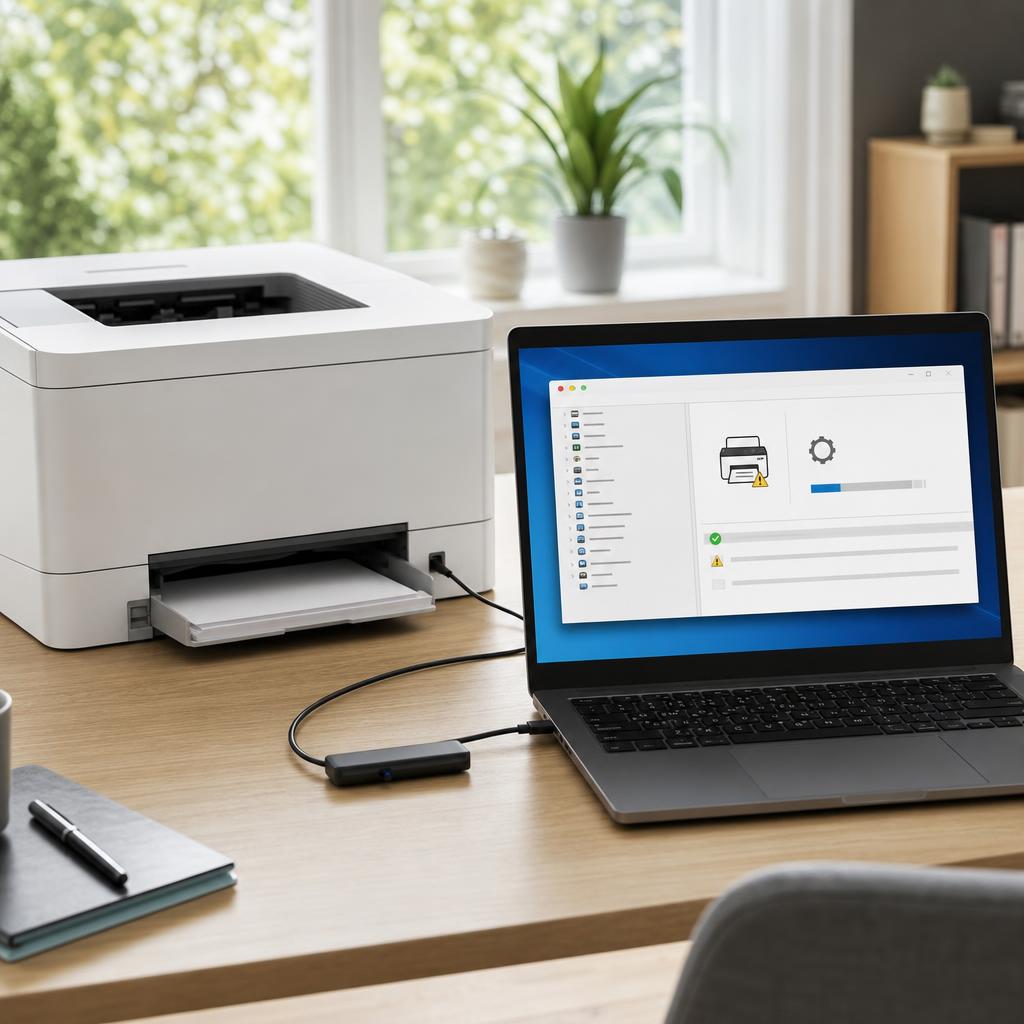
Why this works: Device Manager shows exactly how Windows sees the printer at the driver level. A warning icon here confirms the driver is the problem and lets you update or remove it directly.
Expected result: The printer appears in Device Manager with no warning icon.
This step is Windows-only; on macOS, use Printers & Scanners to remove and re-add the printer instead.
-
Step 9: Reinstall if the installation failed
If the install failed or errored, temporarily disable your antivirus or firewall, then run the installer again as administrator.
Make sure the previous attempt was fully removed first (repeat the removal step if needed) so files don’t conflict.
Re-enable your security software as soon as the installation finishes.
Why this works: Security software and leftover files from a failed attempt are the usual reasons an install won’t complete. A clean reinstall with those out of the way almost always succeeds.
Expected result: The driver installs cleanly on the second attempt.
Remember to turn your antivirus and firewall back on right after installing.
-
Step 10: Print a test page to verify
On Windows, open the printer in Printers & scanners → Printer properties → "Print Test Page". On macOS, print any document to confirm.
For an all-in-one, also run a quick scan to confirm the scanner works.
Check that the page prints correctly and the printer shows online.
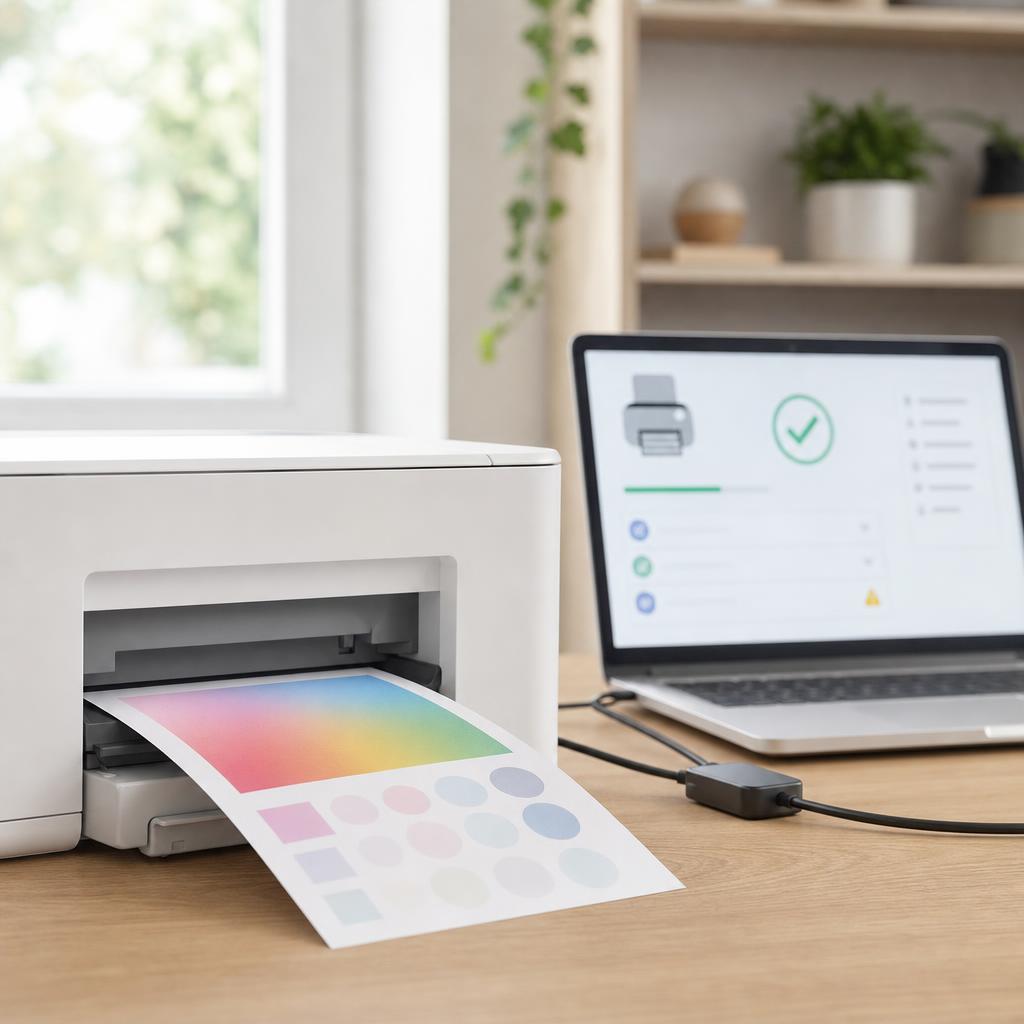
A clean test page and an online status confirm the driver is installed and working. Why this works: A test page confirms the whole chain works end to end — the driver, the connection, and the printer itself. It’s the clearest proof the installation succeeded.
Expected result: A test page prints correctly and the printer shows online.
The test page prints and, on an all-in-one, scanning works too.
Tip
Printer Tip
Keep your printer driver updated so it stays compatible with operating-system changes.
Other solutions to try
If the steps above didn't do it, these fixes resolve the less common cases.
On Windows
Windows can often install a basic driver automatically, but the manufacturer’s full driver adds scanning and all features.
- Connect the printer and open Settings → Bluetooth & devices → Printers & scanners → "Add device" — Windows may find and install it automatically.
- For full features, install the manufacturer’s downloaded driver instead of relying on the basic Windows one.
- Use Device Manager to update or roll back a driver, and "Print server properties" → Drivers to remove a corrupted driver package cleanly.
- Run Settings → System → Troubleshoot → Printer if Windows still can’t detect or use the printer.
On macOS
macOS includes AirPrint and many built-in drivers, so most printers set up without a separate download.
- Open System Settings → Printers & Scanners and click Add (+); most printers appear as AirPrint or Bonjour devices with the driver built in.
- In the "Use" menu, pick the matching printer software rather than the generic option when it’s offered.
- If the printer misbehaves, remove it with the minus (−) button and add it back to reset the driver.
- Install the manufacturer’s macOS driver only if you need extra features AirPrint doesn’t cover, and make sure it matches your macOS version.
Confirm it's working
Tick these off to be sure the problem is fully resolved.
Keep it from happening again
A few habits that stop this problem coming back.
- Keep your printer driver updated so it stays compatible with operating-system changes.
- Only install the driver made for your exact model and operating system.
- Remove obsolete or duplicate drivers so they can’t cause conflicts later.
- Update the printer’s firmware when the manufacturer recommends it.
- Restart your computer after major operating-system updates so drivers re-register cleanly.
- Always download drivers from the manufacturer’s official website, never third-party driver sites.
Frequently asked questions
Was this guide helpful?
Your feedback helps us keep these steps accurate.
Thanks for your feedback!
Written by
The Guts Guide Editorial Team · Printer Troubleshooting Specialists
Reviewed by
Daniel Owens · Print & Network Technician
Last updated
July 2026
Continue Reading
Pick up where you left off with the next guide in your troubleshooting journey.
Related Guides
More troubleshooting walkthroughs you may find useful.
Buying Guides
Plain-English comparisons and pre-purchase checklists — find the right printer before you buy.