
What Is a Print Spooler? The Queue Behind Every Print Job
A print spooler is the software middleman that catches your print jobs, lines them up in a queue and feeds them to the printer one at a time so your apps do not have to wait. This plain-English guide explains what the spooler does, why it exists, the stages a job passes through from click to paper, and how the queue behaves when jobs get stuck, pause or pile up. It is an educational explainer, not a specific fix — but understanding the spooler is the single best way to make sense of stuck jobs, offline printers and the classic "clear the queue and restart" advice you see everywhere.
Applies to: All inkjet printers, All laser printers, Home and small-office all-in-ones, Shared network and office printers
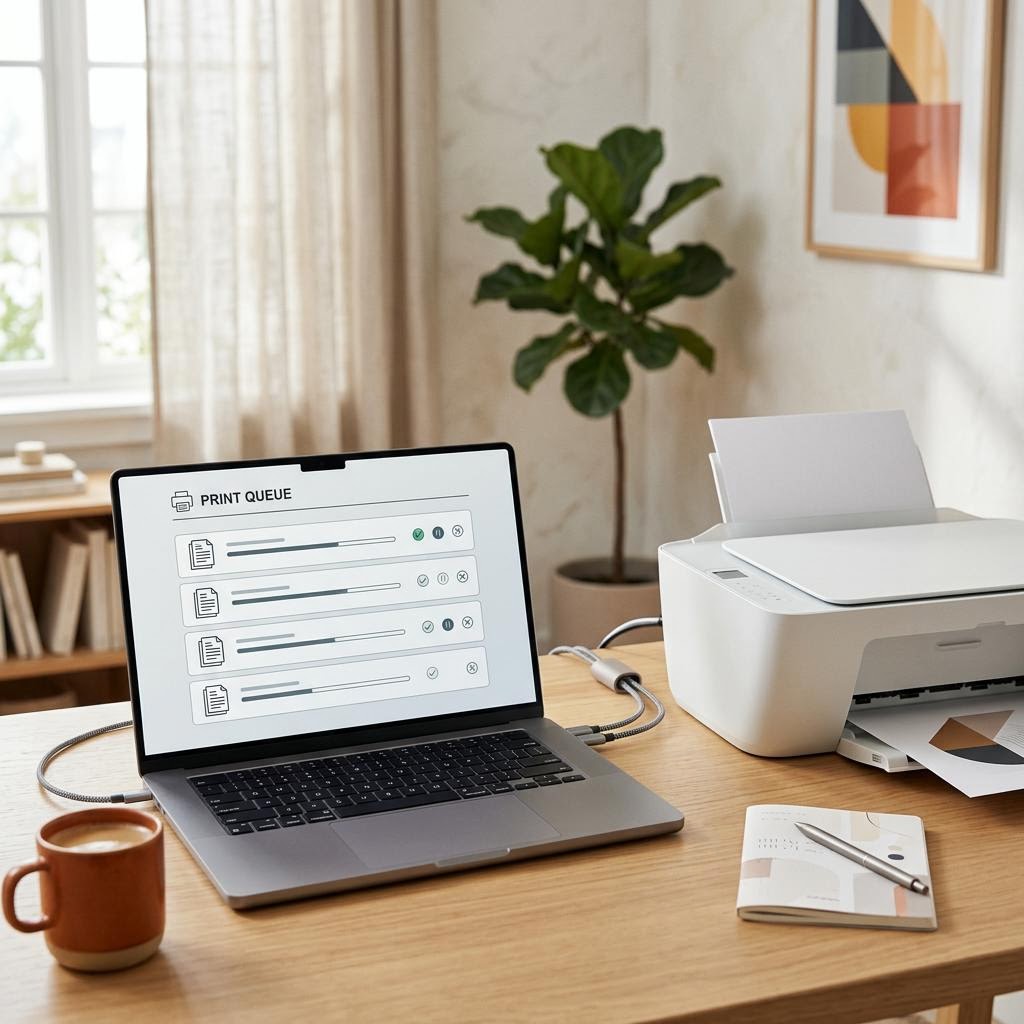
Quick summary
- The problem
- You keep hearing about the "print queue" or the "print spooler service" — when a job gets stuck, when a printer goes offline, or when a fix tells you to clear the queue and restart the spooler — and you want to actually understand what it is and what it does.
- The fix
- The print spooler is background software on your computer (or on a print server) that receives print jobs, stores them temporarily, orders them in a queue and sends them to the printer one at a time. It lets you keep working the instant you hit print, lets several people share one printer, and is the thing you manage when you pause, cancel, reorder or clear stuck jobs.
- Applies to
- Every consumer and office printer, inkjet or laser, wired or wireless. The concept is universal; the exact controls and service names differ by operating system, and mobile printing through AirPrint or Mopria Print Service uses its own equivalent handling rather than a desktop spooler.
On this page Show
Understanding the problem
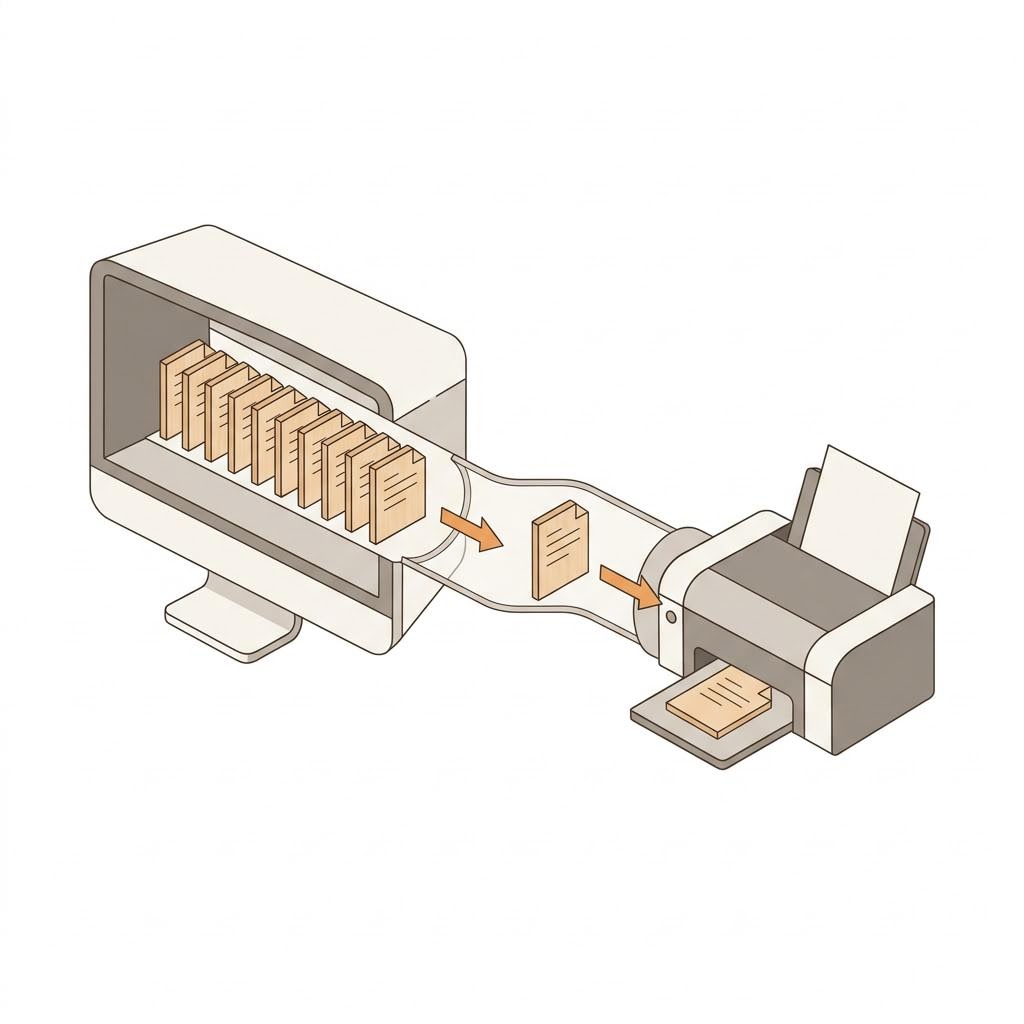
When you click Print, your document does not go straight to the printer. It goes first to a piece of background software called the print spooler. The spooler accepts the job immediately, writes it to a temporary file on disk, adds it to a list called the print queue, and only then feeds it to the printer at the speed the printer can actually handle. The word "spool" is old computing shorthand for exactly this idea — holding data in a temporary staging area so a fast device (your computer) does not have to wait for a slow device (the printer).
The reason this matters is timing. A printer is far slower than the computer sending to it: it has to warm up, pull paper, lay down ink or fuse toner, and move a printhead or drum across the page. Without a spooler, your application would freeze while the printer chewed through every page, and you could not do anything else until it finished. The spooler solves this by taking the whole job off your application in a fraction of a second, then dribbling it out to the printer in the background while you carry on working.
The spooler also makes sharing possible. Because jobs are stored and ordered in a queue rather than fired straight at the hardware, several documents — or several people on a shared or network printer — can send work at once. The spooler simply lines the jobs up and releases them one at a time, so nobody has to stand and wait for the printer to be free before they can send anything. On a shared office printer, that queue may live on a dedicated print server rather than on each person's computer.
Every job the spooler handles passes through the print queue, which is just the visible list of pending, printing, paused and errored jobs for a given printer. This is the window you open when you want to see what is waiting, pause something, cancel a job you sent by mistake, or reorder what prints next. When people talk about a "stuck print job", they almost always mean a job sitting in this queue that will not clear — and clearing the queue is exactly what the "restart the spooler" advice is really doing.
It helps to think of the spooler as a receptionist for the printer. Your apps hand documents to the receptionist and immediately walk away. The receptionist keeps an orderly waiting list, sorts out the details so the document arrives in a form the printer understands, and sends people through to the printer one at a time in order. If the receptionist gets confused — a corrupt job, a printer that went offline, a driver mismatch — the whole waiting room can back up, which is why so many printing problems are really queue problems in disguise.
Because the spooler is software, it is also something that can be paused, reset and restarted independently of the printer. That is powerful: a huge amount of everyday printer trouble is fixed not by touching the hardware at all, but by clearing a jammed queue or restarting the spooler service so it starts fresh. Knowing this turns a lot of mysterious "it just will not print" moments into a two-minute software fix, and it is why our error-code library at /error-codes so often points back to the queue as the first thing to check.
Tip
Run one cleaning cycle at a time
When print quality drops, run a single printhead cleaning cycle and print a test page before running another. Repeated cycles use a lot of ink.
At-a-glance comparison
How the options stack up on the factors that matter most.
With a spooler vs without one
Why every modern printing system uses a spooler rather than sending jobs straight to the hardware.
| Factor | With a print spooler | Without a spooler (direct) |
|---|---|---|
| App availability after Print | Free almost instantly | Frozen until printing finishes |
| Multiple jobs at once | Queued and ordered automatically | Must wait; jobs can clash |
| Sharing one printer | Many people or apps can send | One sender at a time |
| Recovering a stuck job | Clear queue or restart spooler | Few software options |
| Handling a slow printer | Buffered; paced to hardware | Computer waits at printer speed |
Behaviour is typical of modern desktop printing; exact controls and terms vary by operating system and printer.
The stages a print job passes through
What happens between clicking Print and paper coming out, and where things commonly go wrong.
| Stage | What happens | Common failure here |
|---|---|---|
| 1. Hand-off | App passes job to the printing system | App freezes (driver or spooler fault) |
| 2. Spool to disk | Spooler stores a temporary copy | Corrupt spool file jams the job |
| 3. Rendering | Driver translates to printer language | Wrong driver prints code or gibberish |
| 4. Queue | Job waits its turn in an ordered list | One stuck job blocks the rest |
| 5. Delivery | Spooler feeds the printer one at a time | Offline, paused or lost connection |
Stages are a simplified, typical model; some rendering may occur on the printer and details vary by system and model.
Where the spooler lives: local vs server vs mobile
The same job travels differently depending on how your printer is connected and shared.
| Factor | Local (personal printer) | Print server (shared office) | Mobile (AirPrint / Mopria) |
|---|---|---|---|
| Where the queue lives | On your own computer | On a central print server | On the device and printer |
| Who can clear jobs | You | You for yours; admin for all | You, via the printer's job list |
| Restart the spooler? | Yes, on your computer | Admin, on the server | No desktop spooler to restart |
| Needs a driver? | Usually yes | Usually yes | No, if AirPrint or Mopria is supported |
Typical arrangements only; setups vary widely by organisation, operating system and printer capabilities.
Signs you're in the right place
If you're seeing any of these, this guide is for you.
-
You have seen advice to "clear the queue" or "restart the spooler"
A guide, a support agent or a forum told you to open the print queue, delete stuck jobs, or restart the print spooler service — and you want to know what that actually is before you do it.
-
A print job is stuck and will not print or delete
A document sits in the queue marked as printing, pending, error or "deleting" and refuses to move, blocking everything you send after it. That is a queue and spooler situation, not usually a hardware fault.
-
Your printer keeps showing as offline or paused
The printer looks connected but reports offline or paused, and nothing prints. The queue is where you confirm whether jobs are backing up and whether "Use Printer Offline" or "Pause" has been switched on.
-
You share a printer and want to understand the waiting list
Several people or several apps send to one printer and you want to know how it decides what prints first, and where that list lives — on your computer or on a print server.
-
You print, the app frees up instantly, but paper appears later
You noticed that your application is usable again the moment you hit Print, even though pages come out over the next minute. That gap is the spooler doing its job.
-
You want to understand the software, not just follow steps
Rather than blindly running a fix, you want a mental model of how a print job travels from click to paper so future problems make sense.
What's usually behind it
The most common reasons this happens, so the fix makes sense.
Buffering: letting a fast computer talk to a slow printer
The core job of the spooler is to absorb a print job at computer speed and release it at printer speed, so your application is never held hostage by slow hardware. This decoupling is why the spooler exists at all and why printing feels instant even when it is not.
Queuing and ordering: many jobs, one printer
The spooler maintains an ordered list of jobs so multiple documents, apps or people can share a single printer. It decides what prints next and lets you pause, cancel or reorder — the visible queue is your window into this.
Rendering: turning a document into printer language
Somewhere between your app and the paper, a document must be converted into instructions the specific printer understands, using its driver. This can happen on your computer or partly on the printer, and it is a common place for jobs to stall if the driver is wrong.
Local spooler versus print server
On a home printer the spooler runs on your own computer. On a shared office printer it may run on a central print server that queues everyone's jobs. Where the queue lives changes who can clear it and where problems show up.
Resilience: pausing, resetting and restarting
Because it is software, the spooler can be paused, cleared and restarted without touching the printer. That is why "restart the spooler" resolves so many stuck-job and offline symptoms — it rebuilds the queue from scratch.
What you'll need
Have these on hand before you start for a smooth fix.
-
A basic mental model of "click to paper"
You do not need any tools to understand the spooler — just the idea that a job travels app to spooler to queue to printer. This article builds that model stage by stage.
-
Access to your own print queue
Every operating system exposes the queue for each installed printer (often via the printer's icon in system settings). Knowing where yours lives lets you see the spooler in action, though you do not need to change anything to follow along.
-
Awareness of where the queue lives
Know whether your printer is a personal one (spooler on your computer) or a shared office printer (queue possibly on a print server). It changes who can clear stuck jobs.
How to fix it
Work through these in order — they run from the quickest checks to the more advanced fixes.
-
Step 1: Stage 1 — You click Print and the app hands off the job
The moment you click Print, your application does not start driving the printer itself. It packages up the document and passes it to the operating system's printing system, then considers its work done. This is why the app becomes usable again almost immediately, even for a long document.
At this point the job is still in your application's terms — pages, fonts, images, layout — and has not yet been turned into anything a specific printer can consume. The hand-off is deliberately fast so nothing you use freezes up.
Think of this as dropping a letter in a postbox: you let go of it instantly and trust the system to carry it the rest of the way. Everything after this happens in the background.
Why this works: Understanding that the app lets go early explains the single most confusing thing about printing: why your program is free again while pages are still coming out. Nothing is broken — the spooler has taken over.
Expected result: You can picture the print job leaving your application and entering the operating system's printing pipeline, with your app immediately free to do other things.
If an application does freeze for a long time when you print, that often points to a driver or spooler problem rather than normal behaviour — the hand-off should be quick.
-
Step 2: Stage 2 — The spooler receives the job and spools it to disk
The print spooler catches the incoming job and writes it to a temporary file on your computer's storage. This is the "spool" itself — a staging copy held on disk so the whole job is safely captured before the printer needs it.
Storing the job means your application can be closed, and even a slow printer will still get everything it needs, because the spooler is holding the complete copy. It also means a job can survive a brief hiccup rather than being lost mid-print.
These temporary spool files are created and deleted automatically as jobs come and go. Occasionally a corrupt spool file is exactly what makes a job "stuck", which is why clearing the queue (and thereby those files) so often frees things up.
Why this works: The spool-to-disk step is the heart of what "spooling" means. It is also the root of many stuck-job problems: a damaged spool file is a common culprit behind a job that will not print or delete.
Expected result: You understand that a temporary copy of your job is stored while it waits, and that a corrupt copy is one reason jobs get stuck.
This is why guides tell you to clear the print queue and, on some systems, restart the spooler service — doing so removes the stuck temporary files and lets the printer start clean.
-
Step 3: Stage 3 — The job is rendered into the printer's language
A document as your app sees it is not something a printer can directly use. Somewhere in the pipeline it must be converted into the specific instructions your printer understands — a page-description language or a stream of raster data — and the printer driver is what performs (or coordinates) that translation.
This rendering can happen on your computer before the job is sent, or partly on the printer itself, depending on the printer and driver design. Either way, the driver is the crucial interpreter that matches your general document to your exact hardware.
Because rendering depends on the right driver for the right printer, a wrong, outdated or mismatched driver is one of the most common reasons a job stalls in the queue or prints as garbage. This is where "does it work with the correct driver installed" matters most.
Why this works: Rendering explains why the driver matters so much and why the same document can print perfectly on one machine and fail on another. A mismatch here quietly breaks the whole pipeline.
Expected result: You understand that the driver translates your document into your printer's own language, and that a driver mismatch is a frequent cause of failed or garbled jobs.
If pages come out as pages of code or nonsense characters, that is a classic rendering or driver mismatch symptom — the printer is receiving instructions it does not understand.
-
Step 4: Stage 4 — The job enters the queue and waits its turn
Once spooled and ready, the job takes its place in the print queue — the ordered list of everything waiting for that printer. If nothing is ahead of it, it goes straight through; if other jobs are queued, it waits.
The queue is the part of the spooler you can actually see and control. Open it and you can watch jobs move from pending to printing to done, and you can pause, cancel or reorder what is waiting. This is the same window you use to clear a stuck job.
On a shared office printer, this queue may live on a central print server that collects jobs from everyone, rather than on each person's computer — so several people's documents interleave in one orderly list. On a personal printer, the queue is on your own machine.

On a shared printer, the queue collects everyone's jobs in order — often on a print server — and releases them one at a time to the hardware. Why this works: The queue is where abstract "spooler" concepts become something you can look at and manage. Almost every stuck-job, offline or "why won't it print" fix starts by opening this list.
Expected result: You can find your printer's queue and read it: what is printing, what is waiting, what is paused, and what has errored.
If the whole queue stalls behind one bad job, deleting that job usually releases the rest. If your printer shows offline or paused at the top of the queue, nothing behind it will print until that is cleared.
-
Step 5: Stage 5 — The spooler feeds the printer one job at a time
When a job reaches the front of the queue, the spooler streams it to the printer at the pace the hardware can handle, then moves on to the next job. It never floods the printer with everything at once — it paces the flow to match the machine.
While this happens, the printer does the physical work: warming up, pulling paper, and laying down ink or fusing toner. The spooler simply keeps feeding data until the job is complete, then marks it done and deletes its temporary spool file.
This one-at-a-time pacing is what lets a slow printer serve a fast computer, and many people at once, without anything jamming up on the computer side. The bottleneck stays where it belongs — at the printer — while the queue keeps everything orderly.
Why this works: This final stage closes the loop: it shows how the buffered, ordered job actually reaches paper, and why the printer's speed — not your computer's — sets the real pace.
Expected result: You can trace a job all the way from click to printed page, and explain why pages appear over time while your app was freed instantly.
If a job reaches "printing" but no paper ever comes out, the problem has usually shifted from the spooler to the connection or the printer itself — offline status, a lost network link, or a physical issue like paper or ink.
-
Step 6: When the queue jams: pausing, clearing and restarting
Because the spooler is software, the classic recovery is to manage the queue rather than the printer. Open the queue, cancel the stuck or errored job at the top, and let the rest flow. If jobs will not delete, that points to a corrupt spool file or a spooler that needs restarting.
Restarting the print spooler service stops the spooler, lets its stuck jobs and temporary files be cleared, and starts it fresh so the queue rebuilds cleanly. On many systems this single action resolves stuck jobs, phantom documents and some offline states without touching the hardware.
Check for the two common self-inflicted stalls too: a printer set to "paused", and a printer set to "use offline". Both live in the queue controls and both silently hold every job behind them until switched off.
Why this works: This is the practical payoff of understanding the spooler: a huge share of "it will not print" moments are queue problems, fixed in software in a couple of minutes rather than by fiddling with the printer.
Expected result: You know that clearing the queue and restarting the spooler are software actions that rebuild the print pipeline, and you know to check for paused or offline settings.
On a shared office printer whose queue lives on a print server, you may only be able to clear your own jobs — an administrator manages the server-side spooler and the shared queue.
-
Step 7: Mobile and driverless printing: where the spooler differs
Printing from a phone or tablet does not use a desktop print spooler in the same way. Apple's AirPrint and the Mopria Print Service (used by Android) send jobs to compatible printers directly over the network, with the operating system and the printer handling the queuing and rendering between them.
The underlying ideas still apply — jobs are still buffered, ordered and rendered into the printer's language — but the moving parts sit in the phone's printing framework and the printer's firmware rather than in a traditional desktop spooler service you can open and restart.
This is why phone-printing problems are troubleshooted differently: there is no desktop queue to clear. Instead you check the printer's own status and job list, its network connection, and whether it supports the standard (AirPrint or Mopria) your device is using.
Why this works: Recognising that mobile printing bypasses the desktop spooler stops you hunting for a queue that does not exist and points you to the right place — the printer and the network — when phone printing fails.
Expected result: You understand that AirPrint and Mopria Print Service handle queuing without a traditional desktop spooler, so mobile printing problems are diagnosed on the printer and network side.
AirPrint and Mopria are official, widely supported standards. If a printer supports them, no separate driver is needed; if it does not, you fall back to the manufacturer's app or a desktop connection with a normal spooler.
Tip
Printer Tip
Keep the correct, up-to-date driver installed for your exact printer — most rendering failures and stuck jobs trace back to a wrong or outdated driver.
Other solutions to try
If the steps above didn't do it, these fixes resolve the less common cases.
When there is no queue to clear (driverless and mobile printing)
If you print from a phone via AirPrint or Mopria Print Service, there is no desktop spooler to open. Look at the printer's own control panel and job list, confirm it is on the same network as your device, and check that the printer actually supports the standard you are using. The usual "restart the spooler" advice simply does not apply here.
When the queue is on a print server, not your computer
On a managed office printer, the spooler and queue often live on a central print server. You may see and clear your own jobs, but a jam affecting everyone, or a spooler that needs restarting, is the administrator's job on the server. If your job vanishes or stalls and colleagues have the same trouble, it is a server-side spooler issue rather than anything on your machine.
When the job leaves the queue but nothing prints
If a job reaches "printing" and then disappears from the queue but no paper appears, the spooler has done its part and handed off successfully — the problem has moved downstream to the connection or the printer. Check for an offline or paused printer, a dropped network link, or a physical issue such as no paper, a jam, or empty ink or toner.
Confirm it's working
Tick these off to be sure the problem is fully resolved.
Keep it from happening again
A few habits that stop this problem coming back.
- Keep the correct, up-to-date driver installed for your exact printer — most rendering failures and stuck jobs trace back to a wrong or outdated driver.
- Before resending a job that did not print, open the queue and clear the failed one first, so you do not stack duplicates behind a stuck document.
- Learn where your printer's queue lives and how to open it — being able to pause, cancel and reorder jobs turns most printing frustrations into a quick fix.
- Check for "paused" and "use printer offline" settings first when nothing prints; both silently hold the whole queue and are easy to switch off.
- On a shared printer, avoid sending huge or duplicate jobs repeatedly when it seems stuck — that just deepens the backlog for everyone on the server queue.
- When phone printing fails, look at the printer and network rather than a computer queue, and confirm the printer supports AirPrint or Mopria for your device.
Frequently asked questions
Was this guide helpful?
Your feedback helps us keep these steps accurate.
Thanks for your feedback!
Written by
The Guts Guide Editorial Team · Print & Network Editor
Reviewed by
Daniel Owens · Print & Network Technician
Last updated
Jul 15, 2026
Continue Reading
Pick up where you left off with the next guide in your troubleshooting journey.
Related Guides
More troubleshooting walkthroughs you may find useful.
Buying Guides
Plain-English comparisons and pre-purchase checklists — find the right printer before you buy.
Helpful Resources
References and tools to help you go further.
-
Microsoft Learn — Windows printing and the print spooler
Microsoft's official documentation on the Windows print spooler service, drivers and the printing architecture.
-
Apple Support — AirPrint
Apple's official reference for AirPrint, how driverless mobile printing works, and which printers support it.
-
Mopria Alliance — Mopria Print Service
The official home of Mopria Print Service, the driverless printing standard used across Android and many printers.