
Buying a Used or Refurbished Printer Safely: What to Check First
Thinking about a second-hand or refurbished printer to save money? This beginner-friendly guide explains the difference between used, refurbished, and open-box, what a proper refurbishment should include, and exactly what to check before you buy — page count, print head and roller wear, test pages, consumable availability, driver support, wiping the previous owner’s data, and the red flags that mean walk away.
Applies to: Inkjet printers, Laser printers, All-in-one printers, Ink tank printers
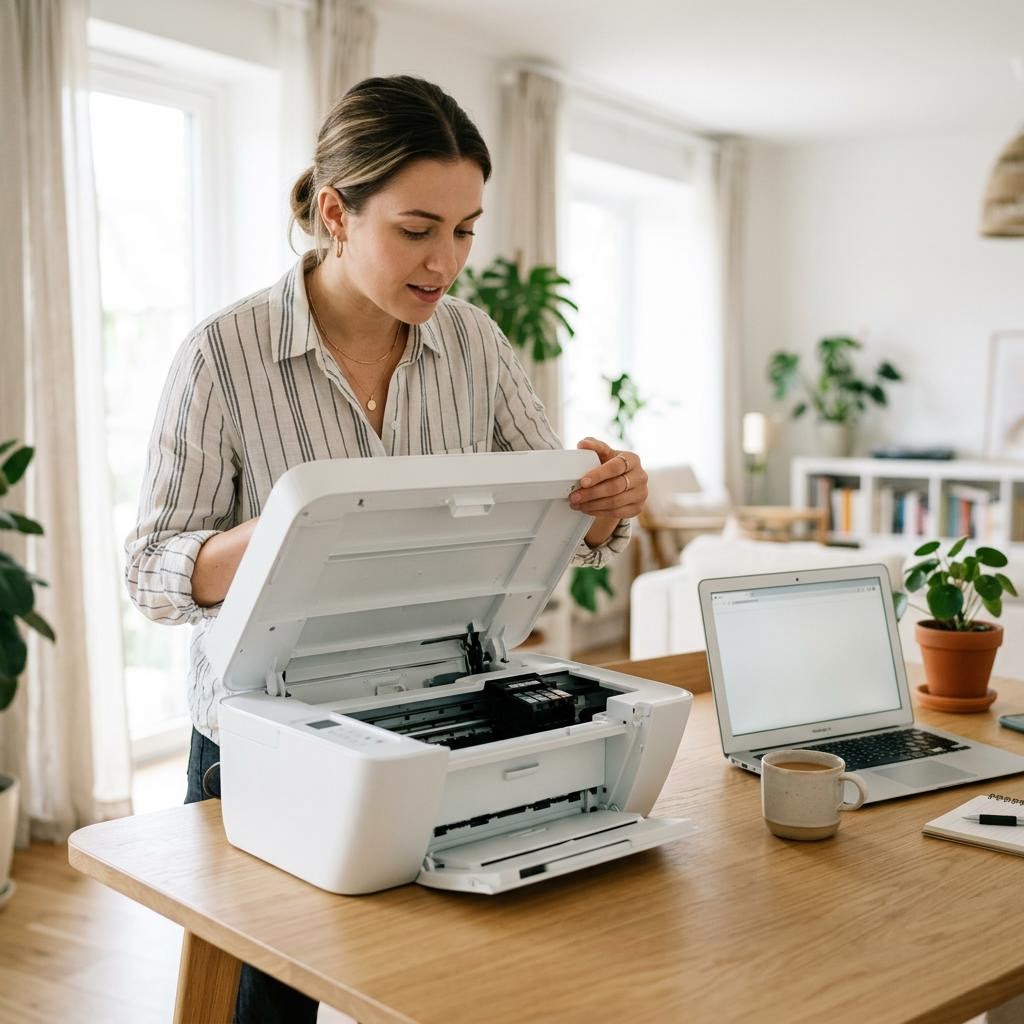
Quick summary
- The problem
- A used or refurbished printer can be a genuine bargain or an expensive mistake, and from a listing photo it is hard to tell whether the machine is tired, whether its ink or toner is still sold, or whether it still holds the last owner’s data.
- The fix
- Learn what refurbished, used, and open-box really mean, then run a short set of checks before you buy: look at the page count where available, inspect the print head, rollers, and toner drum for wear, ask for test pages, confirm the consumables are still available and affordable, verify driver support for your setup, and make sure any stored data is wiped — then judge it against the price.
- Applies to
- Anyone buying a second-hand, refurbished, or open-box inkjet, laser, ink tank, or all-in-one printer from a shop, a seller, or a private listing.
On this page Show
Understanding the problem
A used or refurbished printer can be a smart way to get a capable machine for a fraction of the new price. Printers are built to last, and many are retired long before they wear out — an office upgrades, a household changes needs, or a shop has open-box returns to move. The catch is that the same low price can also hide a worn-out workhorse, a model whose ink or toner is being discontinued, or a machine that still holds a previous owner’s settings and documents. From a photo and a short description, the good deals and the traps look almost identical.
The words used in listings do not help. "Refurbished", "renewed", "reconditioned", "open-box", and "pre-owned" are used loosely and sometimes interchangeably, even though they should mean very different things. A properly refurbished printer has been tested, cleaned, repaired where needed, and often comes with a short warranty. A machine simply described as "used" or "as-is" has had none of that promised. Knowing which is which — and asking the right questions — is the difference between a happy purchase and a regret.
This guide walks through those checks in order. It explains the terms, shows what to inspect on inkjets and lasers, tells you which test pages to ask for, and covers the two things buyers most often forget: whether the consumables for an older model are still sold at a sensible price, and whether the previous owner’s data has been wiped from a network or office machine. Work through it and you will spot the bargains, avoid the traps, and know when to simply walk away.
Common mistake
Installing several drivers at once
Adding multiple drivers for the same printer can cause conflicts and duplicate entries. Remove old drivers before installing a fresh one.
Signs you're in the right place
If you're seeing any of these, this guide is for you.
-
You want a capable printer for less
A second-hand or refurbished machine can offer features that would cost far more new, and you want to buy one without getting burned.
-
You are unsure what "refurbished" means
Listings mix terms like refurbished, renewed, reconditioned, and open-box, and you are not sure what any of them actually promise.
-
You are worried the printer is worn out
You cannot tell from a listing whether a used printer has printed a handful of pages or hundreds of thousands, and you want to check its real condition.
-
You are concerned about ink or toner for older models
A cheap printer is no bargain if its consumables are discontinued or wildly expensive, and you want to check before you commit.
-
You are buying an ex-office or network machine
A machine that lived in an office may still hold saved settings, address books, or print history, and you want it clean before it reaches your desk.
-
You want to know the red flags
You would rather recognise the warning signs of a bad buy up front than discover them after the money has changed hands.
What's usually behind it
The most common reasons this happens, so the fix makes sense.
Trusting the word "refurbished" without detail
The term has no fixed meaning between sellers, so a printer labelled refurbished may have been fully tested and repaired, or simply wiped down and relisted with nothing checked.
Skipping the page count check
Many printers can report how many pages they have printed, and buyers who never look at that figure have no idea how much life the machine has already used up.
Not inspecting wear parts
Print heads, rollers, and toner drums wear with use, and skipping a look at them means missing streaking, feed problems, or faded output until after the sale.
Overlooking consumable availability
A low purchase price hides the real trap on older models — ink or toner that has been discontinued, is hard to find, or costs more than the printer is worth.
Assuming driver support still exists
Older models may not have current drivers for newer computers or operating systems, so a working printer can still be difficult to connect to your setup.
Forgetting the previous owner’s data
Network and office-class machines can store saved settings, scan destinations, and job history, and buying one without a reset can leave someone else’s information on your device.
Buying without a test or return option
A private sale with no chance to run a test page and no return window leaves you with no protection if a fault only appears once you get it home.
Ignoring the red flags in a listing
Vague photos, "sold as seen" wording, no included consumables, and a refusal to answer basic questions are all warning signs that are easy to talk yourself past.
What you'll need
Have these on hand before you start for a smooth fix.
-
A clear idea of what the terms mean
Know the difference between refurbished, used or as-is, and open-box before you shop, so you can read listings accurately.
-
The exact model you are considering
Get the full model identifier so you can check consumable availability, driver support, and typical faults before you buy.
-
A way to run or request a test print
Either bring paper and see it print in person, or ask a remote seller for photos of recent test pages.
-
A phone or notepad for the checks
Use it to look up ink or toner prices and driver support on the spot, and to note the page count and any faults you find.
-
The seller’s return and warranty terms
Confirm what happens if the printer arrives faulty — a short warranty or return window matters far more on a used machine.
-
A realistic view of the true cost
Factor in a fresh set of ink or toner and any needed parts, since these can quickly close the gap on a new printer.
How to fix it
Work through these in order — they run from the quickest checks to the more advanced fixes.
-
Step 1: Learn what the listing terms actually mean
Treat "refurbished" or "renewed" as a claim that the printer has been tested, cleaned, and repaired where needed — but only if the seller can describe what was actually done.
Read "used", "pre-owned", or "as-is" as no promises at all: the machine is being sold in whatever condition it is in, faults included.
Understand "open-box" as a product that was returned or opened but is essentially new and lightly handled, usually with a full set of consumables.
Why this works: These words are used loosely and sometimes interchangeably, so the label alone tells you very little. Knowing what each should mean lets you ask the seller to back up the claim and stops you paying a refurbished price for an as-is machine.
Expected result: You can read any listing and know what condition is actually being promised.
You can explain, for the printer in front of you, whether it has genuinely been tested and repaired or is simply being sold as it is.
-
Step 2: Confirm what a proper refurbishment includes
Ask whether the printer was tested end to end, cleaned inside, and had worn parts replaced, and whether it comes with a short warranty.
Check whether it includes a starter set of ink or toner, power and data cables, and any trays or covers that should be present.
Prefer a seller who can describe the work in specific terms over one who only repeats the word "refurbished".
Why this works: A genuine refurbishment is worth paying a little more for because someone has already found and fixed the faults and stands behind the result. A vague claim with no detail and no warranty is really just a used sale with a nicer label.
Expected result: You know exactly what was checked and replaced, and what is included in the box.
A short warranty or return window is one of the clearest signs a seller has genuinely tested the machine, since they are willing to take it back if it fails.
-
Step 3: Check the page count where the printer reports it
Ask the seller to print or show the printer’s status or configuration page, which on many models lists the total pages printed.
Compare that figure against the printer’s expected life — a low count on a durable model is reassuring, while a very high count signals a well-used machine.
If the model does not report a page count, weigh other clues such as visible wear, the age of the machine, and the condition of the rollers and trays.
Why this works: The page count is the closest thing a printer has to mileage on a car. Two identical models can be worlds apart in remaining life, and this single figure often tells you more about real condition than the outside of the case ever could.
Expected result: You have a sense of how much the printer has already been used and how much life is likely left.
Not every printer exposes a lifetime page count, so treat it as a useful clue when available rather than a guarantee.
-
Step 4: Inspect the print head, rollers, and toner drum for wear
On an inkjet, look for clogged or streaky output and check that the print head or cartridges are not dried out or leaking.
On a laser, look at the imaging drum for scratches or a worn coating, which can show up as repeating marks or faded areas on prints.
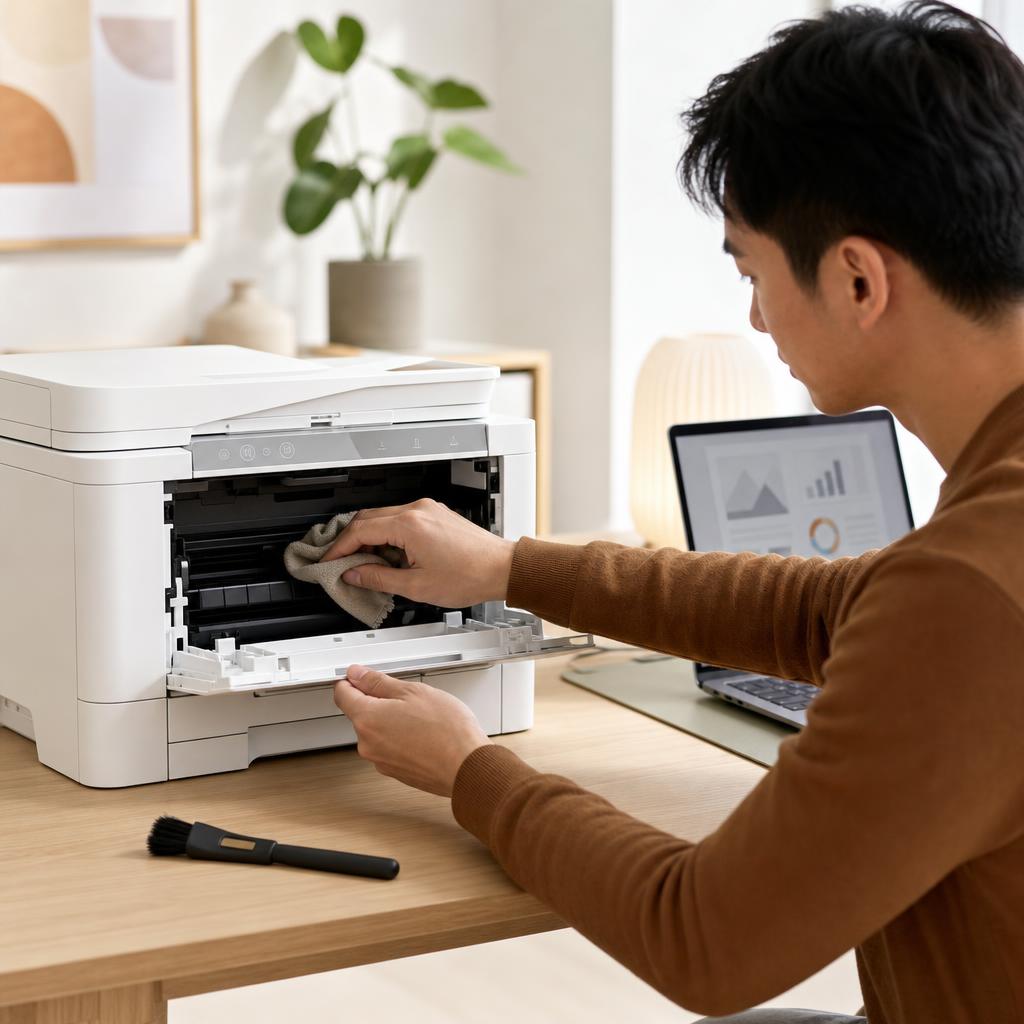
On any printer, check the paper-feed rollers for glazing, flat spots, or grime, since worn rollers cause misfeeds and jams.
Why this works: These are the parts that wear with use and that most affect print quality and reliability. Spotting a tired print head, a scored drum, or slick rollers before you pay saves you from buying someone else’s wear problem.
Expected result: You have looked over the main wear parts and know whether any are likely to need cleaning or replacing.
You can point to the print head or drum and the rollers and say whether each looks serviceable or worn.
-
Step 5: Ask for the right test pages
Ask for a nozzle check or print-quality test page, which shows whether an inkjet’s nozzles are firing cleanly or clogged.
Request a page that uses every colour as well as solid black, so you can spot missing colours, banding, or streaks.
If the model prints two-sided, ask for a duplex test to confirm the paper path pulls a second-sided page through without jamming or smudging.
Why this works: A working test page is proof, not a promise. Nozzle checks reveal clogs, a full-colour page reveals fading or banding, and a duplex test reveals feed problems — together they catch most faults that a static listing photo hides.
Expected result: You have seen recent test output that shows clean colours, solid black, and reliable paper feeding.
For a remote purchase, ask the seller to photograph freshly printed test pages rather than relying on stock images or old scans.
-
Step 6: Check consumable availability and cost for the model
Look up the exact ink or toner the model uses and confirm it is still sold from more than one source.
Compare the price of a full set of consumables against the price of the used printer and against the cost of a new machine.
Be wary of any model whose supplies are marked discontinued, are only available second-hand, or cost more than the printer itself.
Why this works: A cheap used printer with discontinued or overpriced ink is a classic trap. The purchase price is a one-off, but you feed the printer for years, so a model you cannot supply affordably is no bargain no matter how low the sticker.
Expected result: You have confirmed the ink or toner is available at a sensible price and likely to stay that way.
You can find the model’s consumables in stock from at least a couple of sellers at a price you are happy to pay again.
-
Step 7: Verify driver and operating-system support
Check whether current drivers exist for the computer and operating system you plan to use, since older models are not always supported on newer systems.
Confirm the ways you want to connect — such as USB, wired network, or Wi-Fi — are still supported and that any needed software is available.
If drivers look scarce, decide whether a basic or built-in driver would cover your needs, and treat missing support as a mark against the purchase.
Why this works: A perfectly healthy printer is useless if you cannot connect it to your computer. Older models sometimes outlive their software support, so confirming drivers exist for your setup is as important as checking the hardware.
Expected result: You know the printer can be installed on your computer using the connection you want.
Driver availability for older models varies, so check for your specific operating system rather than assuming support carries forward.
-
Step 8: Wipe the previous owner’s data with a factory reset
On a network or office-class machine, look for a factory reset — many models offer this in the settings menu — to clear saved settings and stored information.
Clear any saved network details, scan-to destinations, address books, and stored jobs or print history the machine may hold.
If you cannot reset it yourself, ask the seller to confirm they have wiped it, and treat a refusal or inability to do so as a warning sign.
Why this works: Many office-class printers quietly store settings, contacts, and job history, which is a privacy risk for the previous owner and a source of confusing leftover configuration for you. A factory reset gives you a clean, predictable starting point.
Expected result: The printer holds none of the previous owner’s data and starts from default settings.
Reset options and what they clear vary by model, so many machines offer a factory reset in settings while a few store little or nothing.
-
Step 9: Confirm warranty, returns, and weigh the red flags
Confirm in writing what happens if the printer is faulty — a warranty, a return window, or at least an agreed way to resolve problems.
Add up the true cost: the price plus a fresh set of consumables and any parts, then compare it against a new model.
Walk away if you see clear red flags such as "sold as seen" with no test, vague or missing photos, no consumables included, error messages on screen, or a seller who dodges basic questions.
Why this works: This final step is what turns a hopeful guess into a confident decision. Some protection if it fails, an honest total cost, and a clear-eyed look at the warning signs are what separate a genuine bargain from a machine you will regret.
Expected result: You know your protection if it fails, the real total cost, and whether any red flags mean you should walk away.
You can say the printer passed your checks, the total cost still beats a new model, and you have a return or warranty path if something goes wrong.
Tip
Printer Tip
Always ask what "refurbished" actually included rather than trusting the label on its own.
Other solutions to try
If the steps above didn't do it, these fixes resolve the less common cases.
If you are buying from a private seller
With no shop warranty behind you, lean on inspection and testing to protect yourself.
- Insist on seeing the printer power up and print a test page in person, or on fresh test-page photos for a remote sale.
- Ask for the page count and photos of the print head, drum, and rollers before you agree a price.
- Confirm which consumables and cables are included, since missing supplies add real cost to a "cheap" printer.
- Agree how a fault would be handled before you pay, and be ready to walk away if the seller avoids the question.
If you are choosing a refurbished machine from a shop
A dealer refurbishment should come with checks and some protection, so make sure you get them.
- Ask exactly what was tested, cleaned, and replaced during the refurbishment.
- Confirm the length and terms of any warranty or return window in writing.
- Check whether a starter set of ink or toner is included and factor a full set into your budget if not.
- Compare the refurbished price plus consumables against a new model before deciding the saving is worth it.
Confirm it's working
Tick these off to be sure the problem is fully resolved.
Keep it from happening again
A few habits that stop this problem coming back.
- Always ask what "refurbished" actually included rather than trusting the label on its own.
- Check the page count and inspect the wear parts before agreeing a price on any used printer.
- Confirm the ink or toner is still sold affordably before you buy, since discontinued supplies turn a bargain into a trap.
- Verify drivers exist for your operating system so a working printer is not left stranded.
- Run a factory reset on any network or office machine so it holds none of the previous owner’s data.
- Insist on a test print and some kind of return or warranty path, and walk away when the red flags stack up.
Frequently asked questions
Was this guide helpful?
Your feedback helps us keep these steps accurate.
Thanks for your feedback!
Written by
The Guts Guide Editorial Team · Technology Writers
Reviewed by
The Guts Guide Editorial Team · Technical Review
Last updated
2026-08-02
Continue Reading
Pick up where you left off with the next guide in your troubleshooting journey.

Related Guides
More troubleshooting walkthroughs you may find useful.

Buying Guides
Plain-English comparisons and pre-purchase checklists — find the right printer before you buy.