
All-in-One vs Single-Function Printers: Which Do You Need?
Trying to decide between an all-in-one that prints, scans, and copies, or a simpler single-function printer that only prints? This beginner-friendly buying guide helps you work out whether you actually need scanning and copying, weighs the space, price, and reliability tradeoffs, explains the difference between an ADF and a flatbed scanner, and shows when a dedicated printer plus a phone-scanning app is all you really need.
Applies to: All-in-one printers, Single-function printers, Inkjet printers, Laser printers
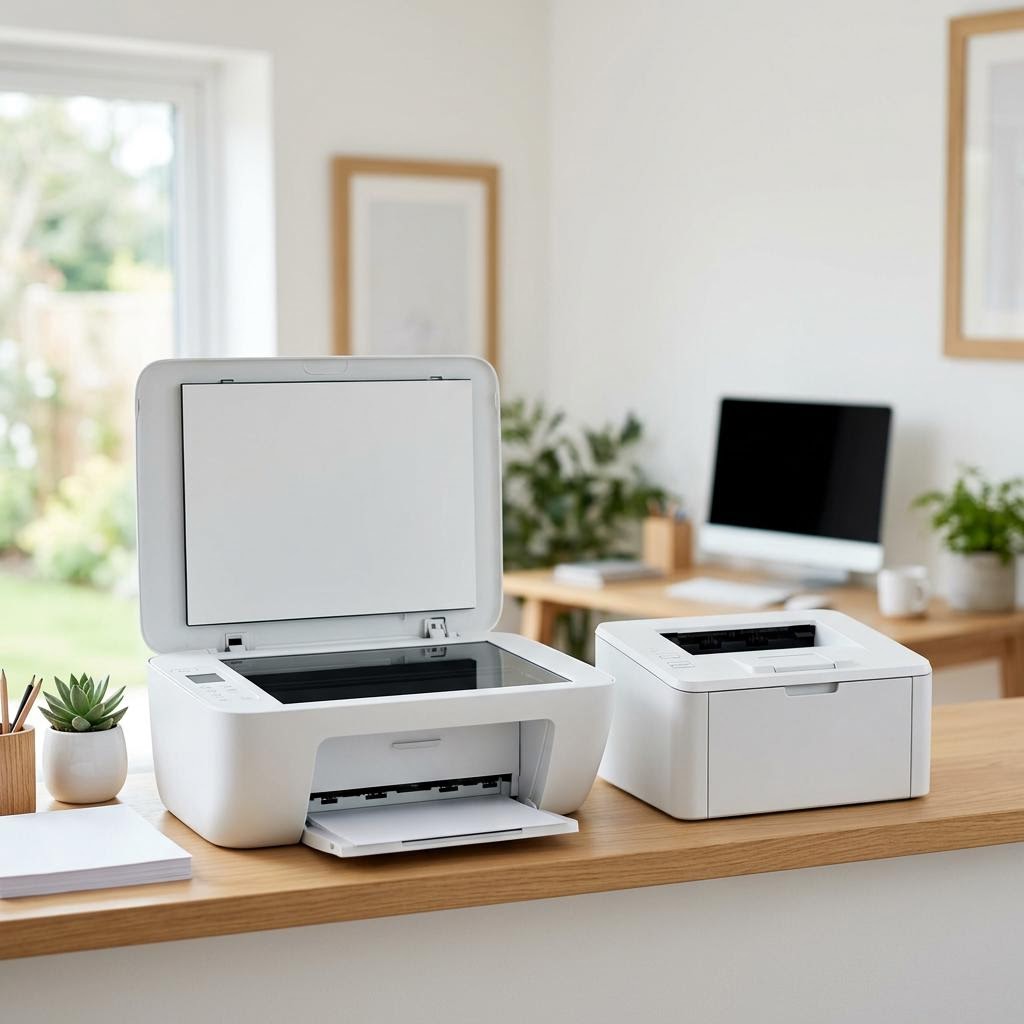
Quick summary
- The problem
- You are not sure whether to buy an all-in-one that prints, scans, and copies, or a cheaper, simpler single-function printer that only prints — and you do not want to overpay for features you will never use or, worse, buy too little and regret it.
- The fix
- If you regularly need to scan paperwork, copy documents, or occasionally fax, choose an all-in-one; if you almost always just print and rarely digitise paper, a single-function printer plus a free phone-scanning app is usually cheaper, smaller, and has fewer parts to fail.
- Applies to
- Home users, students, and small or home offices comparing inkjet or laser printers before buying.
On this page Show
Understanding the problem
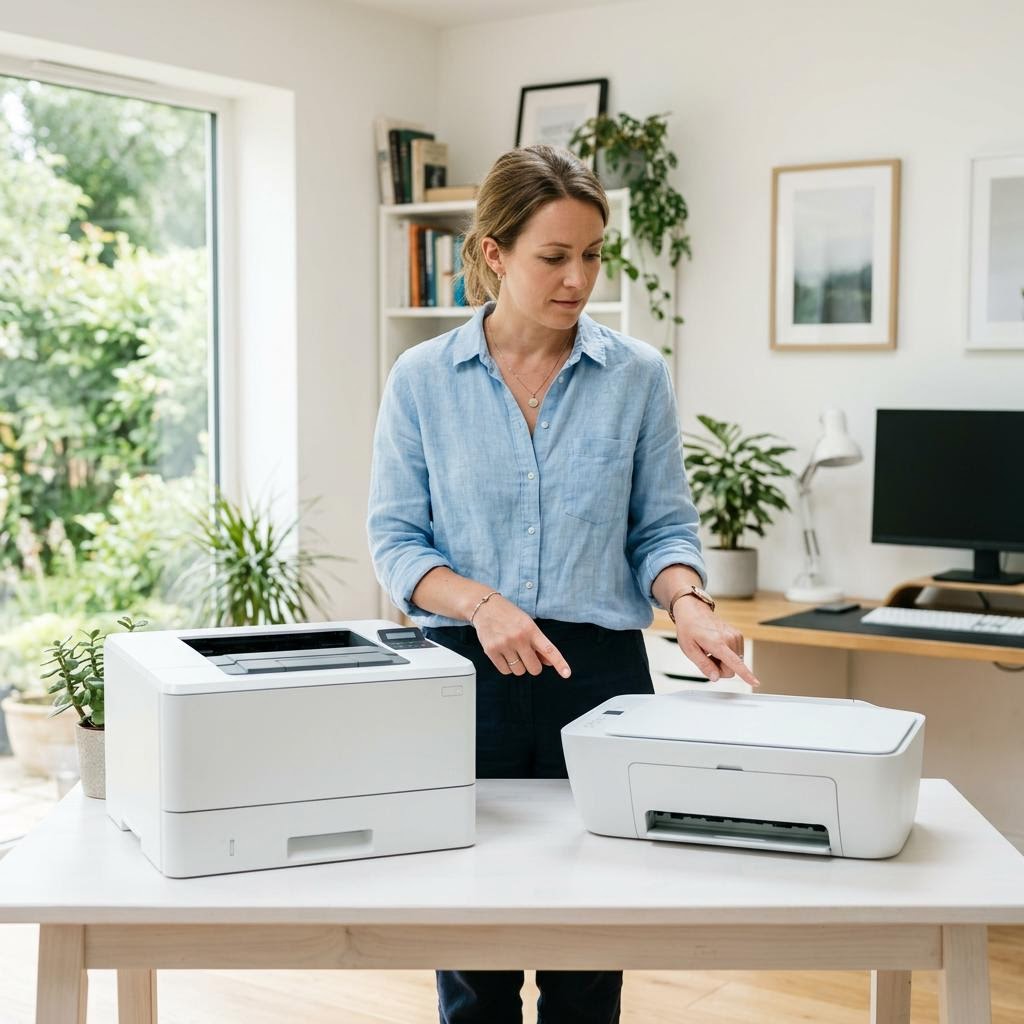
The core difference is simple: a single-function printer only prints, while an all-in-one (sometimes labelled a multifunction printer) combines a printer with a scanner, so it can also copy and — on many models — send documents to your computer or email. Some all-in-ones add faxing too. That extra hardware makes an all-in-one more versatile, but it also makes it larger, usually a little more expensive, and gives it more moving parts that can eventually need attention.
The decision really comes down to one question: how often do you handle paper you need to turn into a digital file or a copy? People who deal with forms, receipts, contracts, homework, or ID documents get real daily value from a built-in scanner. People who almost only print — boarding passes, recipes, shipping labels, the occasional photo — often pay for a scanner that then sits unused for months.
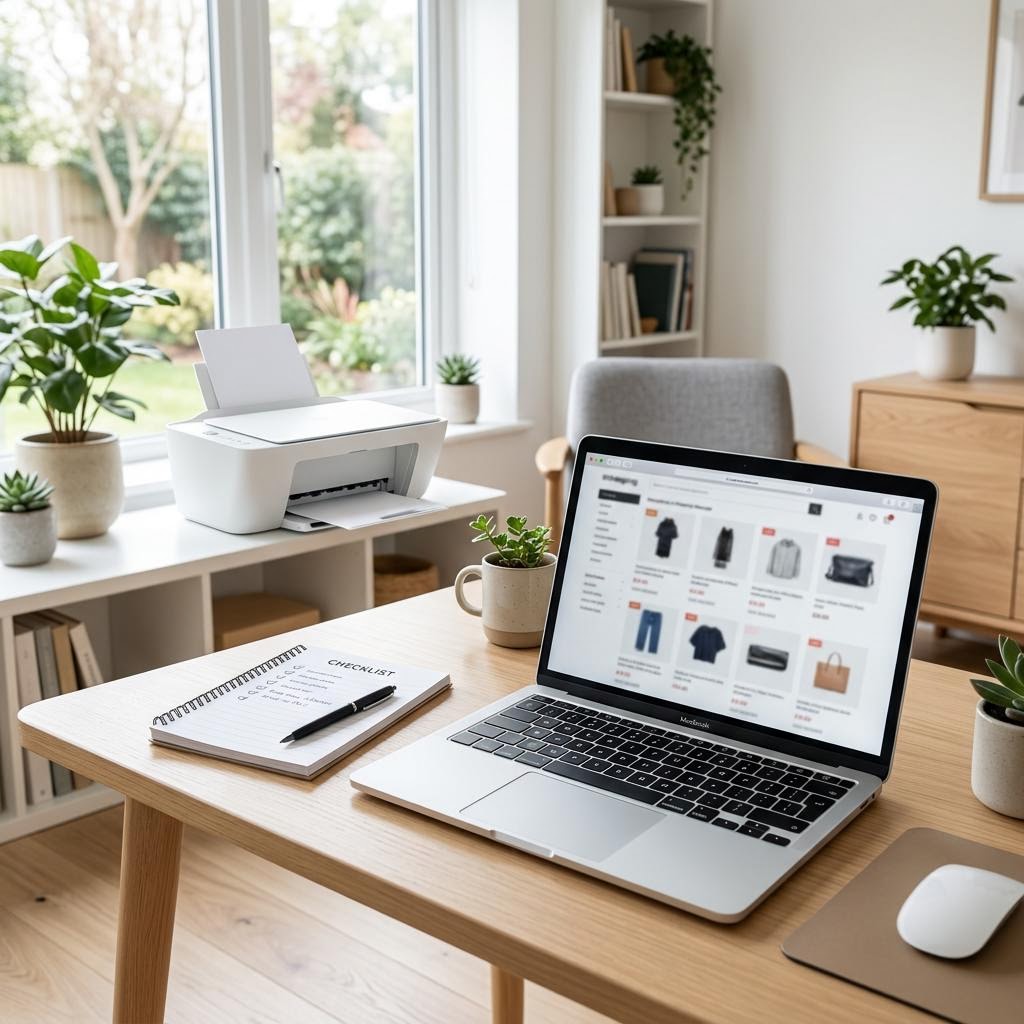
It is also worth knowing that a modern smartphone is a surprisingly capable scanner. Free scanning apps can photograph a page, straighten it, crop it, and save it as a clean PDF. For light, occasional scanning that is often good enough, which means a single-function printer can cover more households than people expect. This guide walks through how to weigh your real needs, the space and cost tradeoffs, the ADF-versus-flatbed question, and the reliability angle, so you can buy once and be happy with it.
Tip
Run one cleaning cycle at a time
When print quality drops, run a single printhead cleaning cycle and print a test page before running another. Repeated cycles use a lot of ink.
Signs you're in the right place
If you're seeing any of these, this guide is for you.
-
You regularly scan or copy paperwork
You often turn forms, receipts, or documents into files or copies, so a built-in scanner would save real time.
-
You almost only ever print
You mainly print tickets, labels, or recipes and rarely need to digitise paper, so scanning may be wasted on you.
-
Desk or shelf space is tight
You are short on room and worried an all-in-one will be too bulky for where it needs to live.
-
You want to keep the price down
You are on a budget and want to avoid paying for features you will not use.
-
You run a small or home office
You handle contracts, invoices, or applications and need reliable scanning and copying alongside printing.
-
You have stacks of pages to scan at once
You sometimes need to digitise many pages in one go, which raises the question of an automatic document feeder.
-
You already scan with your phone
You are comfortable using a phone app to capture documents and wonder whether a dedicated scanner is worth it.
What's usually behind it
The most common reasons this happens, so the fix makes sense.
Buying every feature "just in case"
Paying more for scanning, copying, and faxing you never end up using is a common and expensive misstep.
Underestimating how often you scan
Some buyers pick a print-only model, then find themselves constantly wishing they could copy or scan paperwork.
Ignoring the space an all-in-one needs
All-in-ones are taller and deeper because of the scanner lid, and the lid needs clearance to open — easy to forget until it does not fit.
Assuming an all-in-one always costs a lot more
The price gap between comparable single-function and all-in-one models is often smaller than people expect, so writing off all-in-ones on price alone can be a mistake.
Overlooking phone-scanning apps
Many people pay for a scanner without realising a free phone app would have handled their light, occasional scanning perfectly well.
Confusing an ADF with a flatbed
Buyers sometimes assume any all-in-one can feed a stack of pages automatically, but many models only have a flatbed where you scan one page at a time.
Forgetting more parts means more to maintain
A scanner adds glass, a lid, and often a feeder — more components that can smudge, jam, or need cleaning over the printer's life.
What you'll need
Have these on hand before you start for a smooth fix.
-
A rough idea of what you print each month
Even a loose estimate — a few pages, a stack, or a lot — helps you size the printer correctly.
-
An honest sense of how often you scan or copy
Think about the last few months: daily, occasionally, or almost never?
-
The space where the printer will live
Measure width, depth, and the height clearance needed for a scanner lid to open fully.
-
A budget range you are comfortable with
Include running costs, not just the sticker price, since ink or toner adds up over time.
-
A smartphone, if you have one
A free scanning app may cover your scanning needs and change the decision.
-
A note of any special needs
For example faxing, double-sided scanning, or feeding many pages at once.
How to fix it
Work through these in order — they run from the quickest checks to the more advanced fixes.
-
Step 1: Work out whether you actually need to scan or copy
Look back over the last few months and count roughly how often you needed to copy a document, scan paperwork to a file, or send something by fax.
Separate "nice to have" from "genuinely needed" — an occasional copy you could make elsewhere is different from weekly paperwork you handle at home.
If scanning and copying come up regularly, lean toward an all-in-one; if they almost never do, a single-function printer stays on the table.
Why this works: This is the single most important question in the whole decision. A built-in scanner only earns its keep if you use it — otherwise you are paying for, and finding space for, hardware that sits idle.
Expected result: You have a clear, honest picture of how much scanning and copying you really do.
You can say confidently whether scanning is a regular need or a rare one.
-
Step 2: Measure the space and weigh the size tradeoff
Measure the spot where the printer will sit — width, depth, and the height above it.
Remember that an all-in-one is taller because of the scanner unit, and the lid needs room to open fully, plus extra clearance if it has a document feeder on top.
Check the dimensions on the spec sheet of any model you consider, and compare them against your measured space before buying.
Why this works: All-in-ones take up noticeably more room than single-function printers. Confirming the footprint and lid clearance up front avoids the frustration of a printer that technically fits but cannot open its own lid.
Expected result: You know how much space you have and whether an all-in-one will fit comfortably.
If space is very tight, a compact single-function printer plus phone scanning is often the more practical choice.
-
Step 3: Compare the full cost, not just the sticker price
Note the purchase price of the single-function and all-in-one models you are weighing — the gap is often smaller than expected.
Factor in running costs, which depend far more on the ink or toner and how much you print than on whether the printer scans.
Consider whether an all-in-one would replace a separate scanner or trips elsewhere to copy, which can offset its slightly higher price.
Why this works: People often reject all-in-ones on price alone, but the difference between comparable models is frequently modest, and running costs — driven by consumables — usually dominate the total over time.
Expected result: You understand the true cost difference between the two options for the way you print.
If you print a lot, the cost of ink or toner will matter far more than the print-versus-all-in-one choice — that is a separate comparison worth making.
-
Step 4: Decide between a flatbed and an automatic document feeder
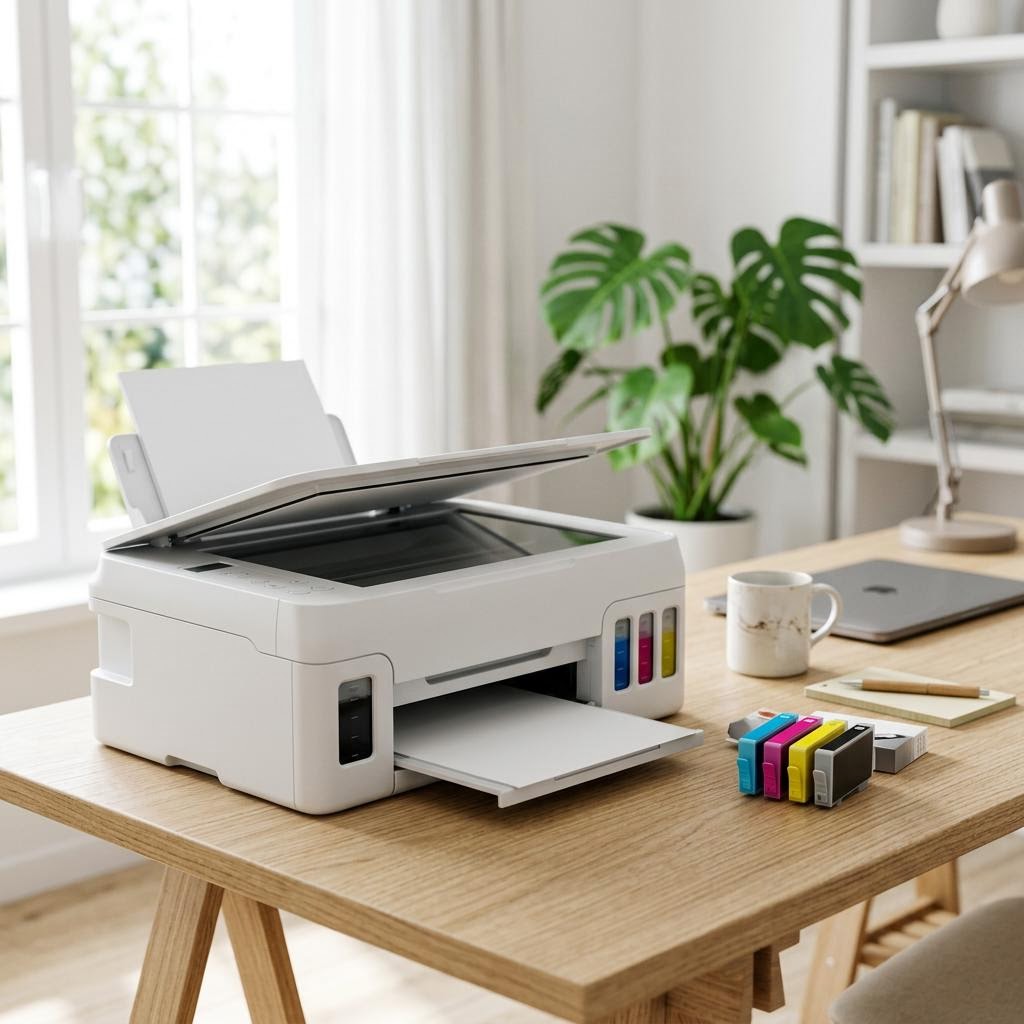
A flatbed scanner is a flat glass bed with a lid; you place one page at a time and lower the lid — ideal for books, photos, and single pages.
An automatic document feeder (ADF) sits on top and pulls in a stack of loose pages one after another, which is far faster for multi-page documents.
Check the spec sheet: many all-in-ones have only a flatbed, some add an ADF, and a few can scan both sides of a page automatically.
Why this works: If you routinely digitise multi-page documents, an ADF saves a lot of manual page-swapping. If you mostly scan the odd single page, a flatbed is fine and keeps the printer smaller and cheaper.
Expected result: You know which type of scanner suits your documents and whether you need an ADF.
You can tell from a spec sheet whether a model has a flatbed, an ADF, or both.
-
Step 5: Consider whether phone scanning is good enough
If you own a smartphone, try a free scanning app: photograph a page in good light, then let the app crop, straighten, and save it as a PDF.
Judge whether the result is clean enough for how you use scans — emailing a form or keeping a receipt is usually fine, while high-detail archival scans may not be.
If phone scanning covers your needs, a single-function printer becomes a strong, cheaper, and more compact option.
Why this works: Phone-scanning apps have become genuinely capable for light, occasional scanning. For many households they remove the main reason to buy a scanner at all, which can save money and space.
Expected result: You know whether a phone can realistically replace a dedicated scanner for you.
Phone scanning suits occasional single pages best; scanning many pages regularly is still much faster on an all-in-one with a feeder.
-
Step 6: Factor in reliability and maintenance
Remember that more features mean more parts: a scanner adds glass, a lid, and sometimes a feeder that can jam or need cleaning.
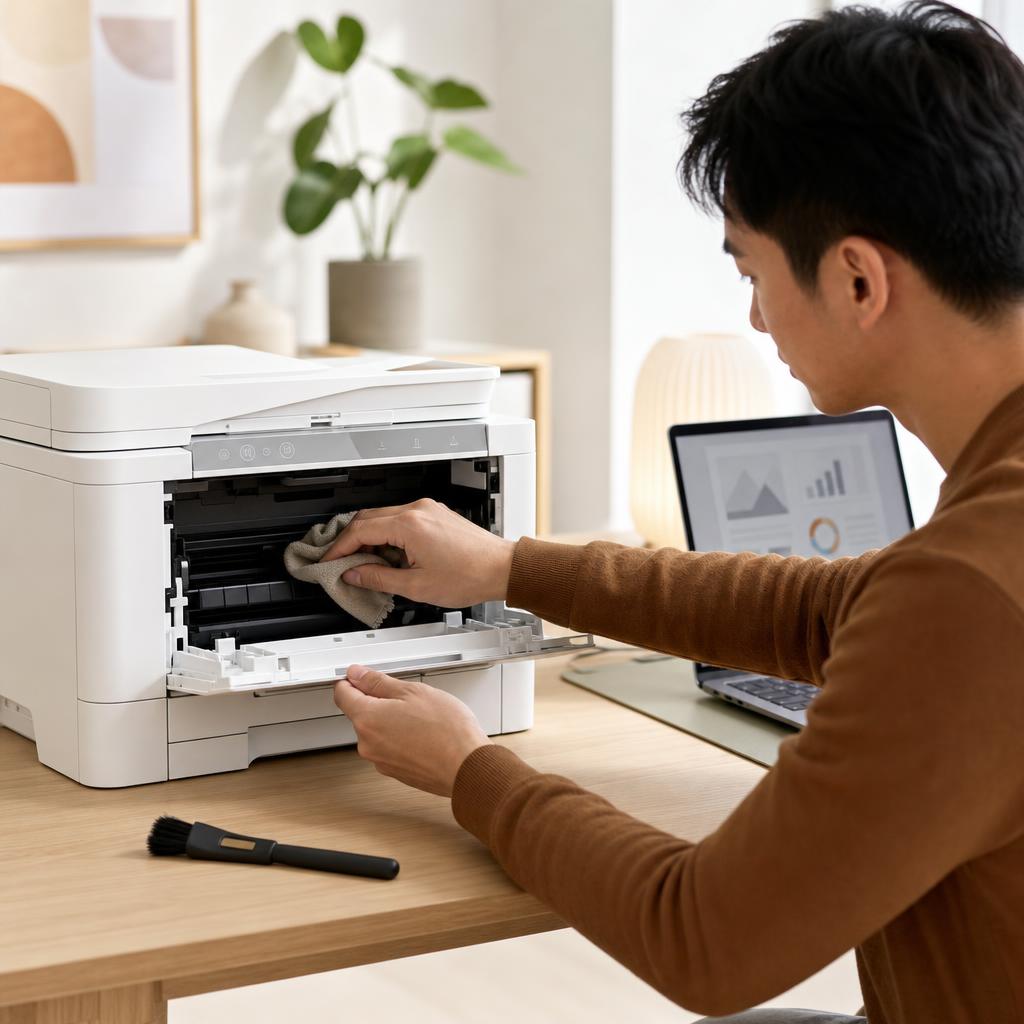
Think about whether you are comfortable occasionally wiping the scanner glass and clearing a feeder, which are simple but real upkeep tasks.
If you value the fewest possible things that can go wrong, a single-function printer is inherently simpler.
Why this works: Every added component is one more thing that can eventually need cleaning or attention. A single-function printer has fewer failure points, while an all-in-one trades a little of that simplicity for versatility.
Expected result: You understand the maintenance and reliability tradeoff between the two designs.
-
Step 7: Match the choice to who will use it
For a home office or small business handling contracts, invoices, and applications, an all-in-one — ideally with an ADF — usually pays off in saved time.
For a household that mostly prints, or a student who scans the odd page, a single-function printer plus a phone app is often the smarter, cheaper buy.
Write down your top two or three real needs and pick the model that meets them without adding features you will not touch.
Why this works: The right answer depends on the person, not the product. Matching the printer to how it will actually be used is what prevents both overspending and buyer's remorse.
Expected result: You can confidently choose between an all-in-one and a single-function printer for your situation.
You have a clear pick that fits your needs, space, and budget.
Tip
Printer Tip
Base the decision on how you have used paper over the last few months, not on how you imagine you might use it.
Other solutions to try
If the steps above didn't do it, these fixes resolve the less common cases.
When an all-in-one is the better buy
An all-in-one makes the most sense when scanning and copying are part of your routine rather than a rare event.
- You regularly copy or scan paperwork such as forms, receipts, contracts, or homework.
- You want one device on the desk instead of a separate printer and scanner.
- You handle multi-page documents often and would benefit from an automatic document feeder.
- You occasionally need to fax, which some all-in-ones still support — check the spec sheet.
When a single-function printer is enough
A print-only model is often the smarter choice when scanning is rare and space or budget matters.
- You almost always just print — tickets, labels, recipes, or the occasional photo.
- You are comfortable using a free phone-scanning app for the rare page you need to digitise.
- Desk or shelf space is tight and a smaller footprint matters.
- You want the fewest parts that can need cleaning or attention over time.
Confirm it's working
Tick these off to be sure the problem is fully resolved.
Keep it from happening again
A few habits that stop this problem coming back.
- Base the decision on how you have used paper over the last few months, not on how you imagine you might use it.
- Measure your space before you shop, including the clearance a scanner lid or feeder needs.
- Compare running costs, since ink or toner usually matters far more than the print-versus-all-in-one choice.
- Try a free phone-scanning app before assuming you need a built-in scanner.
- Read the spec sheet to confirm whether a model has a flatbed, an ADF, or both — do not assume.
- Only pay for faxing, double-sided scanning, or a feeder if you will genuinely use them.
- Remember that more features mean more parts to keep clean, and choose the simplest device that meets your needs.
Frequently asked questions
Was this guide helpful?
Your feedback helps us keep these steps accurate.
Thanks for your feedback!
Written by
The Guts Guide Editorial Team · Technology Writers
Reviewed by
The Guts Guide Editorial Team · Technical Review
Last updated
2026-08-02
Continue Reading
Pick up where you left off with the next guide in your troubleshooting journey.

Related Guides
More troubleshooting walkthroughs you may find useful.
Buying Guides
Plain-English comparisons and pre-purchase checklists — find the right printer before you buy.