How to Update Device Drivers on Windows 10 and 11
Outdated drivers cause devices to malfunction, slow down, or stop working entirely. This guide shows you three ways to update drivers on Windows — through Windows Update, Device Manager, and the manufacturer's site — so you choose the right method for your situation.
Applies to: Windows 11, Windows 10, All device types (printers, graphics cards, network adapters, etc.)
Quick summary
- The problem
- A device — printer, graphics card, network adapter, audio card — is not working correctly, or Windows is showing an error flag next to it in Device Manager.
- The fix
- Update the driver through Windows Update (easiest), Device Manager (built-in), or by downloading directly from the manufacturer's website (most current). The right method depends on which device is causing the problem and how current you need the driver to be.
- Applies to
- Anyone on Windows 10 or Windows 11 whose device is malfunctioning, showing errors, or performing poorly after a Windows update.
On this page Show
Understanding the problem
A driver is a small piece of software that tells Windows how to communicate with a specific hardware device — a printer, a graphics card, a network adapter, or anything else connected to your computer. Without the correct driver, Windows cannot use the device properly.
Drivers go out of date for several reasons: Windows updates can change the underlying system so an older driver no longer works correctly; manufacturers release newer drivers with bug fixes and performance improvements; or a device is new enough that Windows does not have a built-in driver for it.
When a driver is missing, outdated or corrupted, Windows usually signals this with a yellow warning triangle in Device Manager, a device that stops responding, reduced performance (common with graphics drivers), or a device that Windows cannot detect at all.
The good news is that updating drivers is straightforward. Windows Update handles most drivers automatically. For cases where automatic updates are not enough — a device is still misbehaving after an update, or you need the very latest driver — Device Manager and the manufacturer's own download page give you direct control.
Tip
Match the paper setting to the paper
Choosing the correct paper type in the print dialog changes how much ink is used and can noticeably improve print quality.
Signs you're in the right place
If you're seeing any of these, this guide is for you.
-
Yellow exclamation mark next to a device in Device Manager
Windows has detected a driver problem — missing, corrupted, or incompatible driver.
-
Device stopped working after a Windows update
The Windows update changed something the old driver depended on. A driver update usually resolves this.
-
Poor performance from a graphics card, audio device or network adapter
The current driver may be outdated or the wrong version for the current Windows build.
-
Windows cannot find or detect a newly connected device
No driver is installed yet, or the driver installation failed during setup.
What's usually behind it
The most common reasons this happens, so the fix makes sense.
Outdated driver not compatible with a new Windows version
Major Windows updates (e.g. Windows 11 24H2) can make older drivers incompatible. Manufacturers usually release updated drivers alongside major OS releases.
Corrupted driver installation
A partial or interrupted driver install can leave a device in a broken state. Uninstalling and reinstalling the driver fixes this.
No driver installed for a new device
Windows ships with drivers for common hardware, but specialist devices — certain printers, professional audio interfaces, USB adapters — require a driver download from the manufacturer.
Wrong driver version installed
Installing a driver for a similar but different device model — common when using generic drivers — can cause partial functionality or errors.
What you'll need
Have these on hand before you start for a smooth fix.
-
A Windows 10 or Windows 11 PC
The steps are near-identical on both versions.
-
An internet connection
Required to download driver updates through Windows Update or the manufacturer's site.
-
Administrator access
Driver installation requires an administrator account. Most home PCs use an admin account by default.
How to fix it
Work through these in order — they run from the quickest checks to the more advanced fixes.
-
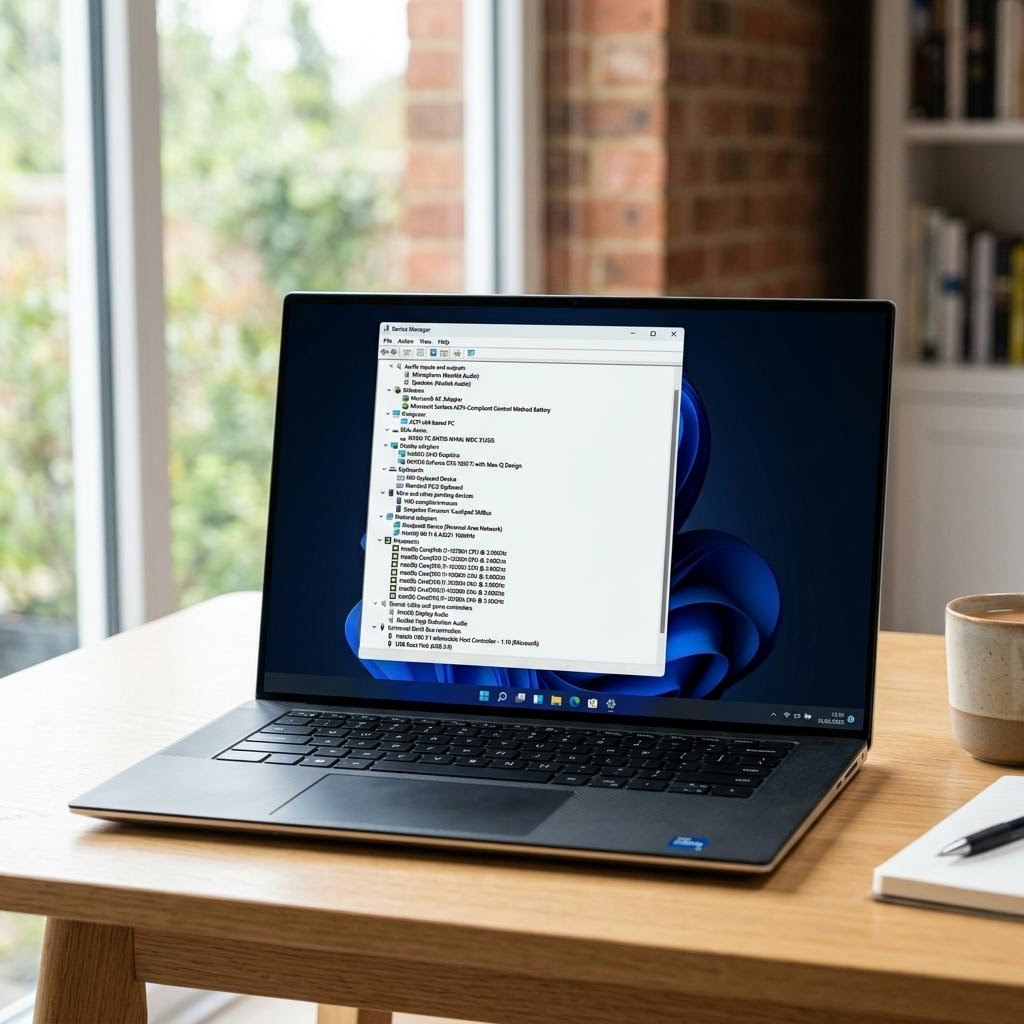
Step 1: Check Device Manager for driver errors
Right-click the Start button and select "Device Manager" — or press Windows + X and choose it from the menu.
Scan the list for any item showing a yellow exclamation mark (⚠). This indicates a driver problem.
Click the arrow next to a category to expand it and see individual devices. Common problem categories are "Display adapters", "Network adapters", "Printers", "Universal Serial Bus controllers", and "Sound, video and game controllers".
Right-click a flagged device and select "Properties". The error code under the General tab identifies the exact problem. Code 43 usually means Windows stopped the device. Code 28 means no driver is installed. Code 10 means the device cannot start.
Note the exact device name — you will need it if you search the manufacturer's website for a driver.
Why this works: Device Manager is Windows's central hardware diagnostic tool. The error code tells you whether the driver is missing entirely, corrupted, or incompatible — which determines the best fix.
Expected result: You can see which device has a driver problem and know its error code.
-
Step 2: Update drivers through Windows Update (easiest method)
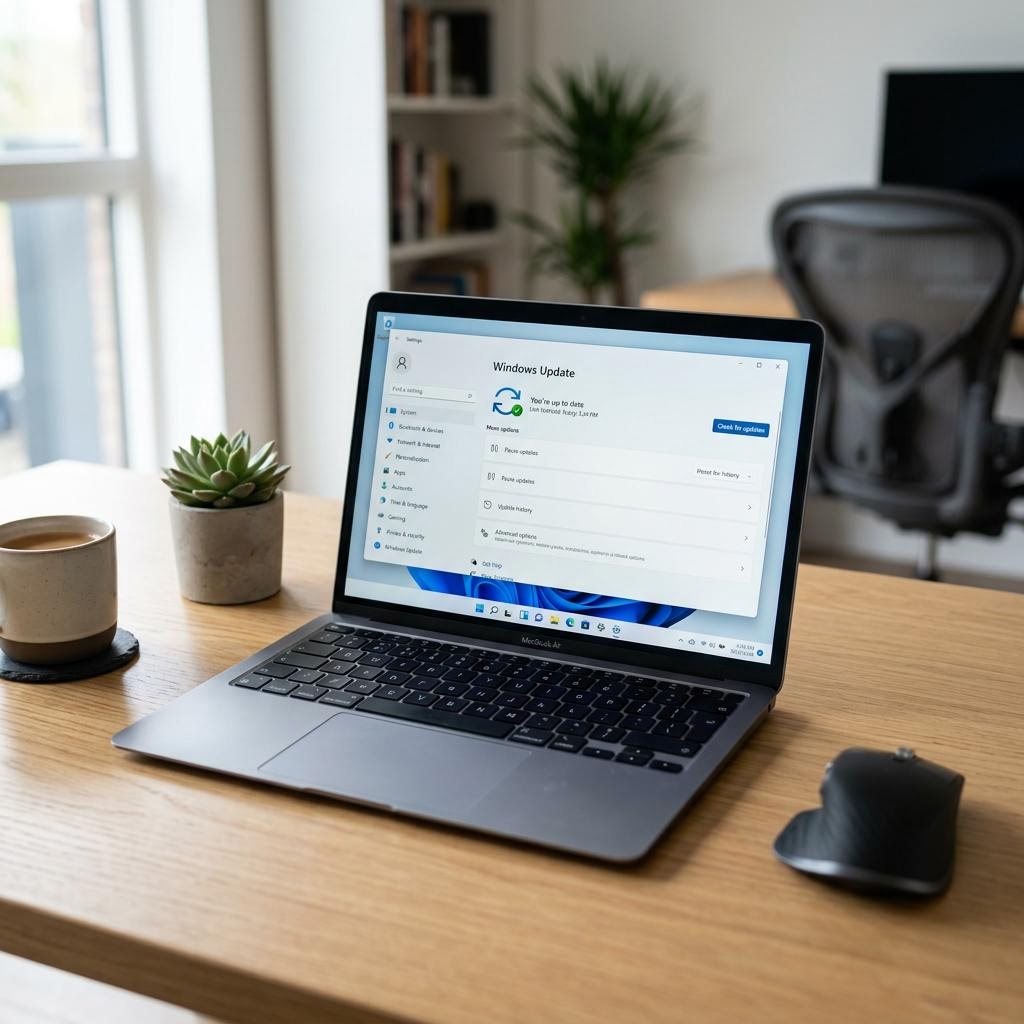
Open Settings (Windows + I) and go to Windows Update.
Click "Check for updates" and let Windows search for available updates.
On Windows 11: after updates are listed, click "Advanced options" → "Optional updates" → "Driver updates" to see driver-specific updates.
On Windows 10: click "View optional updates" (if visible) → "Driver updates".
Tick the checkboxes next to any driver updates for your affected device and click "Download and install".
Restart your computer when prompted. Many driver updates only take effect after a full restart.
Why this works: Windows Update distributes drivers that Microsoft has tested for compatibility with the current Windows version. For most consumer devices — printers, common network adapters, graphics cards from major manufacturers — this is the safest and most convenient update method.
Expected result: The driver is updated to a version tested by Microsoft. The yellow warning triangle disappears from Device Manager.
-
Step 3: Update a driver directly through Device Manager
Right-click the Start button and select "Device Manager".
Find the device you want to update. Right-click it and select "Update driver".
Choose "Search automatically for drivers". Windows will check its local driver store and Windows Update for a newer version.
If Windows says the best driver is already installed but you know a newer one is available, choose "Browse my computer for drivers" if you have already downloaded a driver file, or proceed to Step 4 to download from the manufacturer.
After the update completes, restart your computer if prompted.
Why this works: Device Manager gives you targeted control over a single device's driver, rather than running all Windows Updates at once. It is useful when you know which device is causing a problem and want to fix just that one.
Expected result: The specific device's driver is updated and any errors are resolved.
-
Step 4: Download the driver from the manufacturer's website (most current)
Identify the exact device name and model — shown in Device Manager (right-click the device → Properties → General tab).
Go to the manufacturer's official support or downloads page. Examples: HP Support (support.hp.com), Canon Support (support.usa.canon.com), NVIDIA (nvidia.com/drivers), AMD (amd.com/support), Intel (intel.com/drivers).
Search for your exact model and select your operating system version (Windows 10 or Windows 11, and whether it is 64-bit — almost all modern PCs are).
Download the driver installer — typically a .exe file. Run it and follow the on-screen steps. Most installers handle the entire process automatically.
Restart your computer after the installation completes, even if the installer does not explicitly ask.
Why this works: The manufacturer's website always has the most current driver — often newer than what Windows Update distributes, because manufacturers release updates continuously while Microsoft batches them. For professional devices, gaming hardware, or when Windows Update doesn't have what you need, this is the reliable path.
Expected result: The device has the latest driver directly from the manufacturer. Performance and compatibility issues tied to an old driver are resolved.
-
Step 5: Roll back a driver if things get worse after an update
If a device starts misbehaving after a driver update, Windows can revert to the previous driver.
Open Device Manager, right-click the affected device, and select "Properties".
Click the "Driver" tab. If "Roll Back Driver" is available (not greyed out), click it. Windows will restore the previous driver version.
If Roll Back is greyed out, the previous driver was not saved — you will need to uninstall the current driver (right-click the device → Uninstall device, tick "Delete the driver software") and then install the older version manually from the manufacturer's downloads archive.
After rolling back, consider pausing driver updates in Windows Update temporarily (Settings → Windows Update → Advanced options → Pause updates) to prevent Windows from automatically reinstalling the problematic driver.
Why this works: New driver versions occasionally introduce new bugs or are not compatible with certain hardware combinations. The rollback option lets you safely undo a driver update without reinstalling Windows.
Expected result: The device returns to working condition using the previous driver version.
Tip
Printer Tip
Keep Windows Update set to automatic so driver updates are applied as they are released.
Confirm it's working
Tick these off to be sure the problem is fully resolved.
Keep it from happening again
A few habits that stop this problem coming back.
- Keep Windows Update set to automatic so driver updates are applied as they are released.
- Check Device Manager periodically — a yellow triangle that appears without an obvious cause often signals a quietly broken driver.
- Before a major Windows update (like a new annual release), check the manufacturer's site for an updated driver in advance.
- After installing a new piece of hardware, always restart the computer even if Windows does not prompt you to.
Frequently asked questions
Was this guide helpful?
Your feedback helps us keep these steps accurate.
Thanks for your feedback!
Written by
The Guts Guide Editorial Team · Windows & Software Specialists
Last updated
Jul 15, 2026
Continue Reading
Pick up where you left off with the next guide in your troubleshooting journey.
Related Guides
More troubleshooting walkthroughs you may find useful.

Buying Guides
Plain-English comparisons and pre-purchase checklists — find the right printer before you buy.