How to Fix Windows Updates That Are Stuck or Pending
Step-by-step fixes for Windows updates that refuse to download, stay stuck at a percentage, or sit in "Pending" state indefinitely — from the built-in troubleshooter to manual component resets.
Applies to: Windows 10, Windows 11
Quick summary
- The problem
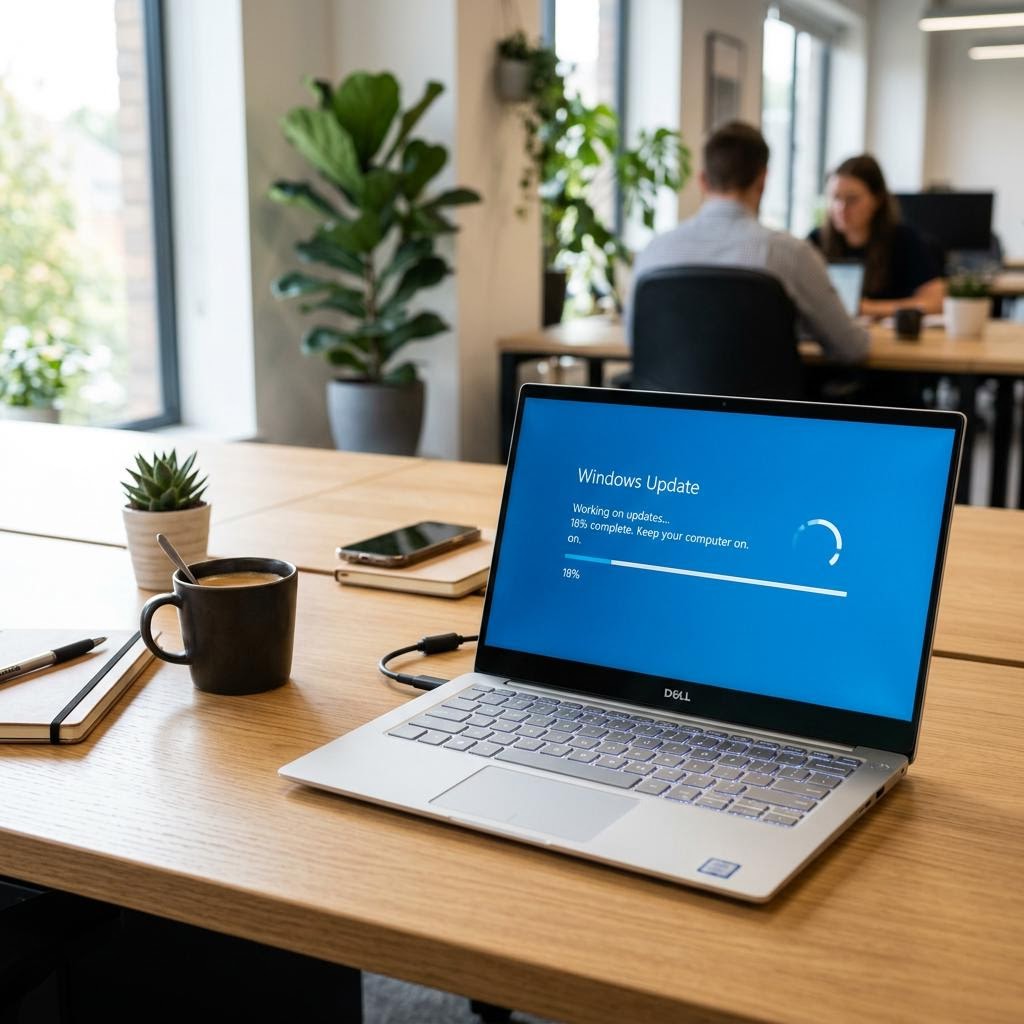
- Windows Update shows updates as "Pending", "Downloading — 0%", or stuck at a fixed percentage for hours with no progress.
- The fix
- Run the built-in Windows Update Troubleshooter, clear the update cache, and restart the Windows Update services. In most cases one of these three steps resolves the stall within minutes.
- Applies to
- Windows 10 and Windows 11 on any desktop, laptop, or 2-in-1 device.
On this page Show
Understanding the problem
A Windows update that sits at "Pending" or "0% — Downloading" for hours is one of the most frustrating PC experiences — but it is almost never a sign of a serious hardware or software problem. In the vast majority of cases, the stall traces back to one of three root causes: a corrupted update cache, a Windows Update service that has stopped responding, or a temporary hiccup in Microsoft's update delivery network.
The update cache is a folder on your system drive (called SoftwareDistribution) where Windows stores downloaded update packages before installing them. If a package in this folder is damaged or incomplete — which can happen after a power cut, a forced shutdown, or a network drop mid-download — the update engine may refuse to proceed and simply display "Pending" while it waits for a file that will never arrive correctly.
The Windows Update service (wuauserv) and its companion services — BITS (Background Intelligent Transfer Service) and Cryptographic Services — must all be running correctly for updates to flow. If any of them has crashed, entered a hung state, or been accidentally disabled, the download pipeline stalls silently. The status indicator keeps showing "Downloading" or "Pending" because the system still thinks a transfer is in progress, but nothing is actually moving.
A third, less common cause is a temporary problem on Microsoft's content delivery servers or a brief network interruption on your end. These usually resolve within an hour or two; if updates were stuck but suddenly started working after you left the PC alone, this was probably why.
The good news is that all three causes share the same repair sequence: let the troubleshooter find what it can, clear the stale cache, restart the services, and check again. Most users are fully unblocked after the first two steps. This guide walks through each step in plain language so you do not need any technical background to follow it.
Did you know?
Tank printers are still inkjets
Ink-tank printers are inkjets that use large refillable reservoirs instead of cartridges, which usually lowers the cost per printed page.
Signs you're in the right place
If you're seeing any of these, this guide is for you.
-
Windows Update shows "Pending download" with no progress for over an hour
The update is queued but the download has not started or has stalled at 0%. The progress indicator spins but the percentage never changes.
-
An update is stuck at a fixed percentage (e.g. 47%) for more than 30 minutes
The download appeared to start but froze partway through. This often indicates a corrupted partial package in the cache.
-
"Installing — 0%" that does not move after downloading completed
The download finished but the install phase will not begin. The Windows Update services may have stalled between the two stages.
-
The same update fails repeatedly after appearing to succeed
Windows reports an error code after each attempt, or the update reappears in the list immediately after install. A corrupted cache entry is the usual cause.
-
Windows Update settings page takes a very long time to load or appears blank
The Windows Update service itself may have stopped responding, causing the settings page to hang while trying to contact it.
What's usually behind it
The most common reasons this happens, so the fix makes sense.
Corrupted or incomplete files in the update cache
The SoftwareDistribution folder stores partially downloaded packages. If a file is damaged or truncated, the update engine stalls rather than proceeding with bad data. Clearing the cache forces Windows to download clean copies.
A Windows Update service or dependency has stopped
The Windows Update service (wuauserv), BITS, and Cryptographic Services must all run in tandem. If one crashes or is disabled, the update pipeline silently stalls. Restarting all three usually unblocks the queue.
A temporary network or server-side issue
Microsoft's update delivery infrastructure occasionally has brief outages or congestion periods, particularly on Patch Tuesday when millions of PCs download simultaneously. Waiting an hour and retrying usually resolves this without any manual steps.
What you'll need
Have these on hand before you start for a smooth fix.
-
Administrator access on the PC
Clearing the update cache and restarting services both require administrator privileges.
-
A working internet connection
After clearing the cache, Windows needs to re-download the update packages from Microsoft's servers.
-
Roughly 15–20 minutes
The troubleshooter, cache clear, and service restart together take about 15 minutes. Allow extra time for re-downloading large updates afterward.
How to fix it
Work through these in order — they run from the quickest checks to the more advanced fixes.
-
Step 1: Run the built-in Windows Update Troubleshooter
On Windows 11: open Settings → System → Troubleshoot → Other troubleshooters, then click "Run" next to Windows Update.
On Windows 10: open Settings → Update & Security → Troubleshoot → Additional troubleshooters, then click Windows Update and select "Run the troubleshooter".
The troubleshooter checks the update services, clears minor cache problems, and resets stuck components automatically. Let it run to completion and apply any fixes it recommends. Restart the PC if prompted, then check Windows Update again.
Why this works: The built-in troubleshooter catches the most common stall causes — stopped services, cache corruption, and misconfigured settings — without requiring any manual steps. It is always the right first move.
Expected result: The troubleshooter reports what it found and fixed. Windows Update may start downloading immediately after the next check.
-
Step 2: Stop the Windows Update services
Right-click the Start button and choose "Windows Terminal (Admin)" or "Command Prompt (Admin)". If prompted by User Account Control, click Yes.
Type the following commands one at a time, pressing Enter after each and waiting for the confirmation message before proceeding:
net stop wuauserv
net stop cryptSvc
net stop bits
net stop msiserver
All four services should confirm they have stopped successfully. If any say they were not running, that is fine — proceed to the next step.
Why this works: You cannot safely delete the cache while the update services are actively using it. Stopping them first ensures the files are not locked when you clear the folder.
Expected result: All four services confirm they have stopped. The command prompt is ready for the next command.
Keep the administrator command prompt window open — you will need it in step 4 to restart the services.
-
Step 3: Clear the update cache (SoftwareDistribution folder)
In the same administrator command prompt, type the following commands and press Enter after each:
ren C:\Windows\SoftwareDistribution SoftwareDistribution.old
ren C:\Windows\System32\catroot2 catroot2.old
These commands rename the cache folders rather than deleting them, so Windows creates fresh empty ones on next use. The old folders remain as a fallback if needed.
If either command returns an "Access is denied" error, one of the services is still running. Go back to step 2 and try stopping the services again, then retry the rename commands.
Why this works: Renaming the cache forces Windows to start fresh with uncorrupted download folders. Any damaged or incomplete package files are left in the ".old" folders but no longer used.
Expected result: Both rename commands complete without errors. New empty SoftwareDistribution and catroot2 folders will be created automatically when the services restart.
-
Step 4: Restart the Windows Update services
In the same administrator command prompt, type the following commands one at a time, pressing Enter after each:
net start wuauserv
net start cryptSvc
net start bits
net start msiserver
All four should confirm they have started successfully. Close the command prompt.
Why this works: Restarting the services with a clean cache gives the update pipeline a fresh start. Windows will contact Microsoft's servers and rebuild the cache with correctly downloaded packages.
Expected result: All four services confirm they have started. Windows is now ready to download updates cleanly.
-
Step 5: Check for updates and monitor progress
Open Settings → Windows Update and click "Check for updates". Windows will contact Microsoft's servers, discover the available updates, and begin downloading them into the new clean cache.
Monitor the progress for a few minutes. You should see the download percentage begin to move. Large cumulative updates may take 10–30 minutes to download depending on your connection speed.
If progress stalls again at the same percentage, wait 15 minutes before drawing conclusions — some updates perform disk operations that appear as pauses in the percentage counter.
Why this works: Checking for updates after the cache reset confirms whether the fix worked and lets you observe whether downloads are now progressing normally.
Expected result: Updates begin downloading with a moving progress percentage. After download completes, Windows stages them for installation on the next restart.
-
Step 6: Delete the old cache folders once updates succeed
Once your updates have downloaded and installed successfully, you can delete the old ".old" folders to recover disk space.
Open File Explorer, navigate to C:\Windows, and look for "SoftwareDistribution.old" and, in C:\Windows\System32, "catroot2.old". Right-click each and choose Delete.
If Windows says the folders are in use or cannot be deleted, a service is accessing them. Restart the PC and try again — after a clean restart they should be fully released.
Why this works: The renamed folders serve as a safe fallback during the fix but are not needed once updates have successfully completed. Removing them recovers potentially several gigabytes of disk space.
Expected result: Both ".old" folders are deleted. Disk space is reclaimed and only the fresh, working cache remains.
If you prefer not to delete them, they will not cause any problems — Windows ignores renamed folders. You can leave them and delete later.
Tip
Printer Tip
Restart your PC at least once a week — a PC that runs continuously for weeks is more likely to accumulate service hangs and cache issues.
Confirm it's working
Tick these off to be sure the problem is fully resolved.
Keep it from happening again
A few habits that stop this problem coming back.
- Restart your PC at least once a week — a PC that runs continuously for weeks is more likely to accumulate service hangs and cache issues.
- Do not force-shut down the PC while updates are downloading, as interrupted downloads create the corrupted cache files that cause future stalls.
- Keep at least 10 GB free on your system drive; a nearly full drive can cause update downloads to fail mid-way.
- After any power outage, run Windows Update manually once the PC is back up to check for and clear any interrupted downloads.
Frequently asked questions
Was this guide helpful?
Your feedback helps us keep these steps accurate.
Thanks for your feedback!
Written by
The Guts Guide Editorial Team · Educational Content
Last updated
Jul 2026
Continue Reading
Pick up where you left off with the next guide in your troubleshooting journey.

Related Guides
More troubleshooting walkthroughs you may find useful.
Buying Guides
Plain-English comparisons and pre-purchase checklists — find the right printer before you buy.