
Reconnecting a Printer That Shows Offline: Wi-Fi, USB & Spooler Fixes
A structured reconnection checklist for printers that show Offline — covering wireless dropouts, USB breaks, spooler stalls, IP address mismatches, and macOS printing system resets.
Applies to: All wireless and USB printers, Windows 10 and Windows 11, macOS Ventura, Sonoma, and Sequoia, HP, Epson, Canon, Brother, and all major brands
Quick summary
- The problem
- The printer was working before and has since shown as "Offline" — usually after a router reboot, sleep cycle, Wi-Fi dropout, or Windows Update.
- The fix
- Confirm the printer is on the correct Wi-Fi network, check the IP address has not changed, restart the print spooler, and re-add the printer if necessary. For USB printers, reseat the cable and try a different port.
- Applies to
- Any printer that was previously working and has since dropped to an Offline status — wireless or USB, Windows or macOS.
On this page Show
Understanding the problem
When a printer drops offline after working normally, something has changed in the connection path between the computer and the printer. On wireless printers, the most common cause is an IP address change — the router rebooted overnight and assigned the printer a new address, which the computer does not know about. On USB printers, the cable is the usual suspect: a loose or degraded cable causes intermittent connection failures that show up as an offline status.
The other frequent culprit is the Windows print spooler — the background service that manages print jobs. A stuck job or a brief service crash can leave the spooler in a non-functional state where the printer appears offline even though the physical connection is perfectly fine.
This guide is written as a structured reconnection sequence: check the physical connection first, then the network, then the software. Working through it top to bottom resolves virtually all reconnection failures without needing to reinstall anything.
If your printer has never worked and you are trying to set it up for the first time, see our guide on connecting a printer to Wi-Fi instead — that guide covers initial setup rather than reconnection.
Tip
Run one cleaning cycle at a time
When print quality drops, run a single printhead cleaning cycle and print a test page before running another. Repeated cycles use a lot of ink.
Signs you're in the right place
If you're seeing any of these, this guide is for you.
-
Printer worked yesterday (or last week) and now shows Offline
Something changed in the connection — typically a router reboot, IP address shift, or Windows Update.
-
Printer is on but cannot be found over Wi-Fi
The printer's control panel shows it is connected but the computer cannot reach it — a classic IP address mismatch.
-
USB printer disconnects and reconnects randomly
The computer makes the USB connect/disconnect sound and the printer oscillates between Online and Offline — usually a cable problem.
-
Jobs queue up but the printer never starts printing
The print spooler has accepted the job but the printer is not receiving it — spooler stall or offline mode.
-
Offline after the router was rebooted or moved
The router assigned a new IP address to the printer during the reboot cycle.
-
Offline after the computer woke from sleep
The network adapter powered down during sleep and the connection was not cleanly re-established.
What's usually behind it
The most common reasons this happens, so the fix makes sense.
IP address change after router reboot
Dynamic IP assignment means the printer's address can change. The computer still tries to connect to the old address and fails.
Printer has joined the wrong Wi-Fi network
If two networks are available (e.g. a 2.4 GHz and 5 GHz band with different names, or a guest network), the printer may have connected to one while the computer is on the other.
Loose or degraded USB cable
USB cables — particularly cheaper ones — degrade over time. A cable that looks fine can be failing internally, causing intermittent connection drops.
Print spooler stall
A crashed or stalled spooler service prevents all printing and makes the printer appear offline even on a perfect connection.
Printer entered deep sleep
Some printers enter an aggressive power-save mode. During wake-up they are temporarily unreachable and appear offline.
Driver conflict after Windows Update
Windows feature updates occasionally replace or conflict with existing printer drivers, causing a silent connection failure.
Firewall or security software blocking printer traffic
Third-party firewall or antivirus software can block the network ports used by printer discovery protocols after an update.
What you'll need
Have these on hand before you start for a smooth fix.
-
Access to the printer's control panel or touchscreen
To check the Wi-Fi network name and current IP address.
-
A USB cable in known-good condition
For USB printers — have a spare cable available to rule out the cable as the cause.
-
Your router's admin page credentials
Typically 192.168.1.1 in a browser. Credentials are on the router's label. Only needed for IP reservation steps.
-
Windows administrator account or Mac admin access
Required for spooler restart and driver reinstallation if needed.
How to fix it
Work through these in order — they run from the quickest checks to the more advanced fixes.
-
Step 1: Confirm the printer is on and showing Ready
Look at the printer's control panel, display, or indicator lights. The printer should show a "Ready" state, not a fault or error code.
If the printer shows an error code, paper jam, or low-ink warning, resolve that issue first — an "Offline" status on the computer may simply be the computer relaying the printer's fault state.
If the printer shows Ready but the computer says Offline, the problem is in the connection path — continue with the steps below.
Why this works: Distinguishing between a printer-side fault and a connection-side fault immediately narrows down the fix. If the printer itself is reporting an error, resolving that error is always the first step.
Expected result: The printer's own display or lights confirm it is powered on and in a Ready state.
-
Step 2: Power-cycle the printer and router together
Switch the printer off and unplug its power cable from the back of the printer.
Switch the router off (or unplug it from the wall). Wait 60 seconds.
Plug the router back in and wait until it has fully restarted — all status lights should return to normal (typically 60–90 seconds).
Now plug the printer back in and switch it on. Allow it to fully initialise before testing.
Try sending a print job from your computer.
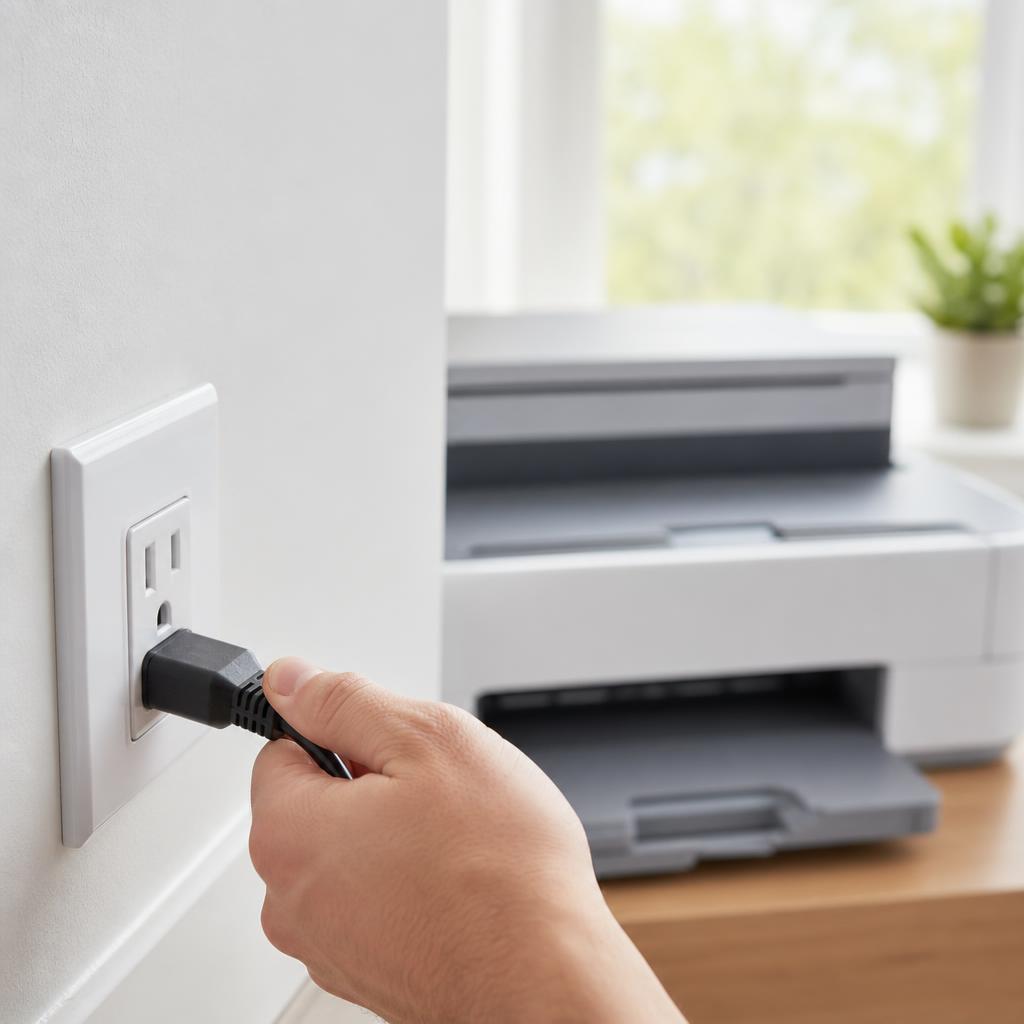
Power-cycling both the printer and router together is more effective than restarting them separately. Why this works: Power-cycling both devices together forces the printer to reconnect to the network after the router has fully re-established its DHCP service. This resolves connection drops caused by an interrupted shutdown sequence and gives both devices a clean reconnection.
Expected result: After both devices have fully restarted, the printer reconnects to the network and the computer status updates to "Ready".
-
Step 3: Check the printer is on the correct Wi-Fi network
On the printer's touchscreen or control panel, navigate to Network Settings or Wi-Fi Setup and look at the name of the network the printer is connected to.
On your computer, check which Wi-Fi network the computer is connected to — the names must match exactly.
Common mismatches: the printer is on the 2.4 GHz band (e.g. "HomeWifi") while the computer is on 5 GHz (e.g. "HomeWifi_5G"), or the printer has connected to a guest network.
If the printer is on the wrong network, use the printer's Wi-Fi setup menu to forget the current network and reconnect to the correct one. Enter the Wi-Fi password when prompted.
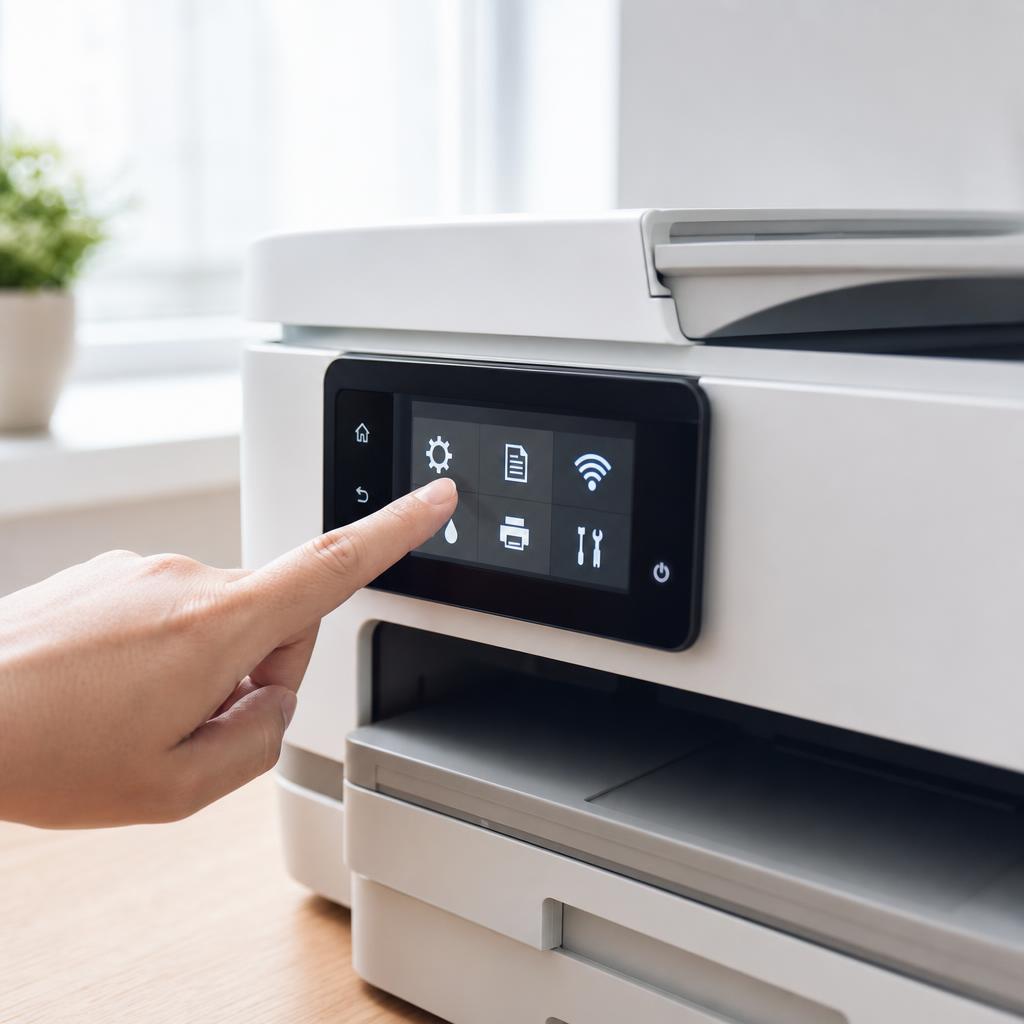
The printer's network settings menu always shows the name of the Wi-Fi network it is currently joined to. Why this works: A printer and a computer must be on the same network segment to communicate directly. If they are on different networks — even from the same router — they cannot see each other, and the printer will always appear offline regardless of signal strength.
Expected result: Both the printer and the computer show the same Wi-Fi network name in their respective settings.
-
Step 4: Check and update the printer's IP address in Windows
On the printer: go to Network Settings and note the current IP address (e.g. 192.168.1.45).
On Windows: go to Settings → Bluetooth & devices → Printers & scanners → click your printer → Printer properties → Ports tab.
Look at the port currently selected (it may be named something like "IP_192.168.1.30" or show an IP address). If this does not match the printer's current IP address, the connection is pointed at the wrong address.
To fix: click "Add Port" → select "Standard TCP/IP Port" → click "New Port".
Enter the printer's current IP address (from its control panel) in the "Printer Name or IP Address" field. Complete the wizard.
Back in Printer Properties → Ports tab, select the new port you just created and click OK.
The router's DHCP reservation feature locks a specific IP address to a device so it never changes. Why this works: Windows stores the printer's IP address in its port configuration. After a router reboot, the printer may have been assigned a different address. Windows has no way to know this automatically and continues trying to connect to the old address. Updating the port to the current address re-establishes the connection immediately.
Expected result: The port address matches the printer's current IP address and the printer status changes to Ready.
To prevent this from happening again, log into your router's admin page and create a DHCP reservation for the printer's MAC address. This gives the printer the same IP address every time. The MAC address is shown in the printer's network settings alongside the IP address.
-
Step 5: Restart the print spooler and clear the queue (Windows)
Press Win + R, type services.msc, and press Enter.
Find "Print Spooler" in the list. Right-click it and select Stop.
Open File Explorer and navigate to: C:\Windows\System32\spool\PRINTERS
Delete all files inside that folder. Do not delete the folder — only the files inside it.
Return to Services, right-click "Print Spooler", and select Start.
Open Printers & scanners and check whether the printer now shows as Ready.
Why this works: A stalled spooler keeps the printer in an apparent offline state because no jobs can move through the queue. Clearing the stuck job files manually and restarting the service gives it a clean starting point.
Expected result: The spooler restarts successfully, the queue is empty, and the printer status returns to Ready.
-
Step 6: Reseat the USB cable and test on a different port (USB printers)
Unplug the USB cable from both the printer and the computer.
Inspect the cable carefully: look for bent pins in the connector, fraying near either end, or any kinking along the cable body. Replace the cable if there is any visible damage.
Plug the cable back in firmly. Use a USB port directly on the computer, not via a hub — USB hubs can cause power and data reliability issues with printers.
Try a different USB port on the computer to rule out a faulty port.
After reconnecting, the computer should make the "device connected" sound and re-detect the printer.
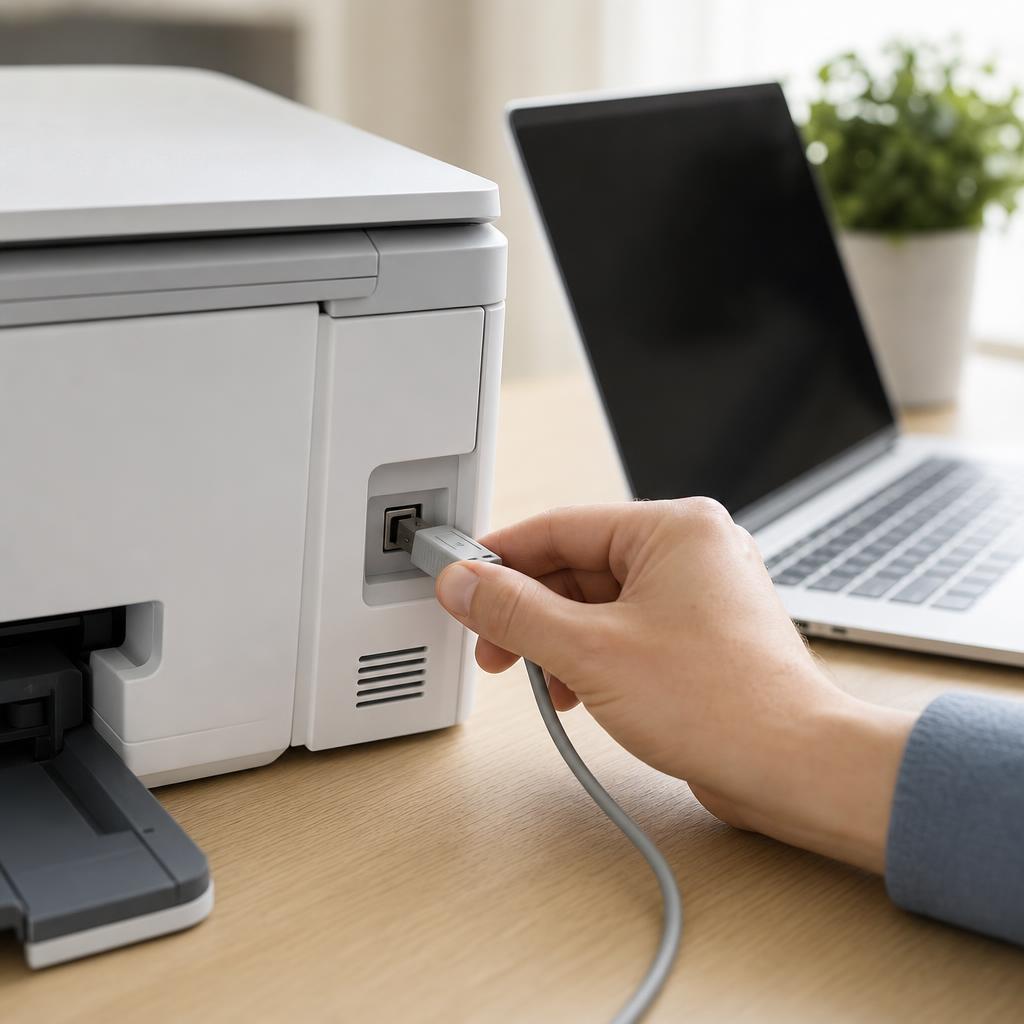
Always plug directly into a USB port on the computer rather than through a hub — USB hubs are a common source of intermittent connection failures. Why this works: USB cables are the single most common cause of intermittent offline status on cable-connected printers. The cable may appear fine externally while failing internally. Trying a different cable and port costs nothing and takes 30 seconds — always worth doing before any software troubleshooting.
Expected result: The computer detects the printer when the cable is reseated, and the printer status changes to Ready.
-
Step 7: Remove and re-add the printer
Go to Settings → Bluetooth & devices → Printers & scanners.
Click your printer and select "Remove".
Restart your computer.
Return to Printers & scanners and click "Add a printer or scanner". Allow Windows to search.
Select your printer from the list and follow the setup steps.
If Windows does not find the printer automatically, click "The printer that I want isn't listed" and choose the appropriate option (add by IP address, or reconnect a previously installed printer).
Why this works: Sometimes the printer's record in Windows becomes corrupted — particularly after Windows Updates that change printing subsystem components. Removing the printer entry completely and re-adding it from scratch clears any stale configuration and creates a clean record.
Expected result: The printer is re-added successfully and prints a test page without error.
Tip
Printer Tip
Reserve the printer's IP address in your router's DHCP settings so it never changes after a reboot.
Other solutions to try
If the steps above didn't do it, these fixes resolve the less common cases.
macOS: Remove and re-add the printer
The macOS equivalent of removing and re-adding a printer clears queues, driver caches, and stored connection data.
- Go to System Settings → Printers & Scanners.
- Select the offline printer in the left column and click the minus (−) button at the bottom to remove it.
- Click the plus (+) button to add a printer. macOS will scan for available printers.
- Select your printer from the list and click Add.
macOS: Reset the entire printing system
If removing and re-adding the printer does not work on macOS, a full printing system reset clears everything and starts from scratch.
- Go to System Settings → Printers & Scanners.
- Right-click (Control-click) anywhere in the printer list.
- Select "Reset printing system" and confirm when prompted.
- Restart the Mac, then add the printer again.
Check firewall or security software
Third-party security software occasionally blocks printer discovery protocols after an update.
- Temporarily disable your third-party firewall or antivirus.
- Try printing. If the printer comes online, the security software is blocking it.
- Re-enable the security software and look in its settings for a printer or network device whitelist — add your printer's IP address to it.
Update the printer firmware
Some persistent reconnection failures on wireless printers are caused by firmware bugs, resolved by a manufacturer-issued firmware update.
- On the printer's touchscreen, look for Settings → Printer Maintenance → Firmware Update or Web Services → Update.
- Alternatively, visit the manufacturer's website, search for your printer model, and download the latest firmware.
- Follow the manufacturer's instructions to apply the update. Do not switch the printer off during the update process.
Confirm it's working
Tick these off to be sure the problem is fully resolved.
Keep it from happening again
A few habits that stop this problem coming back.
- Reserve the printer's IP address in your router's DHCP settings so it never changes after a reboot.
- Turn off power management for your network adapter so it stays active through sleep and wake cycles.
- Keep printer drivers up to date — check the manufacturer's website after major Windows Updates.
- If the printer has a firmware update option, check for and apply updates every few months.
- For USB printers, use the cable that came with the printer or a reputable replacement — cheap USB cables are a frequent source of intermittent connection failures.
Frequently asked questions
Was this guide helpful?
Your feedback helps us keep these steps accurate.
Thanks for your feedback!
Written by
The Guts Guide Editorial Team · Printer Troubleshooting Specialists
Last updated
Jul 16, 2026
Continue Reading
Pick up where you left off with the next guide in your troubleshooting journey.
Related Guides
More troubleshooting walkthroughs you may find useful.
Buying Guides
Plain-English comparisons and pre-purchase checklists — find the right printer before you buy.
Helpful Resources
References and tools to help you go further.
-
Fix Printer Showing Offline (Full Guide)
Complete guide covering spooler resets, Use Printer Offline mode, and all Windows-specific offline causes.
-
Connect a Printer to Wi-Fi
Set up a wireless printer connection from scratch — WPS, manual SSID entry, and software setup.
-
Restart the Print Spooler
Dedicated guide to clearing stuck jobs and restarting the Windows spooler service.