
Why Is My Printer Showing as Offline? Complete Fix Guide (Windows & Mac)
Your printer shows "Offline" even though it is powered on and connected. This guide explains every common cause and walks you through the fixes in order — from a quick restart to driver reinstallation.
Applies to: All inkjet and laser printers — USB and wireless, Windows 10 and Windows 11, macOS Ventura, Sonoma, and Sequoia, HP, Epson, Canon, Brother, Lexmark, Ricoh
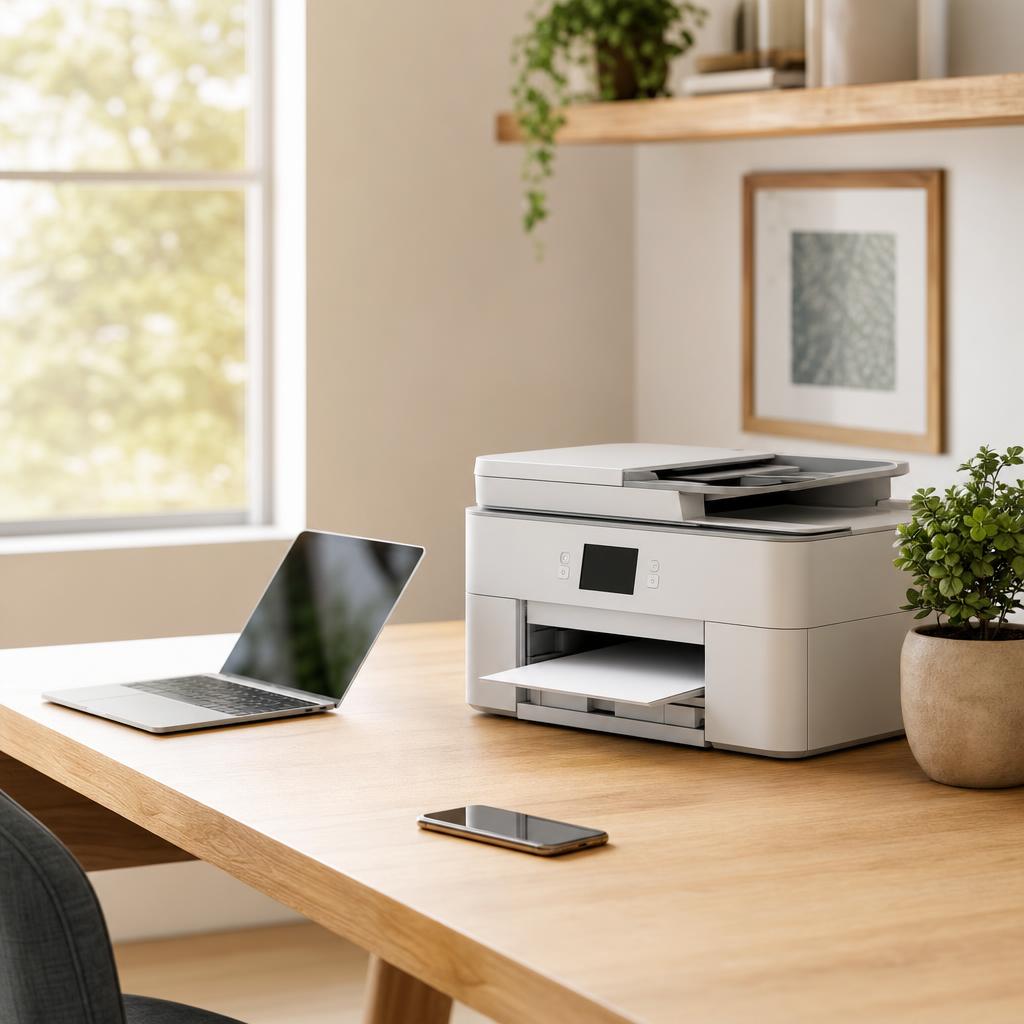
Quick summary
- The problem
- Windows or macOS reports the printer as "Offline" and refuses to send print jobs, even though the printer is switched on and appears connected.
- The fix
- Power-cycle the printer, restart the print spooler, disable "Use Printer Offline" mode, and confirm the printer's IP address has not changed. One of these four steps resolves the issue in the vast majority of cases.
- Applies to
- Any USB or wireless printer on Windows 10, Windows 11, or macOS that suddenly shows as Offline in the device list.
On this page Show
Understanding the problem
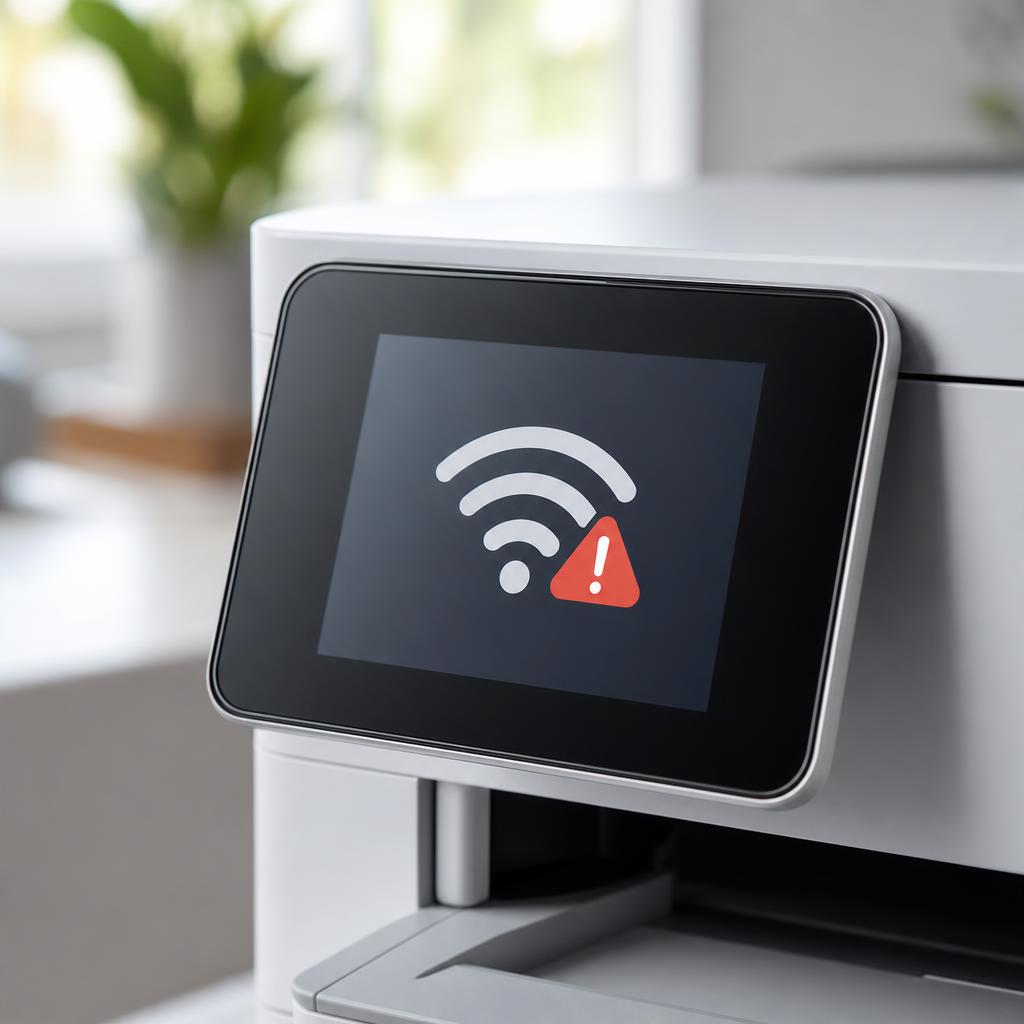
"Printer Offline" is one of the most searched printer problems in the world — and one of the most misunderstood. The status does not mean your printer is broken. It means your computer has lost its communication path to the printer and cannot confirm it is ready to receive jobs.
There are four main reasons this happens. The first is a temporary spooler glitch — the Windows print spooler service has stalled or holds a corrupted job that blocks everything behind it. The second is an IP address change — on a wireless printer, the router has assigned a new network address after a reboot and your computer is still pointing at the old one. The third is "Use Printer Offline" mode being accidentally enabled — a Windows-specific setting that forces the printer into an offline state regardless of its actual status. The fourth is a connection dropout — a USB cable that has worked loose, a network adapter that has gone to sleep, or a Wi-Fi signal that has dropped.
This guide works through each of these causes in order from fastest to most involved, so you can stop as soon as the fix works without doing unnecessary steps.
Quick fact
Duplex means double-sided
Duplex printing prints on both sides of the paper automatically. If your printer lacks it, you can print odd pages, flip the stack, and print the even ones.
Signs you're in the right place
If you're seeing any of these, this guide is for you.
-
Printer shows as "Offline" in Windows Settings or Control Panel
The printer entry appears greyed out or shows "Offline" beneath its name in Printers & Scanners.
-
Print jobs queue up but nothing prints
Jobs are accepted and appear in the print queue, but the queue status shows the printer is paused or offline.
-
The printer itself shows as ready
The printer's own display or lights indicate it is powered on and not reporting a fault — confirming the problem is on the computer side.
-
Only started after a router reboot or network change
The printer was working before the router rebooted or your broadband provider did maintenance — a classic sign of an IP address change.
-
"Use Printer Offline" appears in the printer menu
When you open the print queue, the Printer menu shows "Use Printer Offline" with a tick next to it.
-
Printer goes offline only when the computer wakes from sleep
The network adapter powers down during sleep and does not re-establish the connection to the printer before Windows checks its status.
What's usually behind it
The most common reasons this happens, so the fix makes sense.
Stalled print spooler service
The Windows print spooler manages all print jobs. If it crashes or gets stuck on a corrupted job, every subsequent job is blocked and the printer appears offline.
"Use Printer Offline" mode enabled
Windows has a setting that forces a printer into an offline state — useful for working without a printer connected, but easily switched on accidentally. When enabled, it overrides the printer's actual status.
Printer IP address has changed
Most home routers assign IP addresses dynamically. After a router reboot or power cut, your wireless printer may receive a different IP address, breaking the connection your computer stored.
Network adapter power management
Windows can power down the network adapter when the computer sleeps to save power. When the computer wakes, the adapter takes time to reconnect — long enough for Windows to mark the printer offline.
Loose or faulty USB connection
USB cables loosen over time. A slightly loose connector can appear connected while not passing data reliably, causing an intermittent offline status.
Outdated or corrupted printer driver
A driver that was not designed for the current version of Windows, or one that has become corrupted, can cause the printer to show as offline even when the connection is fine.
Printer sleep or low-power mode
Many printers enter a deep sleep state after a period of inactivity. While waking up, they temporarily appear offline. Sending a second print job usually resolves this.
What you'll need
Have these on hand before you start for a smooth fix.
-
Windows PC or Mac with admin access
Some steps (restarting the spooler, reinstalling drivers) require an administrator account.
-
Access to your printer's control panel or touchscreen
Needed to check the printer's own network status and IP address display.
-
Your router's admin page (for IP address issues)
Usually available at 192.168.1.1 or 192.168.0.1 in a browser. Credentials are on the label on the router.
How to fix it
Work through these in order — they run from the quickest checks to the more advanced fixes.
-
Step 1: Power-cycle the printer completely
Switch the printer off using its power button. Do not just press the button to sleep — hold it until the printer fully powers down.
Once the printer is off, unplug the power cable from the back of the printer (not just from the wall socket).
Wait a full 60 seconds. This clears the printer's internal memory and resets its network adapter.
Plug the power cable back in and switch the printer on. Wait for it to fully initialise — the display or lights should return to the ready state.
Try printing a test page from your computer.
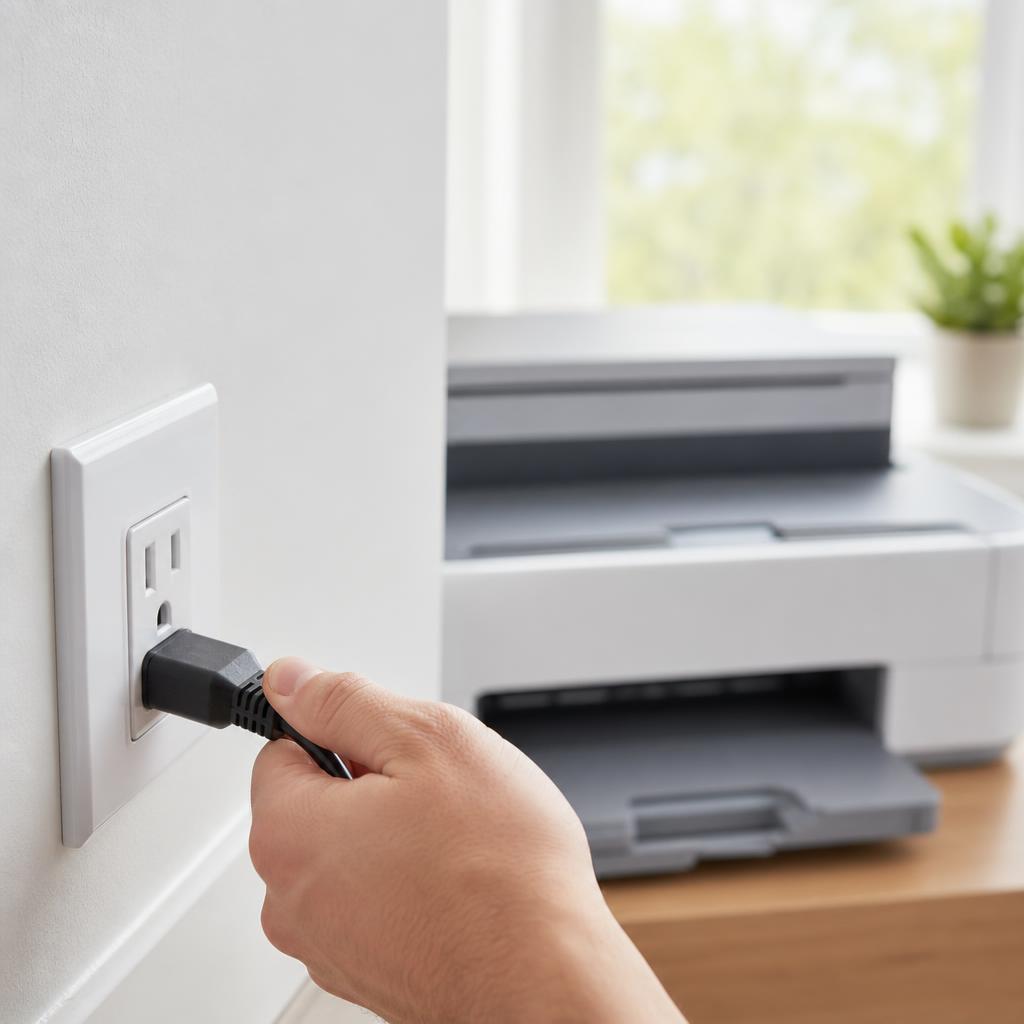
Always unplug the cable from the printer itself — not just from the wall — to ensure a complete reset. Why this works: A full power cycle resets the printer's network stack and clears any internal state that was preventing it from reconnecting. This alone resolves a significant proportion of offline cases.
Expected result: The printer status changes from "Offline" to "Ready" in Windows or macOS.
-
Step 2: Clear the print queue and restart the print spooler (Windows)
Press Win + R, type services.msc, and press Enter to open the Windows Services Manager.
Scroll down the list and find "Print Spooler". Right-click it and select "Stop".
While the spooler is stopped, open File Explorer and navigate to: C:\Windows\System32\spool\PRINTERS
Delete all files inside the PRINTERS folder. Do not delete the folder itself — only the files inside it. These are the stuck job files. You may need to confirm administrative permission.
Return to the Services Manager, right-click "Print Spooler" again, and select "Start".
Return to your printer settings and check the printer status.
Why this works: A stuck or corrupted print job can permanently block the spooler queue. Simply cancelling the job from the print queue dialogue often fails because the spooler is not running cleanly enough to honour the cancel request. Stopping the service, clearing the job files manually, and restarting gives the spooler a completely fresh start.
Expected result: The print queue is empty, the spooler service is running, and the printer status updates to "Ready".
If you cannot navigate to the PRINTERS folder while the spooler is running, this confirms the spooler was indeed stuck — the files are locked by the stalled service.
-
Step 3: Turn off "Use Printer Offline" mode (Windows)
Open Settings → Bluetooth & devices → Printers & scanners.
Click on your printer in the list, then click "Open print queue".
In the print queue window, click the "Printer" menu at the top.
Look for "Use Printer Offline" in the dropdown. If it has a tick or checkmark next to it, click it to remove the tick.
Close the print queue window and send a test print.
After removing the "Use Printer Offline" tick, the printer's ready status should be reflected within a few seconds. Why this works: Windows includes a mode that manually forces a printer offline — designed for situations where you want to queue jobs without a printer present and print them later. If this is accidentally enabled, the printer will always show as Offline regardless of its actual connection status. Removing the tick immediately restores the correct status.
Expected result: The "Offline" label disappears from the printer icon and the printer moves to "Ready".
If the "Use Printer Offline" option is greyed out and unclickable, the print spooler is not running. Complete Step 2 first, then return to this step.
-
Step 4: Check the printer's IP address (wireless printers)
On the printer itself: navigate to the printer's control panel or touchscreen, find Network Settings or Wi-Fi Setup, and look for the current IP address. It will be a number in the format 192.168.x.x.
On your Windows PC: open Settings → Bluetooth & devices → Printers & scanners → click your printer → Printer properties. Look at the "Ports" tab — the port name or port address should match the IP address shown on the printer.
If they do not match, the printer has a different IP address than the one Windows is trying to connect to.
To fix a mismatched IP: In Printer properties → Ports tab → click "Add Port" → select "Standard TCP/IP Port" → click "New Port" and enter the printer's current IP address as shown on its control panel.
Alternatively, assign the printer a static IP to prevent this recurring. Access your router's admin page (typically 192.168.1.1), find the DHCP reservation or LAN settings, and reserve the printer's current IP address to its MAC address. The printer will keep the same address permanently.
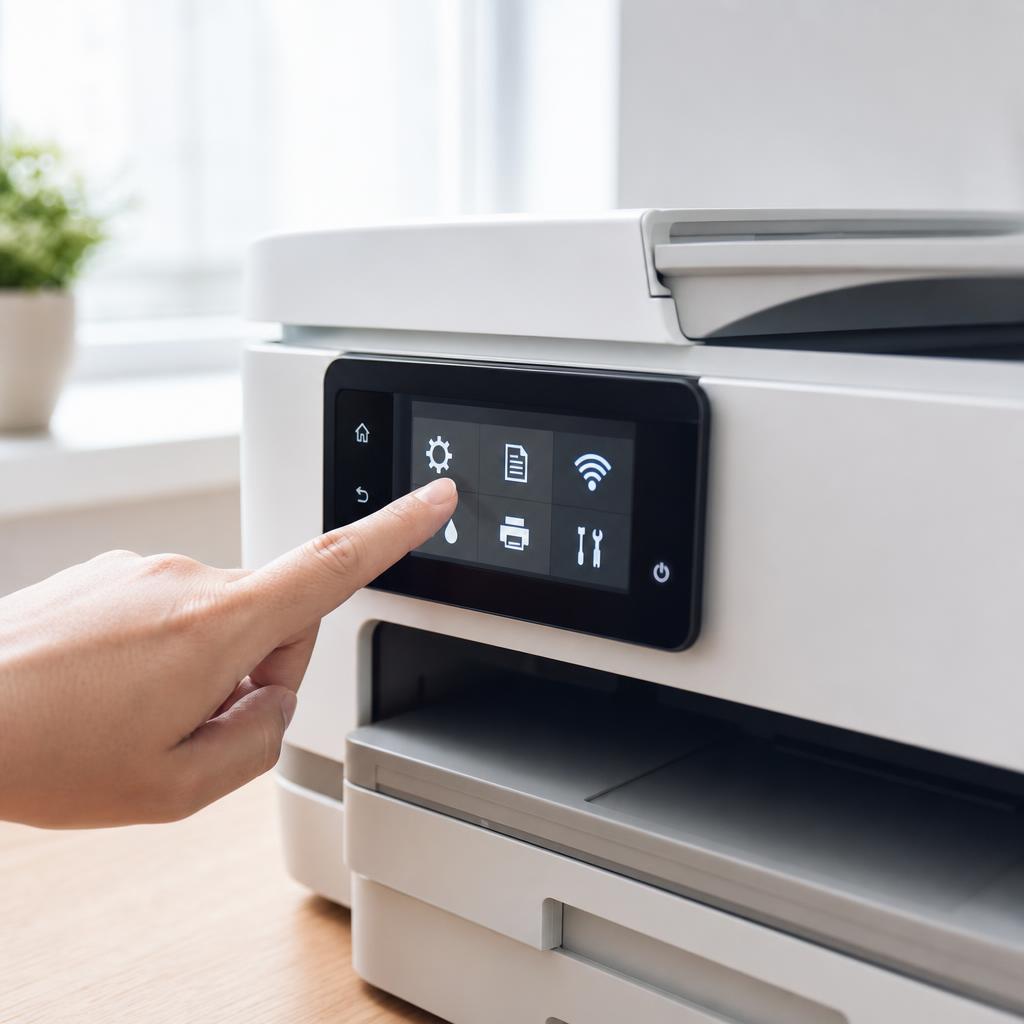
The printer's current IP address is always shown in its network or Wi-Fi settings menu. Why this works: Every device on a home network is identified by its IP address. If the router reboots and assigns the printer a new address, your computer is still looking for it at the old one. The connection fails silently and the printer appears offline. Updating the port to the new IP is the immediate fix; reserving the IP in the router prevents the problem from recurring.
Expected result: The port address in Windows matches the IP address on the printer, and the printer comes online.
-
Step 5: Check "Use Default Printer" and set the correct default
Open Settings → Bluetooth & devices → Printers & scanners.
Scroll down and look for "Let Windows manage my default printer". If this is turned on, Windows automatically changes the default printer to whichever one you used most recently. If you have multiple printers or virtual printers (like "Microsoft Print to PDF"), this can silently switch the default away from your physical printer.
Turn this setting off, then manually click your physical printer and select "Set as default".
Send a print job and confirm it goes to the correct printer.
Why this works: Print jobs go to the default printer — or wherever the application's print dialogue is directed. If Windows has quietly changed the default to a virtual printer or a previous printer that no longer exists, jobs appear to succeed but nothing prints. The physical printer is not offline — the job was never sent to it.
Expected result: Print jobs are directed to the correct physical printer and arrive successfully.
-
Step 6: Disable network adapter power management (Windows)
Right-click the Start button and select "Device Manager".
Expand the "Network adapters" section.
Right-click your Wi-Fi adapter (or Ethernet adapter if using a wired connection) and select "Properties".
Click the "Power Management" tab.
Uncheck the box that says "Allow the computer to turn off this device to save power".
Click OK and close Device Manager.
Why this works: Windows can power down the network adapter when the computer enters sleep or idle state. When the computer wakes up, the adapter takes a moment to reconnect to the network. If Windows checks the printer status during this reconnection window, it marks the printer offline. Preventing the adapter from sleeping keeps the connection alive across sleep/wake cycles.
Expected result: The printer remains online after the computer wakes from sleep without requiring a manual reconnect.
Tip
Printer Tip
Assign a static IP to your printer through your router's DHCP reservation settings — this prevents the address from changing after a router reboot.
Other solutions to try
If the steps above didn't do it, these fixes resolve the less common cases.
Remove and re-add the printer
If all the steps above have not resolved the issue, removing the printer from Windows and adding it fresh often fixes driver-level conflicts that cannot be resolved by other means.
- Go to Settings → Bluetooth & devices → Printers & scanners.
- Click your printer and select "Remove".
- Restart your PC.
- Return to Printers & scanners and click "Add a printer or scanner". Windows will search for and re-add the printer automatically if it is connected.
- If Windows does not find it automatically, click "The printer that I want isn't listed" and follow the manual setup wizard.
Check the USB cable and port
For USB-connected printers, a loose, damaged, or low-quality cable is a common cause of an intermittent offline status.
- Unplug the USB cable from both the printer and the computer.
- Inspect the cable for any bent pins, kinks, or visible damage. Replace it if in doubt — USB printer cables are inexpensive.
- Try a different USB port on the computer, particularly one directly on the machine rather than via a hub.
- Plug the cable back in firmly at both ends and check if the printer status changes.
macOS: Reset the printing system
On a Mac, resetting the printing system clears all printers, drivers, and queues and gives you a completely fresh start. Use this only after other steps have failed.
- Go to System Settings → Printers & Scanners.
- Right-click (or Control-click) anywhere in the list of printers on the left.
- Select "Reset printing system" and confirm.
- Your Mac will remove all printers. Restart the Mac, then add your printer again.
Update or reinstall the printer driver
An outdated driver can cause persistent offline problems, particularly after a major Windows update.
- Visit the printer manufacturer's support website and search for your exact model number.
- Download the latest full driver package for your version of Windows.
- Before installing, go to Settings → Apps → Installed apps and uninstall the existing printer software.
- Restart your PC, then install the new driver.
Confirm it's working
Tick these off to be sure the problem is fully resolved.
Keep it from happening again
A few habits that stop this problem coming back.
- Assign a static IP to your printer through your router's DHCP reservation settings — this prevents the address from changing after a router reboot.
- Restart the printer monthly to clear its internal memory and maintain a clean network connection.
- Disable power management on the network adapter (Step 6) to prevent sleep-related offline drops.
- Keep the printer driver up to date, particularly after major Windows feature updates.
- If the printer has a "Keep Alive" or "Wake on LAN" setting in its network configuration, enable it.
Frequently asked questions
Was this guide helpful?
Your feedback helps us keep these steps accurate.
Thanks for your feedback!
Written by
The Guts Guide Editorial Team · Printer Troubleshooting Specialists
Last updated
Jul 16, 2026
Continue Reading
Pick up where you left off with the next guide in your troubleshooting journey.
Related Guides
More troubleshooting walkthroughs you may find useful.
Buying Guides
Plain-English comparisons and pre-purchase checklists — find the right printer before you buy.
Helpful Resources
References and tools to help you go further.