How to Print from an Android Phone or Tablet
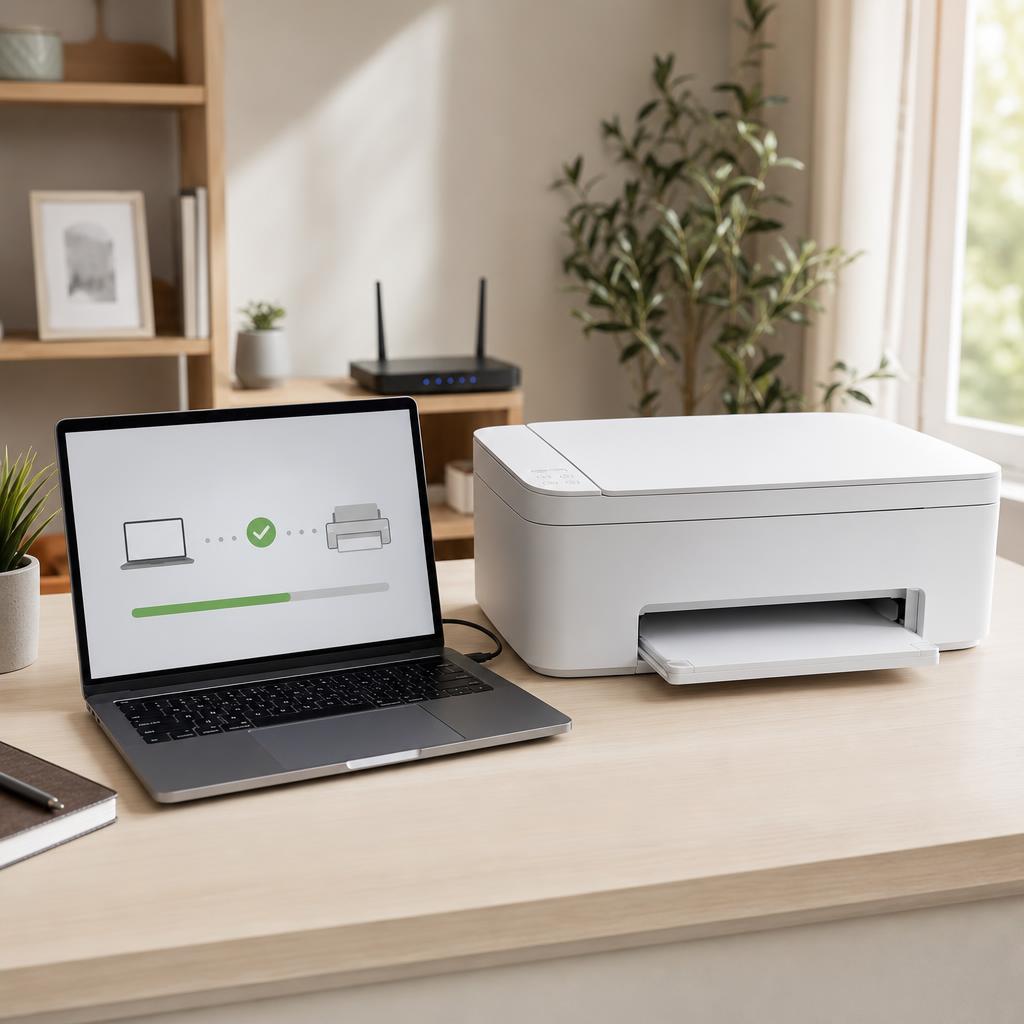
Printing from an Android phone or tablet is usually a two-tap job once the groundwork is right — but only if your phone and printer share the same Wi-Fi network and the built-in print service is switched on. This guide walks you through Android’s Default Print Service, printing over Wi-Fi, when a manufacturer app such as HP Smart is worth installing, and how to fall back to Wi-Fi Direct, with clear fixes for when nothing appears.
Applies to: Any Wi-Fi or network printer, Inkjet, laser & all-in-one models, Android 8.0 phones & tablets, HP, Canon, Epson & Brother printers, Home & small-office networks
Quick summary
- The problem
- You want to print a photo, document, email, or web page straight from your Android phone or tablet, without a computer in the middle.
- The fix
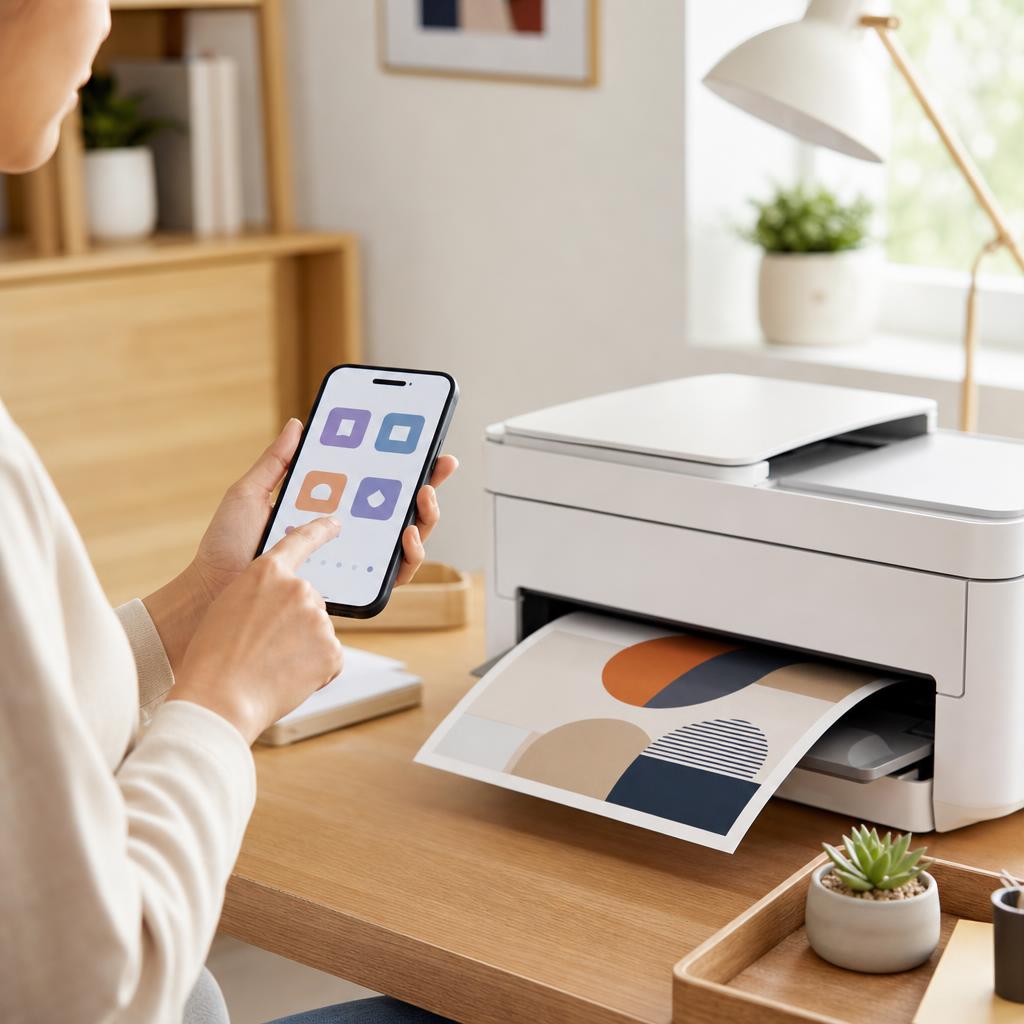
- Put the phone and printer on the same Wi-Fi network, make sure Android’s Default Print Service is on, then use the Share or menu button in any app to choose Print, pick your printer, and tap Print.
- Applies to
- Android 8.0 and later phones and tablets printing to a Wi-Fi or network printer at home or in a small office.
On this page Show
Understanding the problem
Modern Android has printing built right in. Since Android 8.0, every phone and tablet ships with a small piece of software called the Default Print Service, which quietly looks for compatible printers on your Wi-Fi network and offers them up whenever you tap Print. That means you rarely need a special app to print a photo, a boarding pass, an email, or a web page — the option is already hiding inside the Share menu of almost every app you use. Behind the scenes it uses the same open printing standards (IPP and mDNS) that let phones and printers find and talk to each other without any cables.
The single thing that trips people up more than anything else is the network. Your phone and your printer must be joined to the same Wi-Fi network for them to see one another. It sounds obvious, but it catches almost everyone: the phone drifts onto a “5GHz” or guest band while the printer sits on the main 2.4GHz network, a Wi-Fi extender quietly creates a second network with a slightly different name, or a VPN app on the phone hides the printer from view. When the printer simply “doesn’t appear”, the network is nearly always the reason — not the printer, and not the phone.
The good news is that once the network is sorted, printing from Android is genuinely quick and reliable. This guide starts by getting both devices onto the same Wi-Fi, shows you how to check and switch on the print service, then walks through the everyday two-tap print flow from any app. It also explains when a manufacturer app like HP Smart or Epson Smart Panel earns its place, how to use Wi-Fi Direct as a fallback when there’s no shared network, and a clear set of fixes for the “printer not found” moments. Follow it in order and you’ll be printing from your pocket in minutes.
Terminology
What DPI actually means
DPI stands for dots per inch and measures how finely a printer places dots on paper. A higher DPI shows more detail, which matters most for photos.
Signs you're in the right place
If you're seeing any of these, this guide is for you.
-
You just unboxed a new printer
The printer is set up and on Wi-Fi, and you’d like to print from your phone or tablet rather than dig out a computer.
-
Your phone can’t find the printer
You tap Print but the list is empty, shows “No printers found”, or your printer simply isn’t among the options.
-
You don’t know where the Print button is
You’ve a photo or document to print but can’t see any printing option in the app you’re using on Android.
-
You’re not sure whether you need an app
You’re wondering if you must install HP Smart, Canon PRINT, or similar, or whether Android can print on its own.
-
There’s no shared Wi-Fi to use
You’re away from home, on a network that blocks devices from seeing each other, and want a direct way to print.
-
The printer used to show up but now doesn’t
Printing worked before, then stopped — often after a router change, a new Wi-Fi password, or a phone update.
-
You’re on a guest or extended network
Your phone is joined to a guest Wi-Fi or a booster’s separate network, and the printer stays invisible.
-
A VPN or work profile is in the way
You have a VPN or a company work profile switched on, and it seems to be hiding printers on your local network.
What's usually behind it
The most common reasons this happens, so the fix makes sense.
Phone and printer on different networks
This is the number-one blocker: the phone is on one Wi-Fi band or network and the printer on another, so they never see each other.
The Default Print Service is switched off
Android’s built-in print service can be disabled, leaving the Print menu with nothing to talk to until you turn it back on.
The printer isn’t actually on Wi-Fi
A printer that’s asleep, showing an error, or connected only by USB or Ethernet may not advertise itself for wireless printing.
A Wi-Fi extender or mesh split the network
Boosters and some mesh systems create a second network name, so the phone and printer end up on separate parts of the same house.
Guest Wi-Fi client isolation
Guest networks — and many public ones — deliberately stop devices from seeing each other, which blocks printer discovery entirely.
A VPN is redirecting the phone’s traffic
An active VPN sends the phone’s traffic elsewhere and can hide devices on your own local network, including the printer.
The printer needs a manufacturer app
A few older or feature-rich models aren’t fully discovered by the generic service and print more reliably through the maker’s app.
Discovery services need a nudge
The mDNS/Bonjour “find nearby devices” traffic can stall on a busy network, so neither device has refreshed its view of the other.
Outdated printer firmware
Old firmware can leave a printer poor at announcing itself to newer phones, which a manufacturer update usually resolves.
The wrong print plugin is installed
A leftover or brand-specific print plugin can conflict with the default service, so the printer shows twice or not at all.
What you'll need
Have these on hand before you start for a smooth fix.
-
Your Android phone or tablet
Running Android 8.0 or later, which has printing built in — check under Settings → About phone if unsure.
-
A Wi-Fi or network printer that’s switched on
It should be awake, error-free, and already connected to your wireless network, not just plugged in by USB.
-
Your Wi-Fi network name and password
Handy in case you need to move the phone or printer onto the correct network, or set up Wi-Fi Direct.
-
The printer’s brand and model number
Usually on a front label or the setup screen; you’ll want it if you decide to install the maker’s app.
-
Paper loaded in the tray
Plain A4 or Letter is fine for a first test print to confirm everything is working end to end.
-
A few minutes near your router
Staying close to the router while you set up gives both devices the strongest, most reliable connection.
How to fix it
Work through these in order — they run from the quickest checks to the more advanced fixes.
-
Step 1: Wake and check the printer first
Switch the printer on and let it fully wake up, so the display shows its normal home screen with no errors or warnings.
Confirm it’s connected to your Wi-Fi — look for a solid Wi-Fi symbol on the panel, or print its network/status page from the printer’s own menu.
If it’s only joined by USB or Ethernet to a single computer, connect it to your wireless network before going further.
Why this works: Android can only find a printer that is awake and actively advertising itself over Wi-Fi. Clearing any error and confirming the wireless connection now saves you chasing a phone problem that is really a printer one.
Expected result: The printer is on, error-free, and showing a steady Wi-Fi connection.
A printer connected only by USB to a PC won’t appear to your phone unless that PC is set up to share it — wireless is far simpler.
The printer’s panel shows a solid Wi-Fi icon and a normal home screen.
-
Step 2: Put your phone on the same Wi-Fi network
On your phone, open Settings → Network & internet → Internet (or Connections → Wi-Fi on Samsung), and note the exact network name you’re joined to.
Compare it with the network name shown on your printer’s status page — they must match exactly, including any “-5G” or “-Guest” suffix.
If they differ, tap the correct network on your phone and join it with your Wi-Fi password, then wait for it to connect.
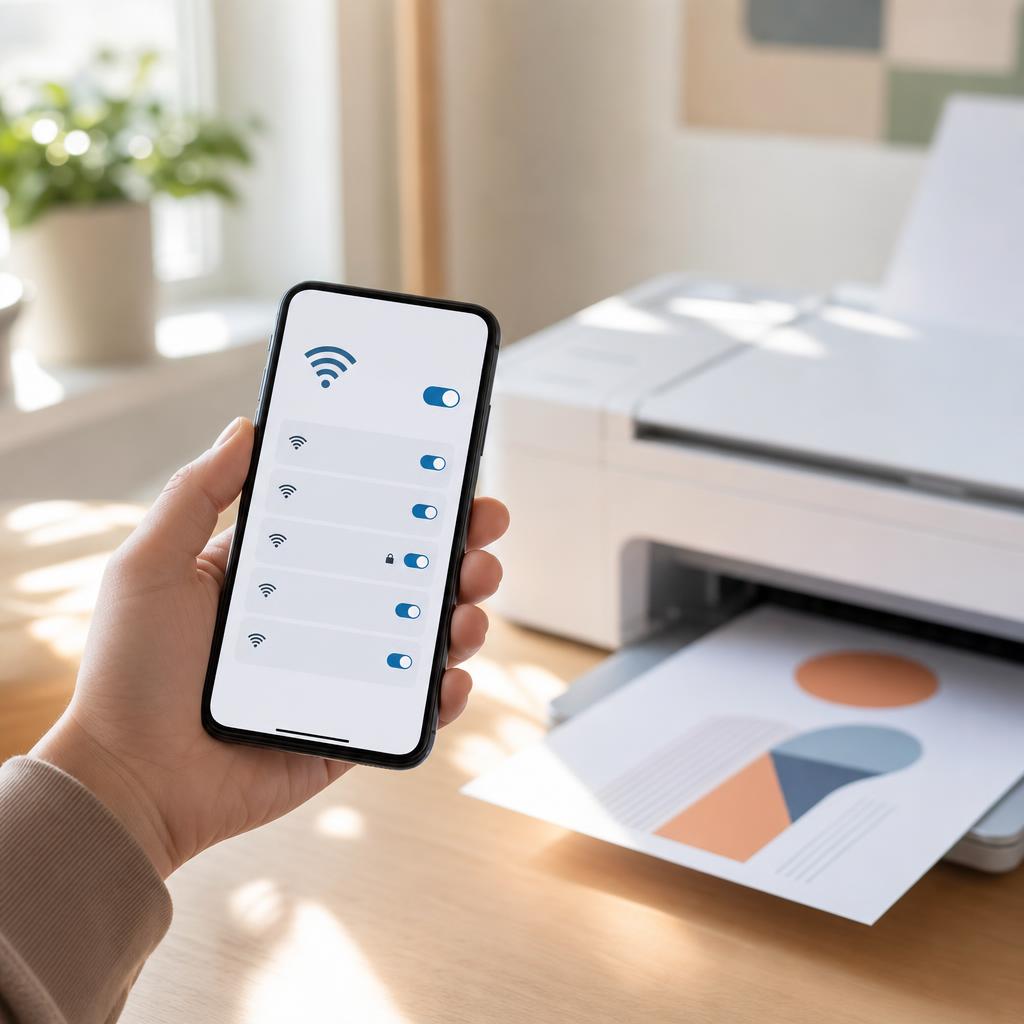
Why this works: This is the single most important step: a phone and printer on different networks can never see each other, and it’s the cause of most “printer not found” problems. Matching the network name exactly rules out the commonest mistake before you go any further.
Expected result: Your phone and printer are joined to the same, identically named Wi-Fi network.
Many routers broadcast separate 2.4GHz and 5GHz networks with slightly different names — put the phone on whichever one the printer uses. A guest network almost never allows printing.
The network name on the phone matches the one on the printer’s status page.
-
Step 3: Check the Default Print Service is on
Open Settings and search for “Printing”, or browse to Settings → Connected devices → Connection preferences → Printing (Settings → Connections → More connection settings → Printing on many Samsung phones).
Tap “Default Print Service” and make sure its switch is turned on — this is the built-in service that finds most printers automatically.
Leave this screen open for a moment; within a few seconds it should begin listing any compatible printers on your network.
Why this works: The Default Print Service is what actually discovers printers and offers them in the Print menu, so it must be switched on. Menu wording varies by phone brand, which is why searching Settings for “Printing” is the quickest way to find it.
Expected result: The Default Print Service is on and starts listing printers it can see on your Wi-Fi.
The exact path differs between Samsung, Google Pixel, Xiaomi, and others — if the menu names don’t match, search Settings for “Printing” to jump straight there.
Your printer’s name appears under the Default Print Service list.
-
Step 4: Open what you want to print
Open the photo in Google Photos or Gallery, the document in Google Docs or a PDF viewer, the email in Gmail, or the page in Chrome.
Look for the Share icon (a small “<” or three connected dots) or the three-dot menu in the top corner of the app.
Tap it to reveal the list of actions available for that item — this is where the Print option lives on Android.
Why this works: Android tucks the Print command inside each app’s Share or menu button rather than putting it on screen all the time. Knowing where to look means you can print from almost any app the same way.
Expected result: You can see the Share or three-dot menu for the item you want to print.
-
Step 5: Choose Print from the menu
In the Share sheet or three-dot menu, tap “Print”. In Chrome and some apps it appears as Share → Print, in Gmail under the three-dot menu.
If you don’t see Print directly, scroll the Share sheet or look for “All apps”, as it can sit further down the list.
A print preview screen will open, showing how your page will look on paper.
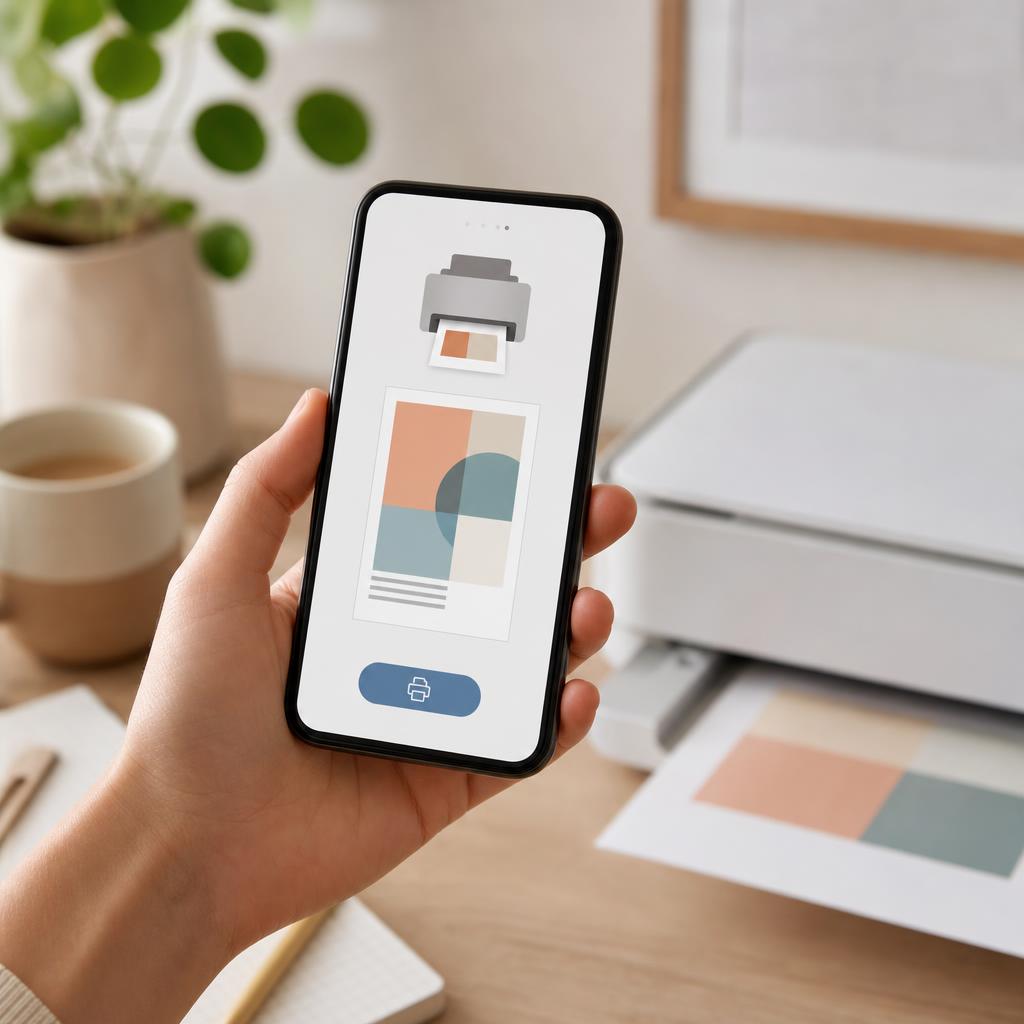
Why this works: The Print command hands your document to Android’s print system, which generates the on-screen preview and connects to the printer. Reaching it is the moment printing actually begins.
Expected result: A print preview of your photo, document, or page appears on screen.
In a few apps the option is worded “Print or save as PDF” — choosing a real printer instead of “Save as PDF” is what sends it to paper.
-
Step 6: Select your printer
At the top of the preview, tap the printer name or the dropdown that may say “Save as PDF” or “Select a printer”.
Choose your printer from the list — it will show its model name, for example “HP OfficeJet Pro 9010”.
Give it a few seconds to appear the first time; Android needs a moment to discover it on the network.
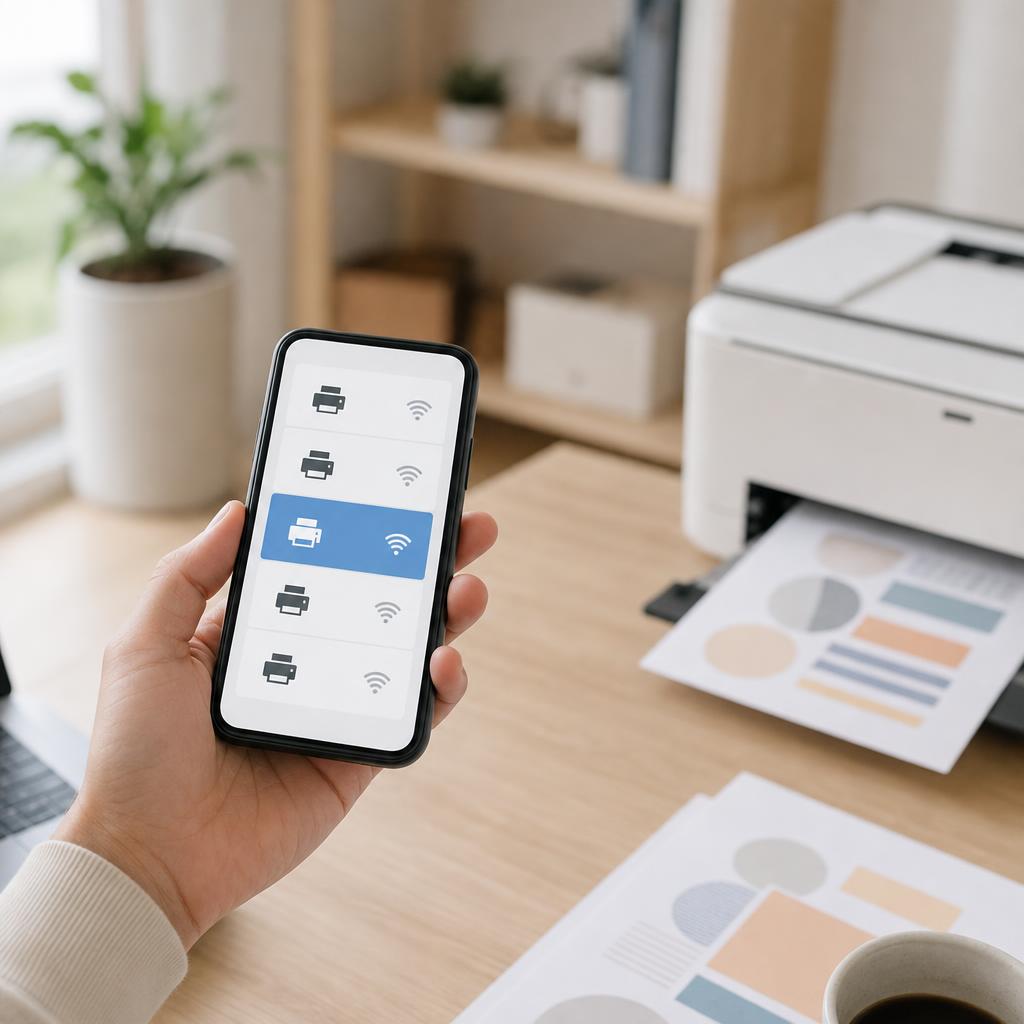
Why this works: Selecting the actual printer, rather than the default “Save as PDF”, is what directs your job to the machine. The first discovery can take a few seconds, after which the printer is remembered for next time.
Expected result: Your printer is selected in the dropdown and the preview updates to its paper size.
If the list stays empty or shows only “Save as PDF”, don’t force it — this points to a network or discovery issue covered in the troubleshooting tips below.
Your printer’s model name is shown at the top of the print preview.
-
Step 7: Adjust settings, then tap Print
Set the copies, colour or black-and-white, paper size, and orientation using the options above or beside the preview.
Expand “More options” if you need double-sided printing or a specific tray, where the printer supports it.
When the preview looks right, tap the round Print button (often a printer icon) to send the job.
Why this works: Checking the preview and settings before printing avoids wasted paper and ink on the wrong size or colour. Tapping Print then sends the job over Wi-Fi to the printer you selected.
Expected result: The job sends and the printer begins to warm up and pull in paper within a few seconds.
A brief “Printing…” notification appears and the printer starts.
-
Step 8: Install the maker’s app if it helps
If your printer didn’t appear, or you want scanning, ink levels, and extra features, install your brand’s official app from the Google Play Store.
Use the right one for your printer: HP Smart, Canon PRINT, Epson Smart Panel, or Brother Mobile Connect.
Open the app, let it search for your printer on the same Wi-Fi, follow its setup prompts, then print from within the app or the normal Share → Print flow.
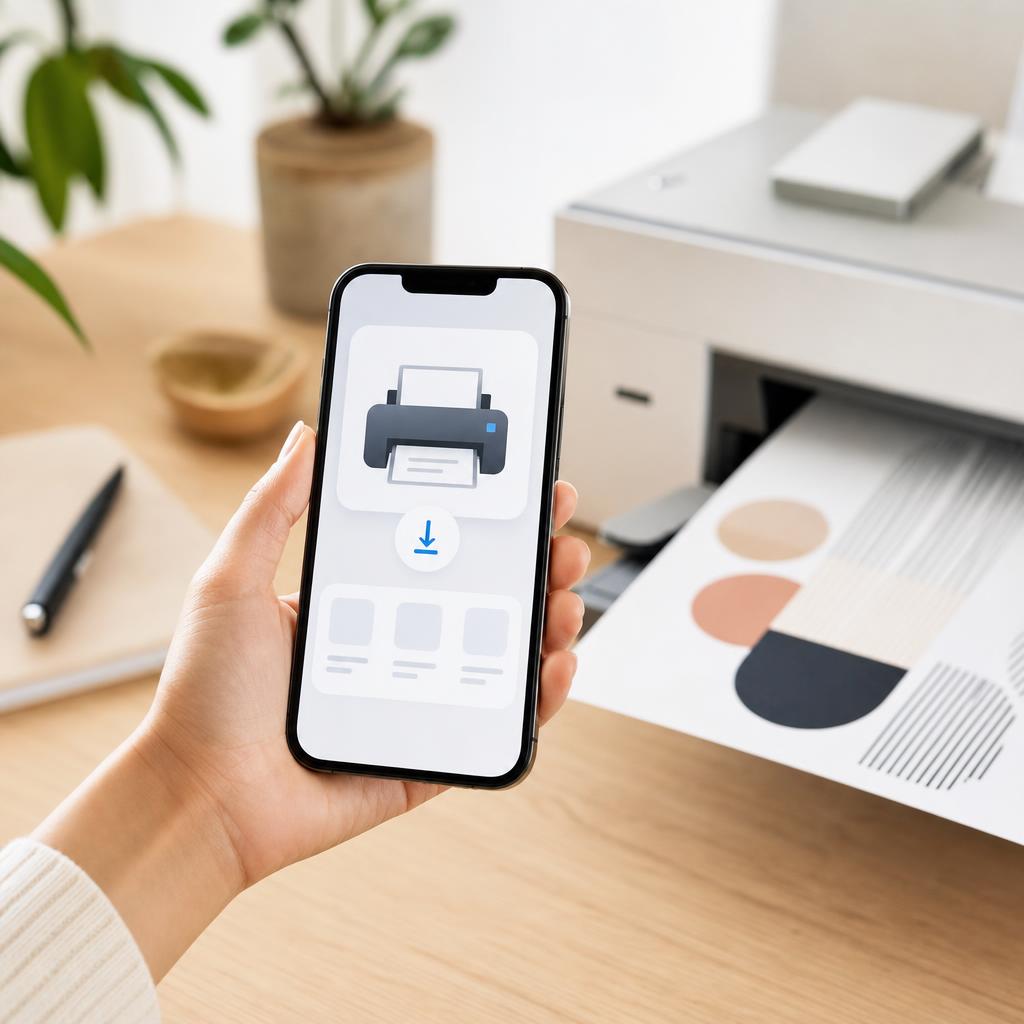
Why this works: The built-in service prints to most modern printers without any app, so an app is optional. It earns its place when a model isn’t discovered automatically, or when you want scanning, supply levels, and guided setup that the generic service can’t provide.
Expected result: The manufacturer app finds your printer and can print — and often scan — directly.
Only install the official app from the correct maker in the Play Store; avoid third-party “printer” apps that ask for unnecessary permissions.
-
Step 9: Use Wi-Fi Direct when there’s no shared network
On the printer, turn on Wi-Fi Direct from its Network or Wireless menu, and note the Wi-Fi Direct name and password it displays.
On your phone, go to Settings → Wi-Fi, tap the printer’s Wi-Fi Direct network in the list, and enter that password to join it directly.
Print as normal through Share → Print, or through the maker’s app, then rejoin your usual Wi-Fi afterwards.
Why this works: Wi-Fi Direct lets the phone connect straight to the printer’s own private signal, with no router in between — ideal when there’s no shared network or a guest network blocks discovery. Because it’s a temporary direct link, you’ll drop off normal internet while connected to it.
Expected result: Your phone joins the printer’s Wi-Fi Direct signal and can print without a shared router.
While on Wi-Fi Direct your phone usually loses internet access, so switch back to your home Wi-Fi once you’ve finished printing.
-
Step 10: If the printer isn’t found, restart both devices
Turn the printer off, wait a full 30 seconds, then switch it on and let it rejoin Wi-Fi completely.
Restart your phone, and if you use a VPN, switch it off before trying again as it can hide local printers.
Optionally restart your router too, then reopen the print preview and give the printer a few seconds to reappear.
Why this works: A restart clears stale network connections and prompts both devices to re-announce themselves over Wi-Fi, which resolves most “printer not found” cases. Turning off a VPN removes a common, easily missed cause of an empty printer list.
Expected result: After the restart, the printer reappears in the print preview and accepts jobs.
Never switch a printer off while it’s installing a firmware update; wait for that to finish first.
-
Step 11: Re-add the print service if it still fails
Go back to Settings → Printing, turn the Default Print Service off, wait a few seconds, and turn it on again to refresh discovery.
If your brand offers a print plugin (such as the Mopria Print Service or an HP/Canon plugin), install it from the Play Store to widen compatibility.
Confirm once more that the phone isn’t on a guest network or behind a Wi-Fi extender with a different name, then retry the print.
Why this works: Toggling the service forces Android to rescan the network from scratch, and a matching plugin can add support for printers the generic service misses. Re-checking the network rules out the extender and guest-network traps that quietly break discovery.
Expected result: The refreshed print service — with the right plugin if needed — lists your printer and prints successfully.
Your printer shows up again and a test job prints.
-
Step 12: Collect your print and confirm
Watch the printer pull in paper and print your page, and check the pull-down notification on the phone for a “Printed” status.
Inspect the sheet for the correct size, colour, and orientation you chose in the preview.
Print one everyday item — a photo and a document — to be sure it works reliably from the apps you actually use.
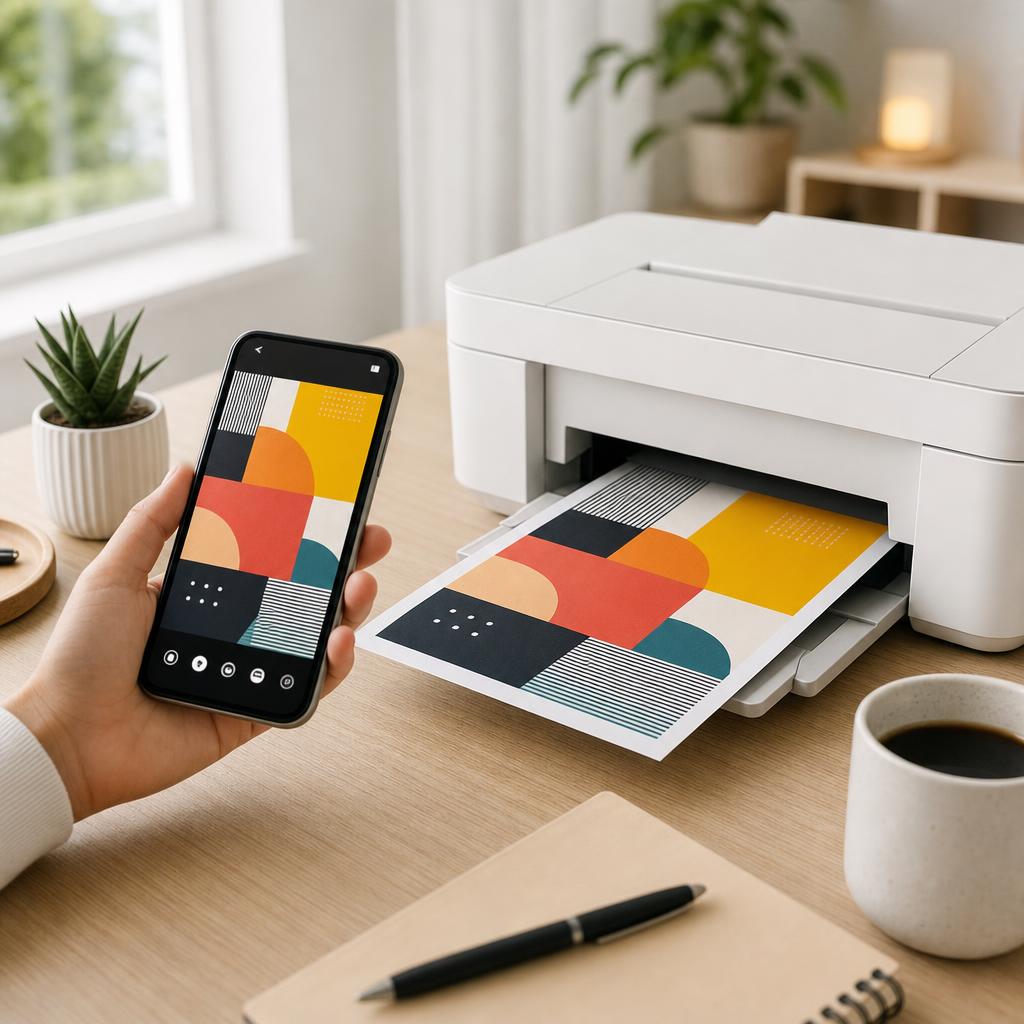
A clean first print confirms your phone, Wi-Fi, and printer are all working together. Why this works: A finished, correct print confirms the whole chain is working: the shared Wi-Fi, the print service, and the printer itself. Testing from more than one app proves it’s dependable rather than a one-off.
Expected result: A clean page prints on the first try, matching your preview, from your everyday apps.
Your chosen photo and document both print correctly from your phone.
Tip
Printer Tip
Don’t assume the network is fine — always confirm the phone and printer share the exact same Wi-Fi name before printing.
Other solutions to try
If the steps above didn't do it, these fixes resolve the less common cases.
When the printer won’t appear at all
An empty printer list is almost always a network or discovery problem rather than a broken printer.
- Double-check the phone and printer are on the exact same Wi-Fi name, not a “-5G”, guest, or extender variant.
- Switch off any VPN on the phone, then reopen the print preview and wait a few seconds for discovery.
- Toggle the Default Print Service off and on, or install the Mopria Print Service to widen printer support.
- As a fallback, use the printer’s Wi-Fi Direct signal, which needs no shared router at all.
Guest networks, extenders, and mesh systems
Separate or isolated networks are a frequent, well-hidden reason phones can’t see printers.
- Avoid guest Wi-Fi for printing — it usually blocks devices from seeing each other by design.
- If a booster created a network with a different name, join the phone to the same one the printer uses.
- On a mesh system, keep both devices on the main network name rather than any separate IoT or guest band.
- Where possible, move the printer and phone within good range of the same access point during setup.
VPNs and work profiles blocking discovery
Security tools that reroute or partition your phone’s traffic can quietly hide local printers.
- Turn off any active VPN app before printing, then switch it back on afterwards if you need it.
- If your phone has a separate work profile, try printing from the personal profile instead.
- Check for a “private DNS” or “block local network” option that may be interfering, and pause it to test.
- Restart the phone once the VPN is off so it re-scans the local network cleanly.
When an app prints more reliably than the built-in service
For a few models, the manufacturer app is simply the smoother path to printing and scanning.
- Install the official app for your brand: HP Smart, Canon PRINT, Epson Smart Panel, or Brother Mobile Connect.
- Let the app discover the printer on the shared Wi-Fi and complete any guided setup it offers.
- Update the printer’s firmware from within the app if it prompts you, without interrupting the update.
- Print and scan from the app, and use it to check ink or toner levels at a glance.
Confirm it's working
Tick these off to be sure the problem is fully resolved.
Keep it from happening again
A few habits that stop this problem coming back.
- Don’t assume the network is fine — always confirm the phone and printer share the exact same Wi-Fi name before printing.
- Avoid printing over guest Wi-Fi; it usually blocks devices from seeing each other, so use your main network instead.
- Don’t leave a VPN running when you can’t find the printer — switch it off first, then turn it back on afterwards.
- Don’t install random third-party “printer” apps; use only the official maker’s app when you genuinely need one.
- Don’t ignore a Wi-Fi extender’s separate network name — join the phone to whichever network the printer is on.
- Don’t force a print job when the printer isn’t listed — fix discovery first, or it will silently sit in the queue.
Frequently asked questions
Was this guide helpful?
Your feedback helps us keep these steps accurate.
Thanks for your feedback!
Written by
The Guts Guide Editorial Team · Mobile Printing Specialists
Reviewed by
Daniel Owens · Print & Network Technician
Last updated
Jul 14, 2026
Continue Reading
Pick up where you left off with the next guide in your troubleshooting journey.
Related Guides
More troubleshooting walkthroughs you may find useful.
Buying Guides
Plain-English comparisons and pre-purchase checklists — find the right printer before you buy.