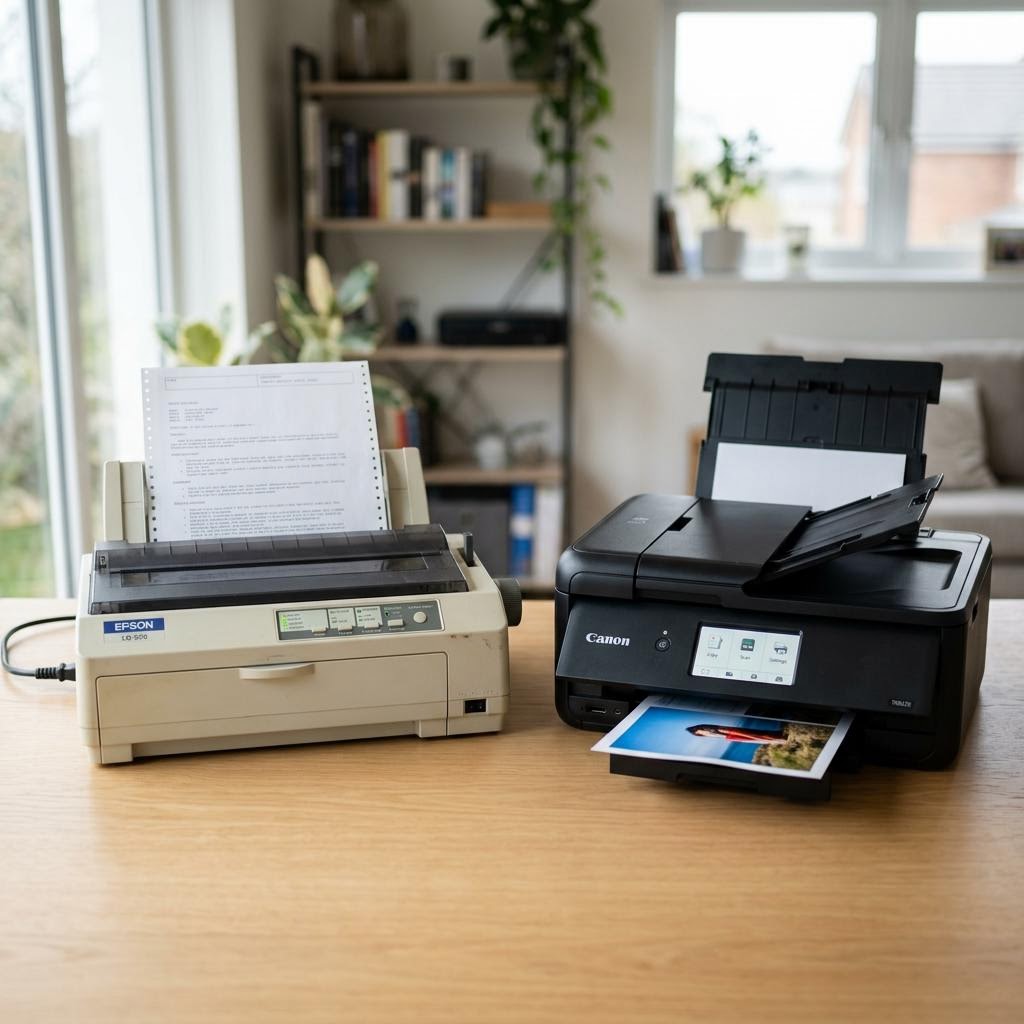

A printer that works reliably does not require expensive hardware — it requires the right location, a solid network connection, consistent basic maintenance, and careful paper handling. Most printer problems are preventable, and setting things up correctly from the start saves significant frustration.
Choosing the Right Location
Where you place your printer affects its reliability, its network connection, and its longevity. The ideal location is stable and level, well-ventilated, within strong Wi-Fi range, and away from direct sunlight and heat sources.
Direct sunlight degrades ink cartridges and toner more quickly and can warp internal components over time. Heat from radiators or heating vents causes similar problems. A flat, stable surface is important because printers with paper trays need level ground to feed paper consistently.
Connecting to Your Network
For home setups, wireless connection is the most convenient option. Always connect your printer to your main home network, not a guest network. Printers and computers need to be on the same network to communicate directly.
Most home routers assign IP addresses dynamically, which means the printer's address can change after a router restart. Assigning the printer a reserved IP address in your router's settings ensures it always receives the same address, preventing it from appearing to disappear from other devices.
Routine Maintenance
Inkjet printers require regular use to stay in good working order. Ink in the nozzles can dry and cause blockages when a printer sits unused for extended periods. Printing at least once a week — even a simple colour test page — keeps ink flowing through the system and prevents nozzle clogging.
Clean the exterior, the paper tray, and the area around the paper path regularly to remove dust. Dust that enters the printer through the paper tray can cause jams and affect print quality over time. Many printers include a self-cleaning cycle accessible through the settings menu.
Paper Storage and Handling
Paper quality and storage condition have a measurable effect on print results. Store paper in its original sealed packaging or in an airtight container in a dry room. Paper that absorbs moisture from the air causes smearing, jamming, and poor print quality — particularly visible in inkjet output.
When loading paper, fan the stack first to separate sheets and reduce static. Align it carefully against the tray guides and make sure the guides sit snugly against the paper without compressing it. Misaligned paper and overfilled trays are the two most common causes of paper jams.
Power Protection
Printers are sensitive to power interruptions and voltage fluctuations. A power cut during an active print job can corrupt the job data, damage the print head, or in some cases affect the printer's firmware. A surge-protected power strip is a simple and worthwhile precaution.
For printers not used daily, consider turning the device fully off during extended periods rather than leaving it in standby. This saves energy, reduces wear on standby components, and means the printer performs a brief self-check when next switched on.
Verifying the Complete Setup
Once the printer is connected and configured, print a test page from every device you intend to use — each computer, phone, and tablet. This confirms the connection is working on each device and that the printer is using the correct driver or protocol.
After adding the printer, check that it remains visible after a router restart. If the printer disappears, the likely cause is a changed IP address — resolved by setting a reserved IP in the router settings.